QuickBooks Integration
Last updated: January 8, 2026
QuickBooks Integration helps streamline your accounting by syncing invoices and taxes between platforms. Once set up, you can easily sync invoices from tonomo to QuickBooks or vice versa. This is especially helpful for businesses that rely on QuickBooks for tax reporting and financial management.
QuickBooks Integration: Step-by-Step Setup
Connect Your QuickBooks Account
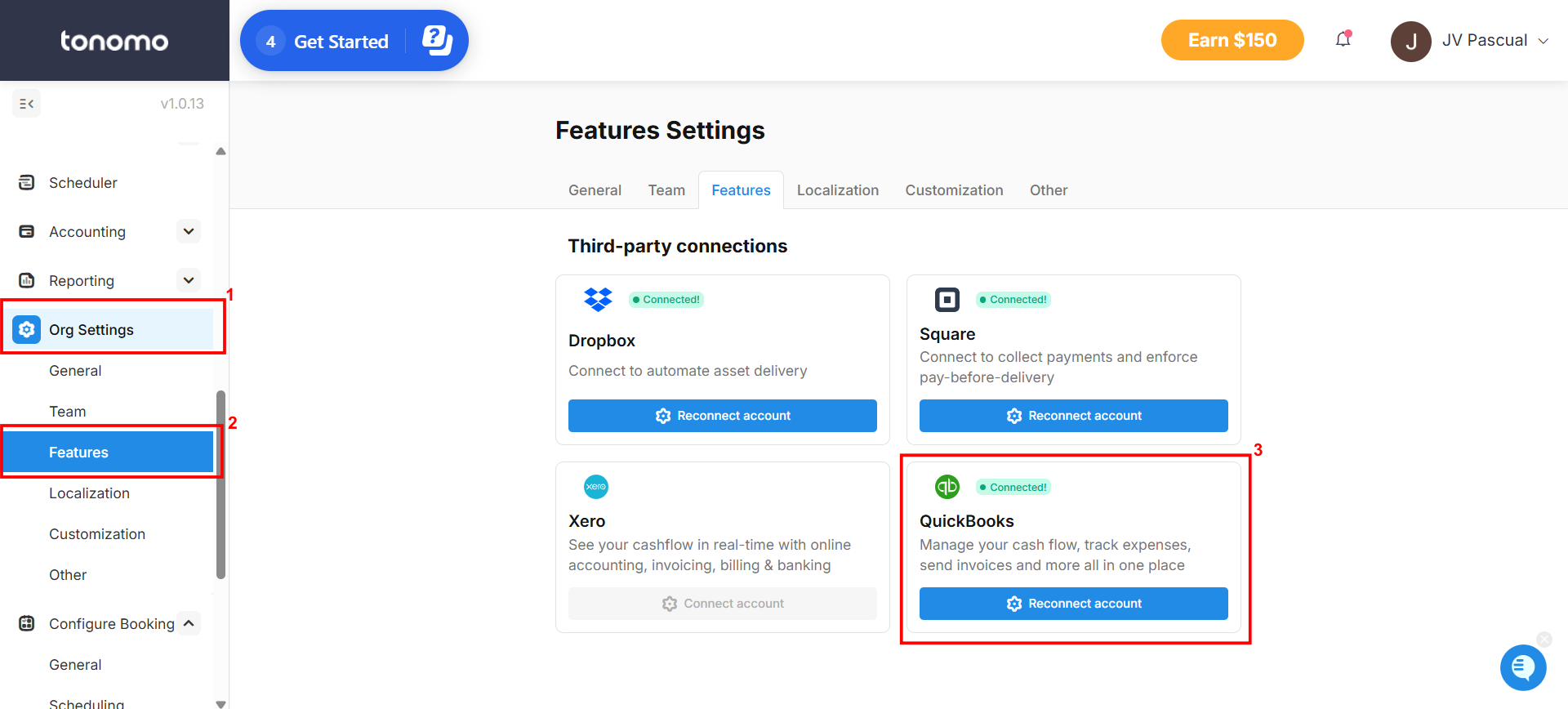
Head over to Org Settings > Features, and connect your QuickBooks Account.
Link Your Contacts
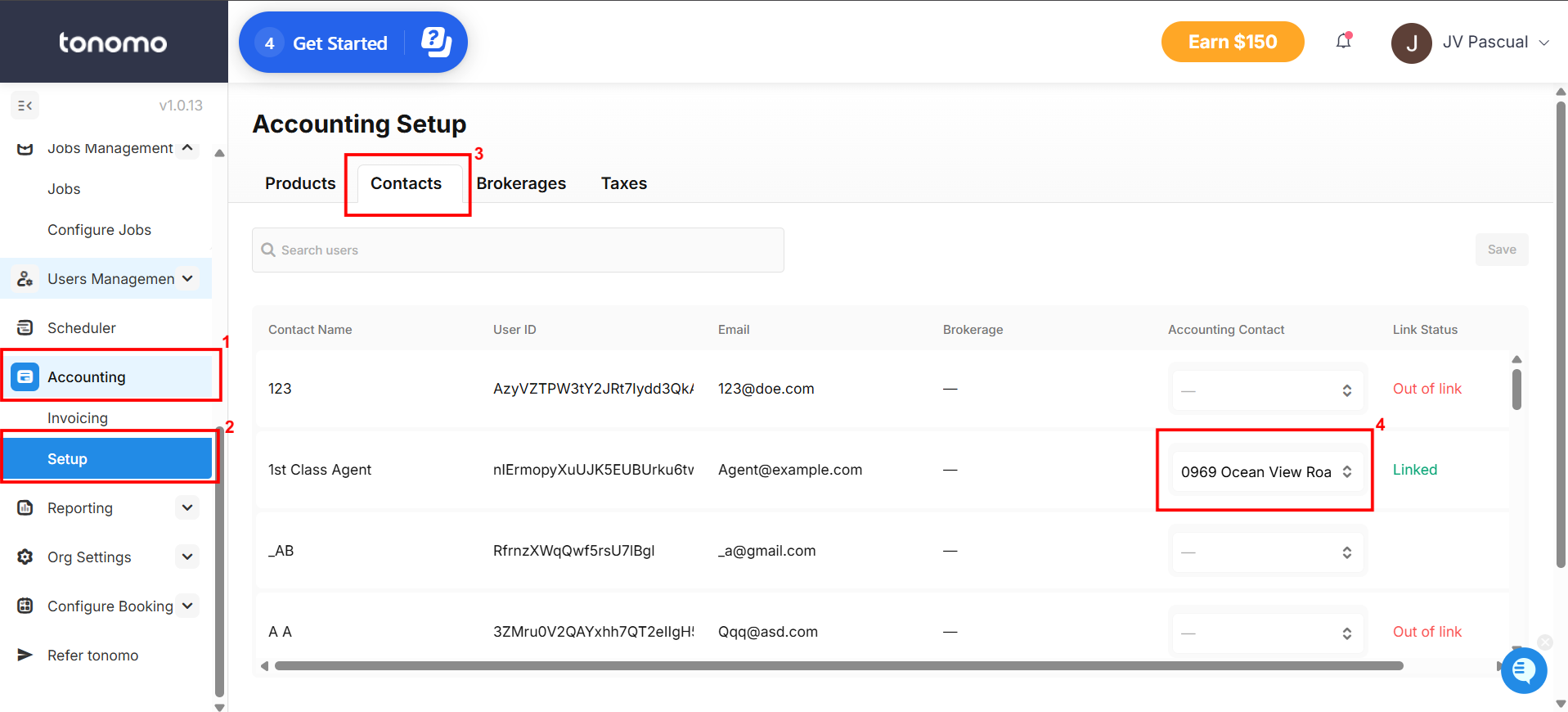
Once connected, navigate to Accounting > Setup and open the Contacts section. Link your tonomo users to the corresponding existing QuickBooks contacts. If linked successfully, the status will display “Linked.”
(Optional) Link Your Products/Services
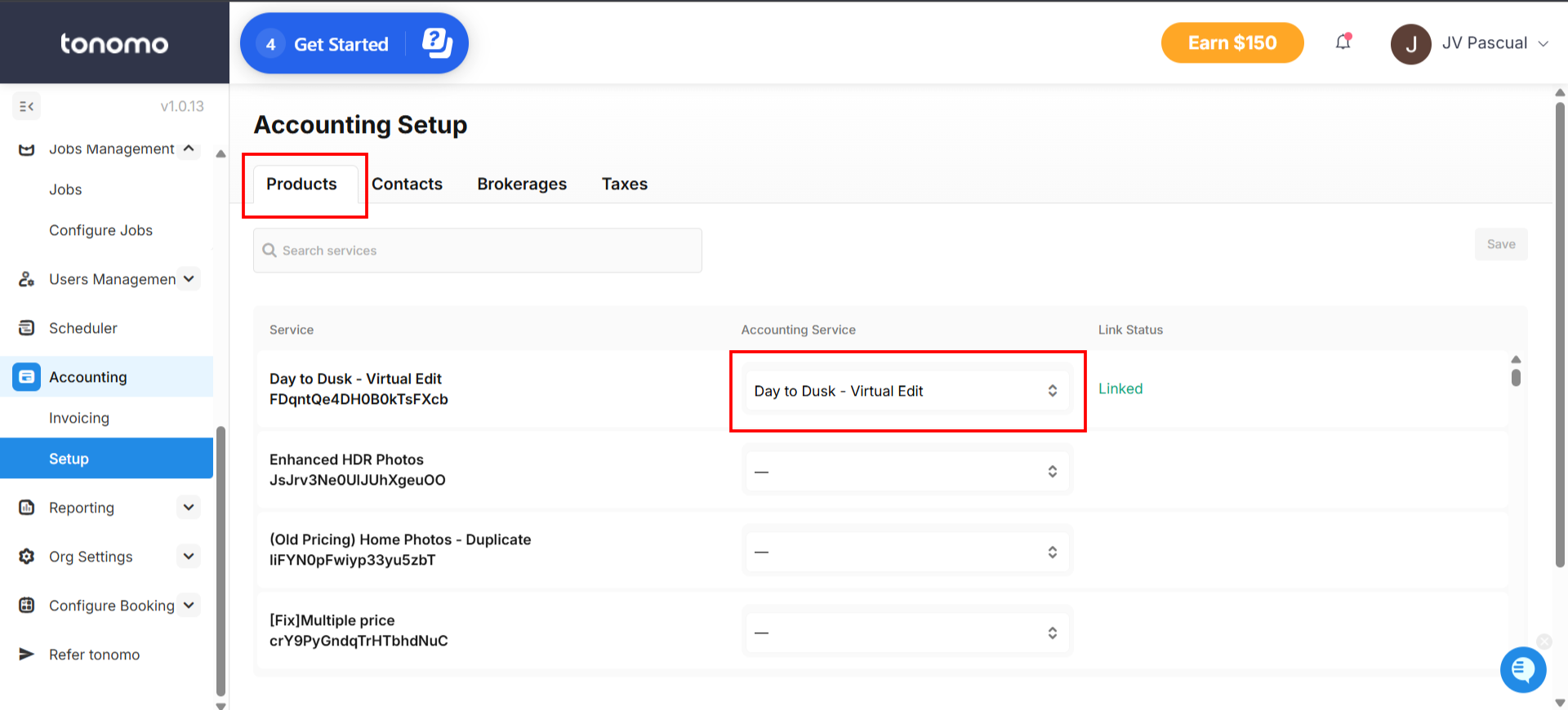
You can also go to the Products section and connect your tonomo services to the matching QuickBooks services. If linked successfully, the status will display “Linked.”
How to use QuickBooks Integration
Once you’ve completed the setup, go to Accounting > Invoicing to start syncing your orders. From there, filter the payment status to “Paid.” You can also use the other filters at the top to refine your list.
After filtering, you can select and sync multiple orders at once, or choose to sync a single order if you prefer. Tonomo supports both options for your convenience.
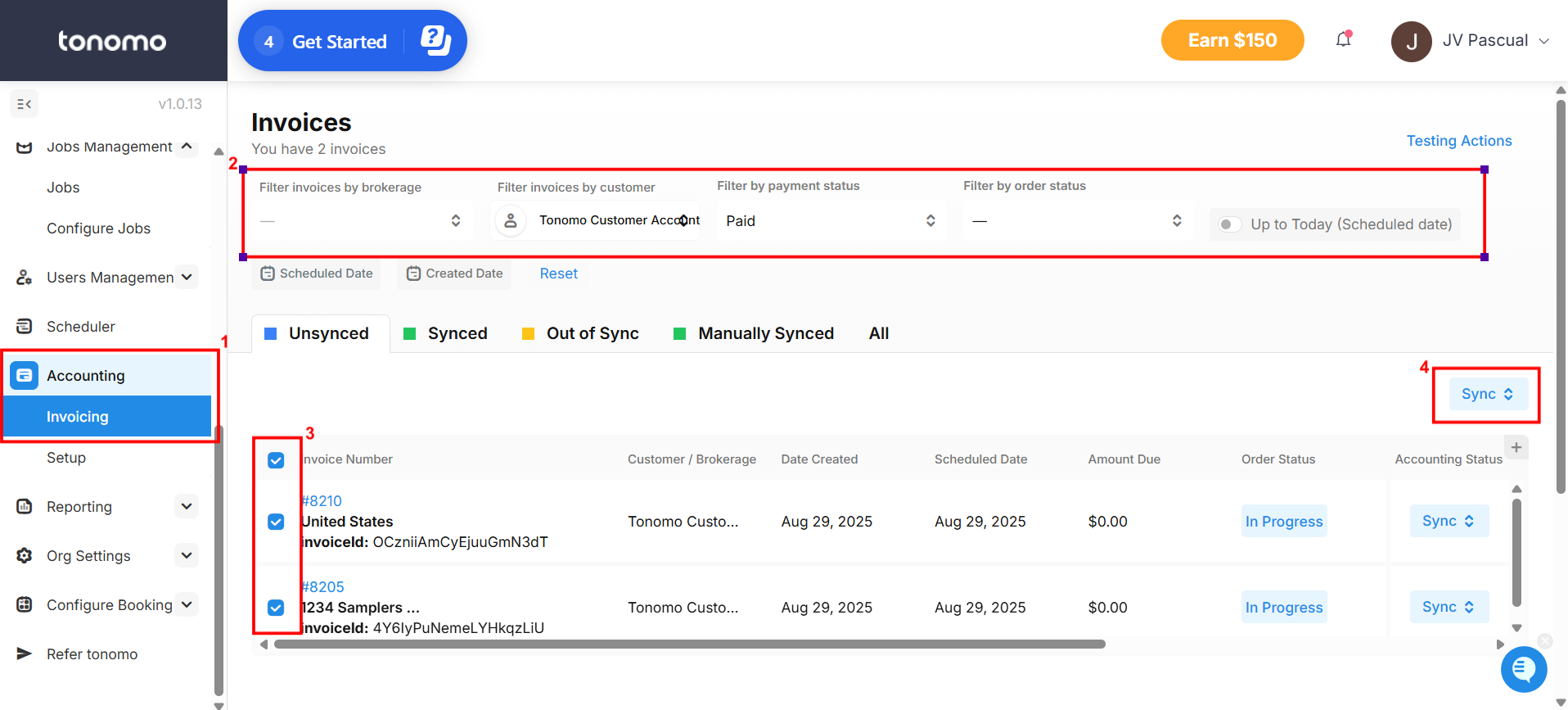
The best use case for this feature is to run it once a month or every other month. Simply filter all the paid invoices for that period, then sync them together. This makes it much easier to handle your tax reporting and overall financial management.