Packages and Custom Packages
Last updated: August 11, 2025
Packages
You cannot complete Packages without setting up Services. Complete the Services section before continuing here.
Packages are a sales and marketing tool for you to bundle standard Services together into a grouping, typically with a price break. This also improves the booking process by enabling your Agents to check out in a few clicks.
A common technique is to offer "Essentials," "Plus," and "Premier" packages, providing a clear upsell path for more premium services an Agent wouldn't typically consider. Here is one example of what that might look like:
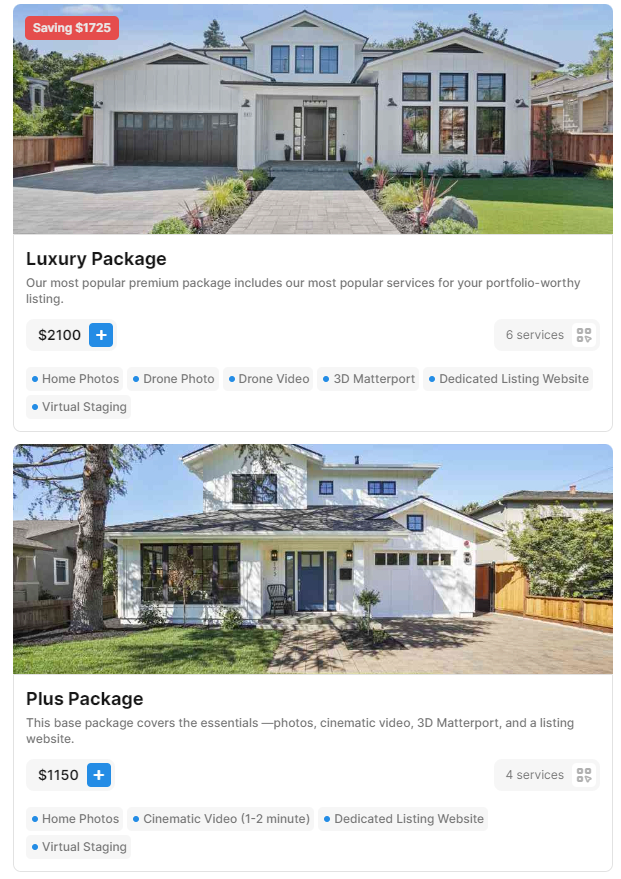
Setting up Packages is easy because your Services are all ready to go. Start by navigating to Configure Booking > Packages.
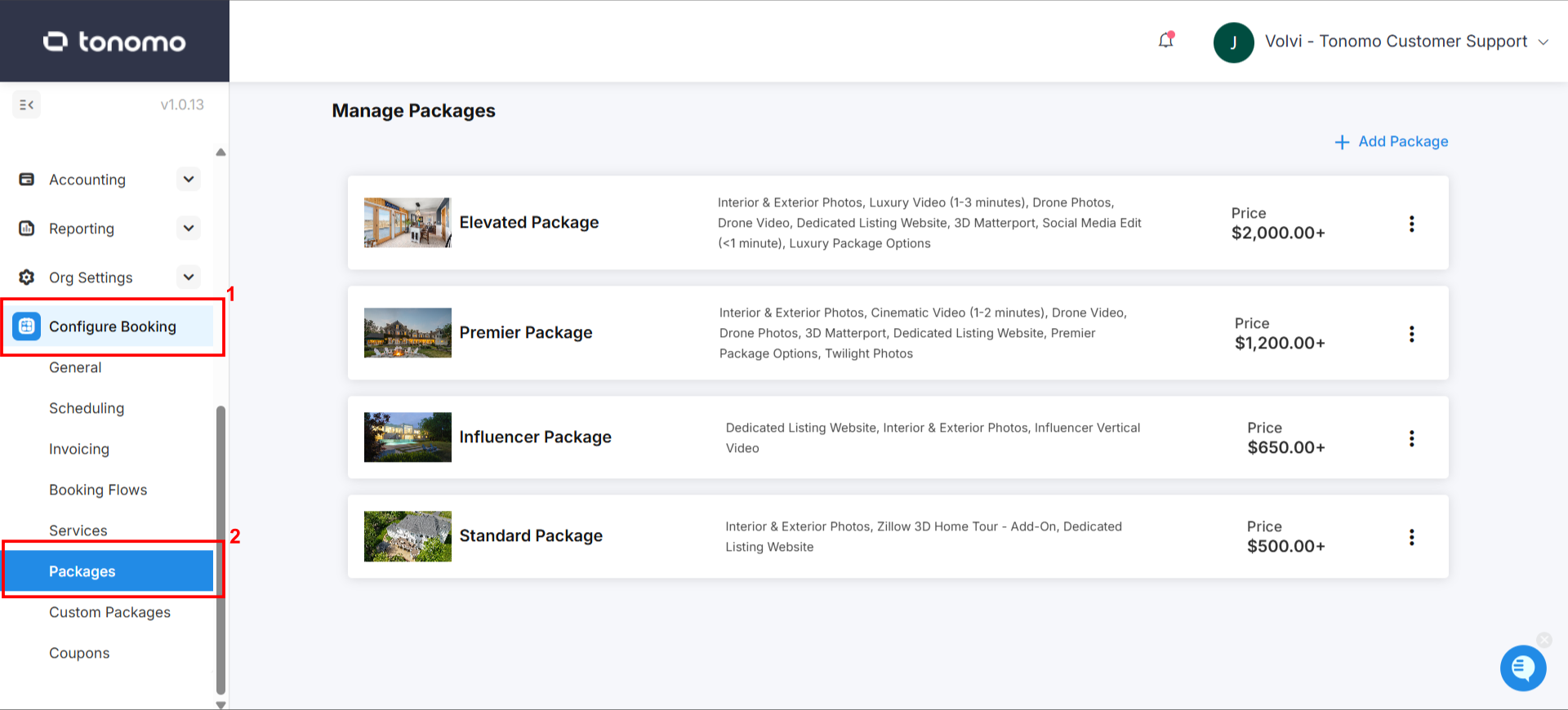
Creating Packages
To create a Package, click + Add Package in the top right corner.
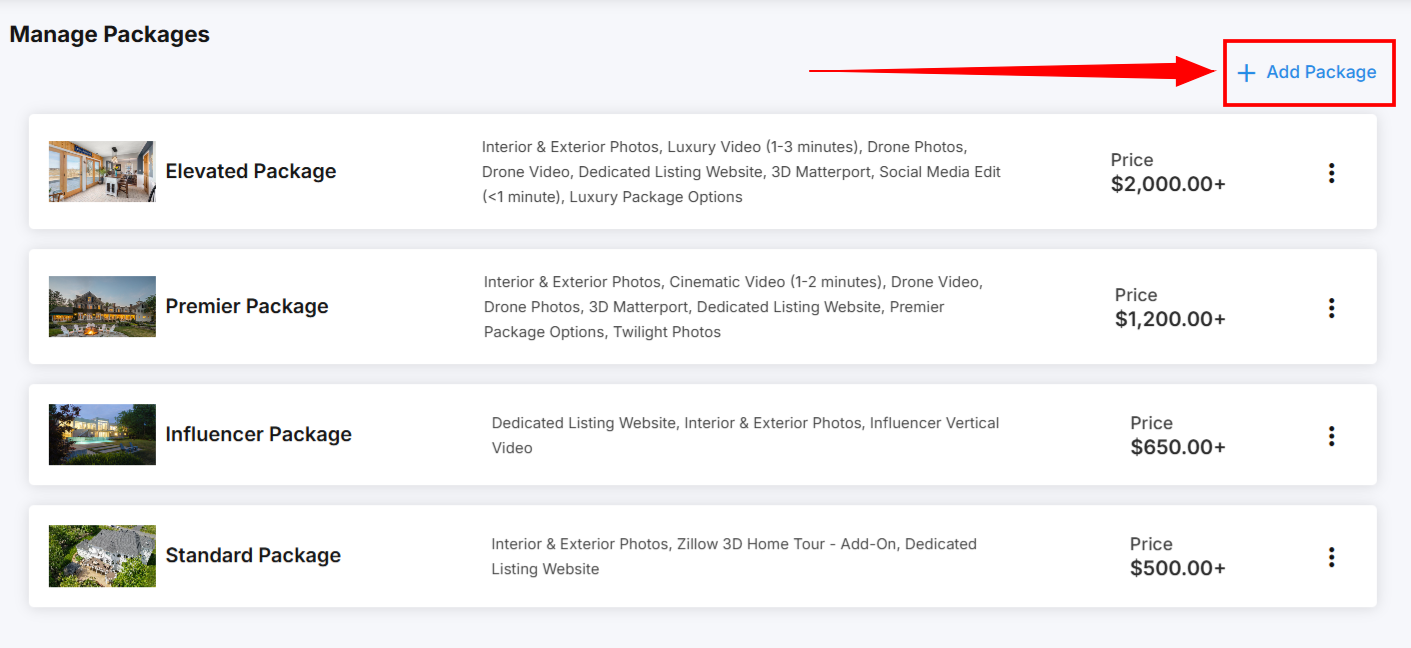
This will take you to a new window with quite a few options. Let's break that down.
General Information
This first section should look familiar to Services. You need to select a thumbnail, name, description, and price. On the second photo below is a visual representation of your listing when you enter the information below.
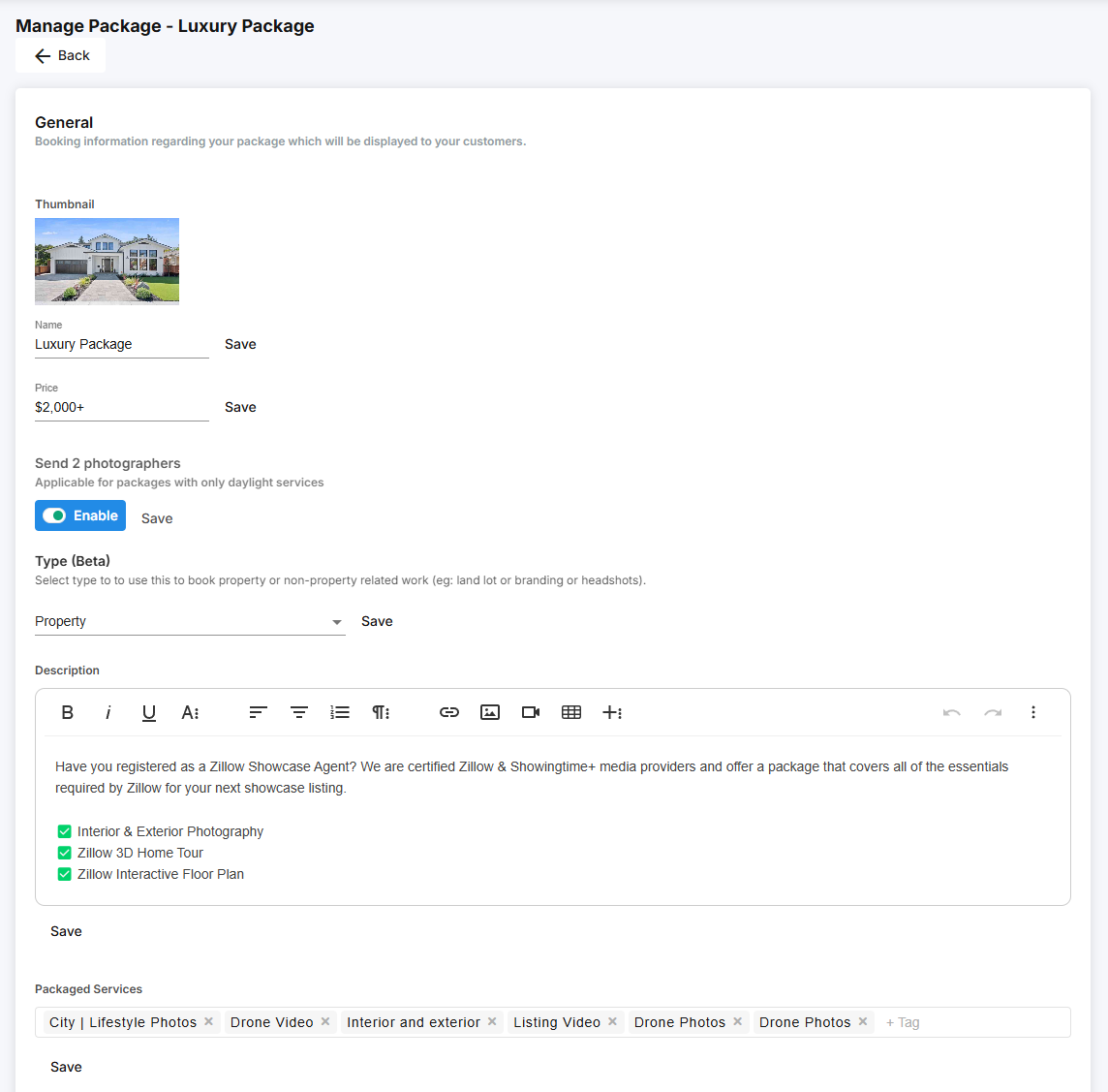
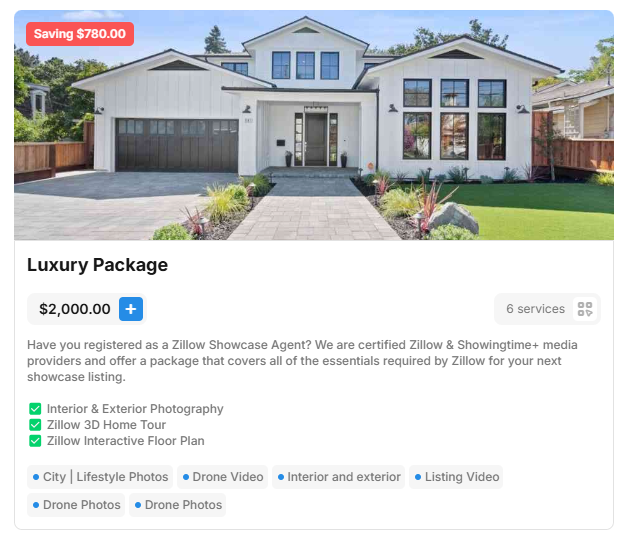
The size of the Package thumbnails is 600x230. Our recommended resolution is 1280x540.
The Price field is a "default" price all Agents will see if you aren't using Dynamic Pricing. If you are using Dynamic Pricing, the price displayed to the customer will be different than what you enter here because we'll customize the price depending on the size of the project.
Enable the Send Two Photographers feature to assign two photographers per package when needed. This is especially useful for long or complex shoots that might be too much for one photographer. You can customize which shoots require two photographers and which don’t.
Choose the package type that best fits your needs. Selecting the right package type ensures accurate pricing and a smoother booking process:
Property – Ideal for real estate listings, this works with sq ft pricing using Dynamic Pricing.
Land Lot – Instead of square feet, this option automatically uses acres as the unit of measurement.
Branding – Designed for branding shoots, this option doesn’t require a unit of measurement since pricing is based on the Branding Booking flow.
For the Description, we recommend only one short sentence. It should be just enough to differentiate it from other Services without turning your booking process into a wall of text.
Under Packaged Services, you will select the Services (both Core and Add-On) that you included in this package. Click the box and start typing a name of a service, and the system will show you the options you can include.
Additional Service Details
To enhance the presentation of your Packages, we support a number of Additional Service Details that are appropriate for one kind of Package or another. To learn more about this, please refer to this section.
Square Foot Pricing
Square Foot Pricing uses the square footage your client enters at the beginning of the booking process. By indicating a specific price per square footage tier, the system will automatically display the correct price during booking. This setup is ideal when you offer different pricing based on property size.
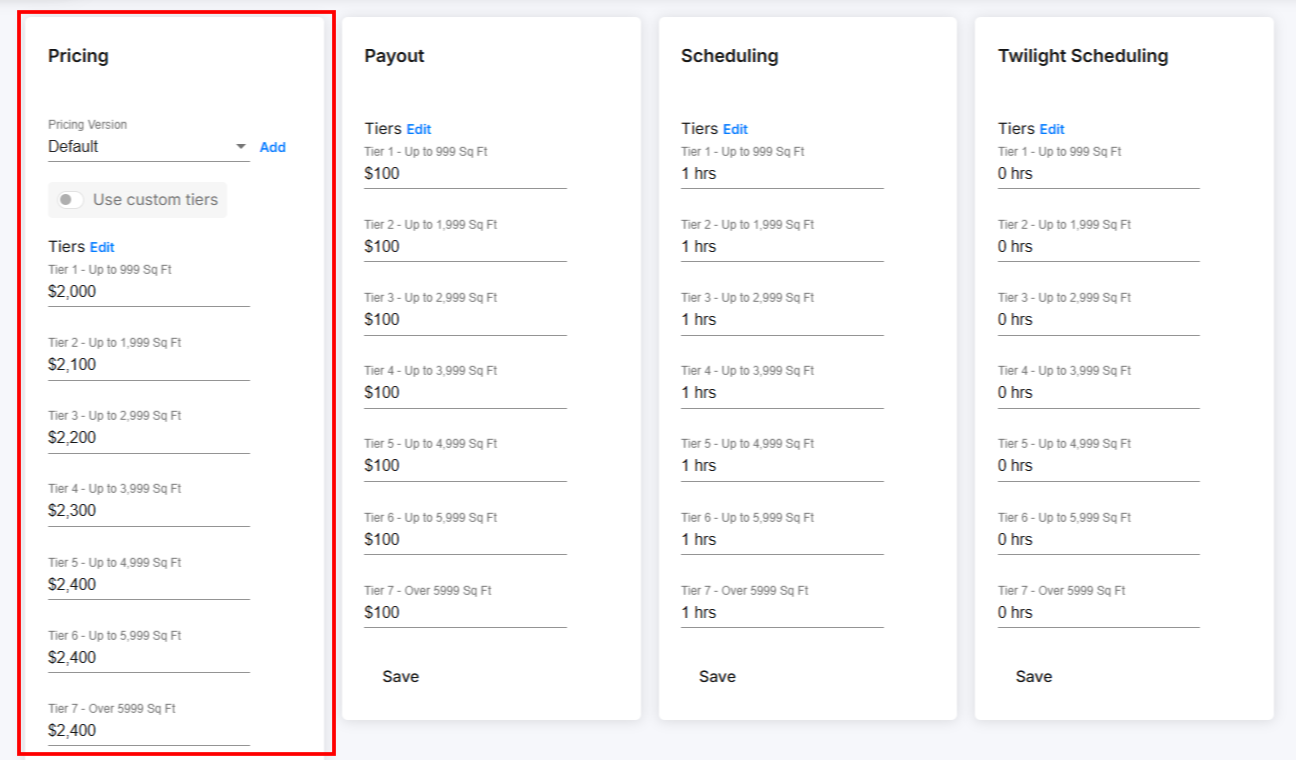
If you prefer to offer a flat rate across all square footage, simply fill out the first tier and click Save.
Custom Tier Pricing
This pricing method allows you to customize the pricing and create a unique name for every tier based on a specific square footage range. For example below, you can see different tier names and adjustments for every square footage.
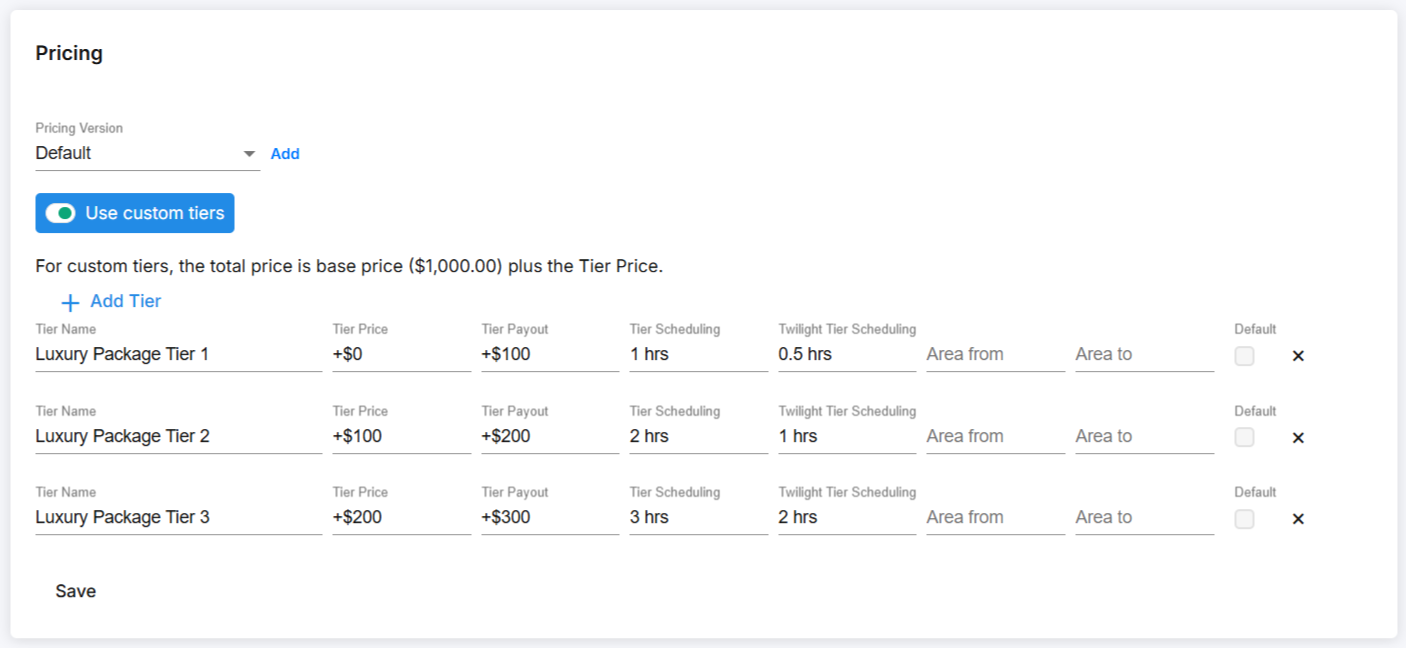
Tier Price works differently for Custom Tiers. The Total Price for each tier is going to be the amount you enter PLUS the base price you entered at the top of the page.
So in the above example, the total price for the first tier is $2,300, while the total price for the second tier is $2,400.
Always click "Save" once editing is done.
Payout
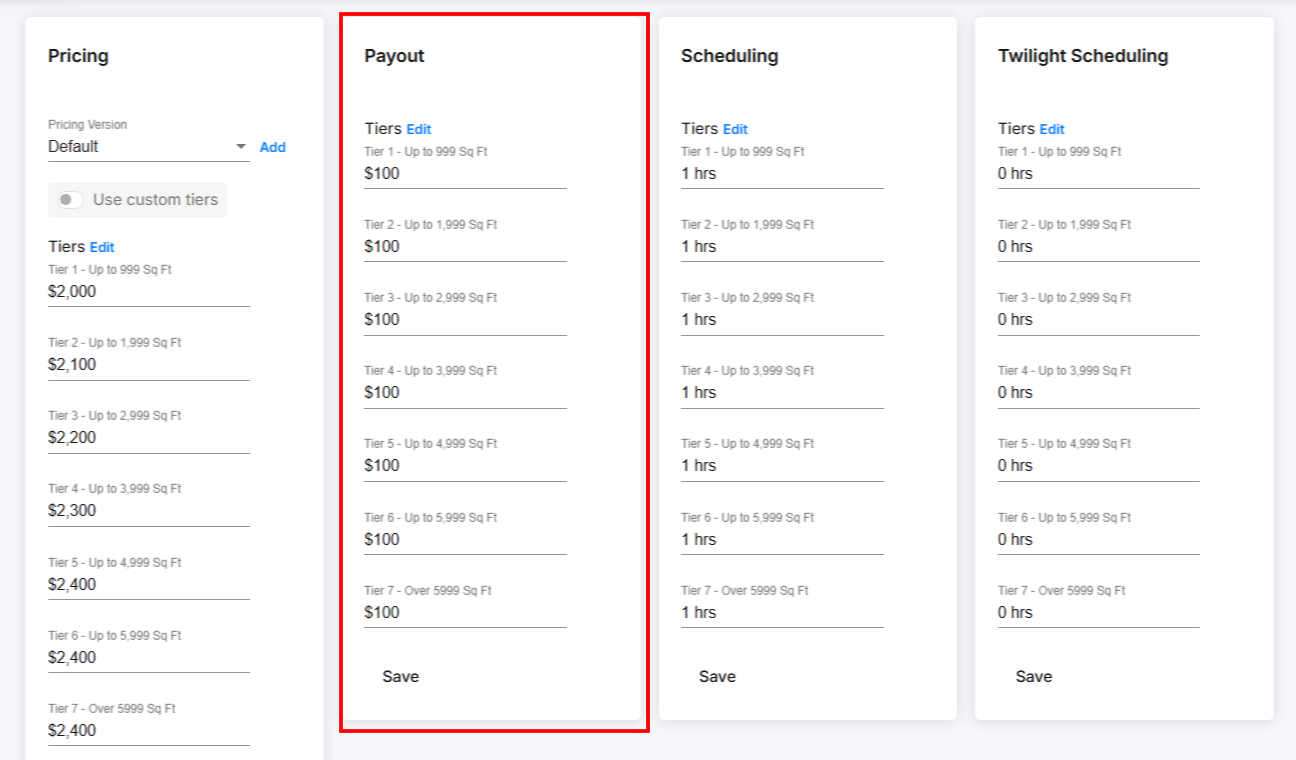
Tier Payout or Contractor Payout refers to how much you want to pay each employee for completing a specific Service or Package per tier. This payout will automatically appear in the Contractor Reporting section for easy tracking.
Scheduling
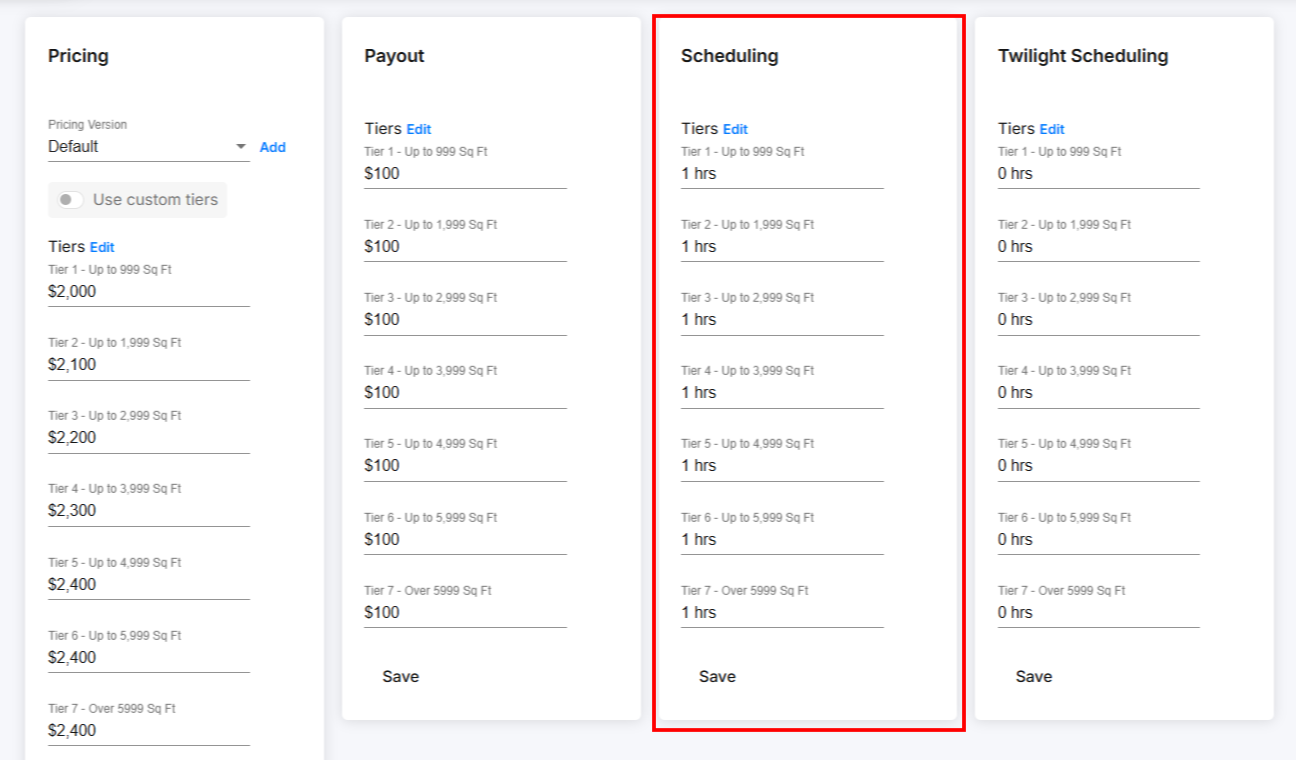
Tonomo includes advanced Scheduling features, allowing Agents to book the time(s) that work for them before they complete the booking. This informs and expedites the project management process. For each Package, you need to specify how long your employee(s) will spend on-site with the agent. This does not include the time spent editing or managing the project.
Twilight Scheduling
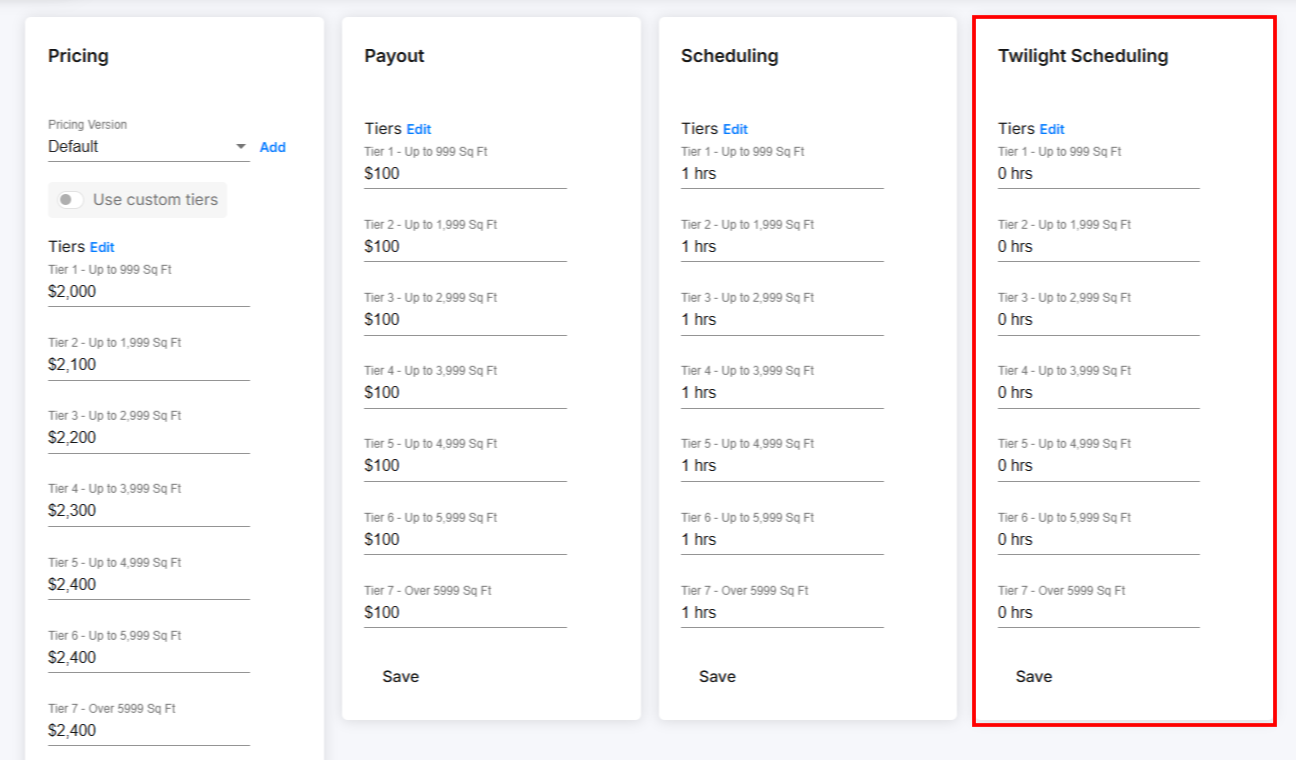
Enter the amount of time your photographer will require onsite and for Twilight hours only. So if the total package requires 3 hours and 2.5 hours of that are for the daylight components, enter 0.5 for the Twilight Scheduling.
Double Check your Work
By now, you should have your first Package that includes at least a couple of Services. Repeat the above steps for each Package.
We recommend doing a review to make sure your pricing and scheduling makes sense. For example, if a Package includes photos and video together that are typically $100 and 1 hour a piece as individual Services, make sure that the Package is around $200 and 2 hours. You may offer a price break of $175, for example, but you generally wouldn't want the Package to be more expensive than the two services.
Custom Packages
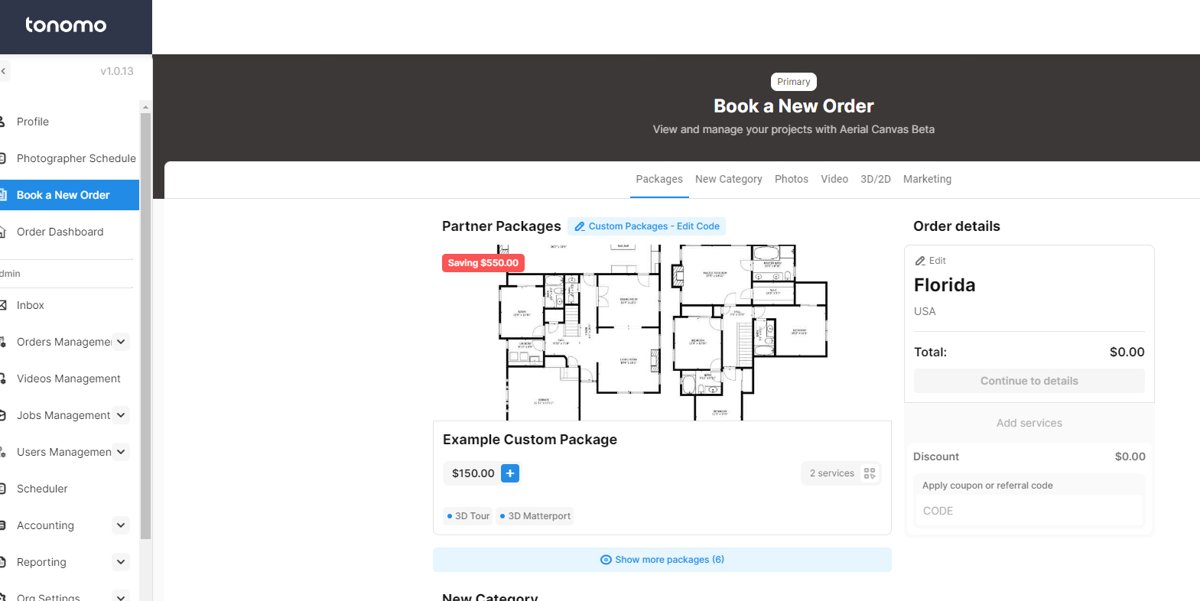
Custom Packages allow you to offer unique rates and combinations of services for partnerships you've negotiated. If a brokerage has custom pricing for your Bronze, Silver, and Gold packages, for example, you can set those up in their own pricing page without impacting the packages you offer normally.
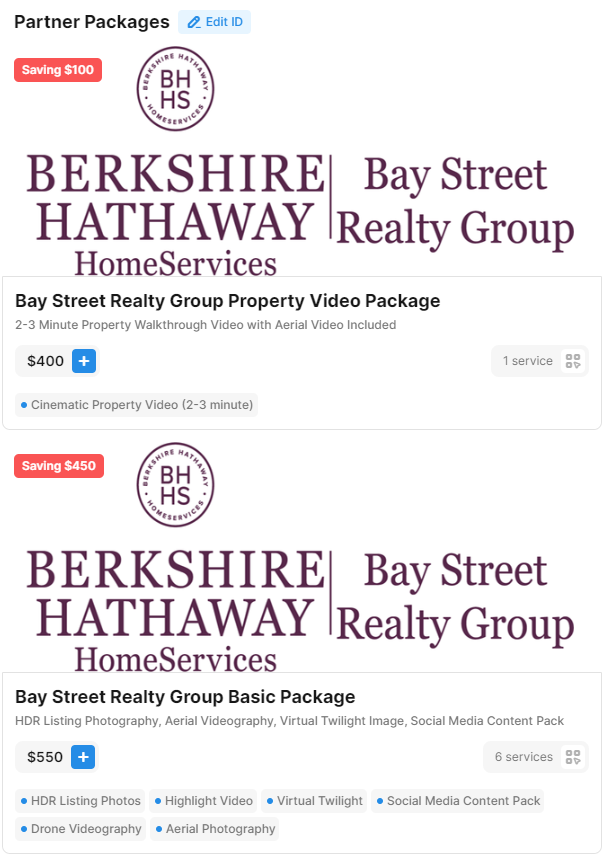
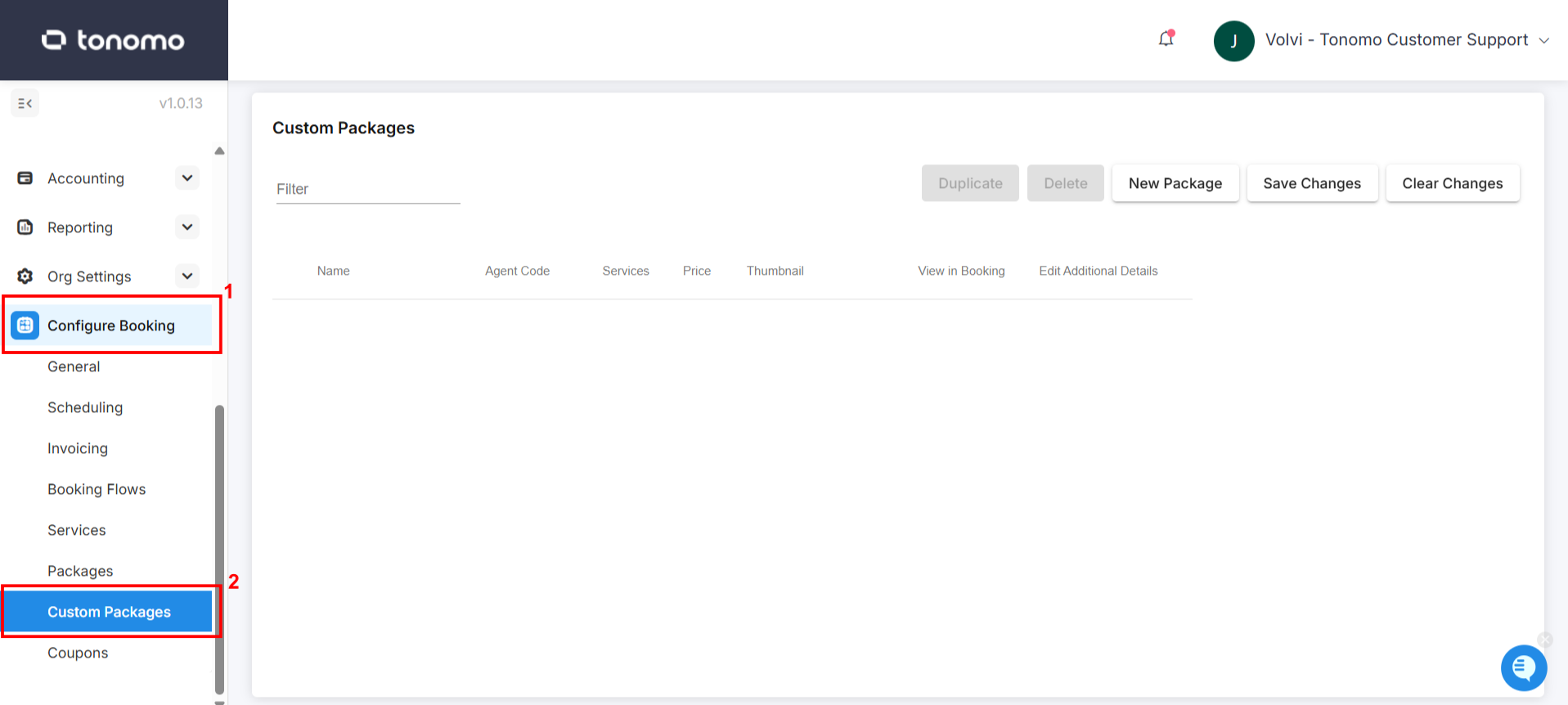
Setting up Custom Packages is similar to our normal Packages. First, instead of clicking Packages, click Custom Packages just below.
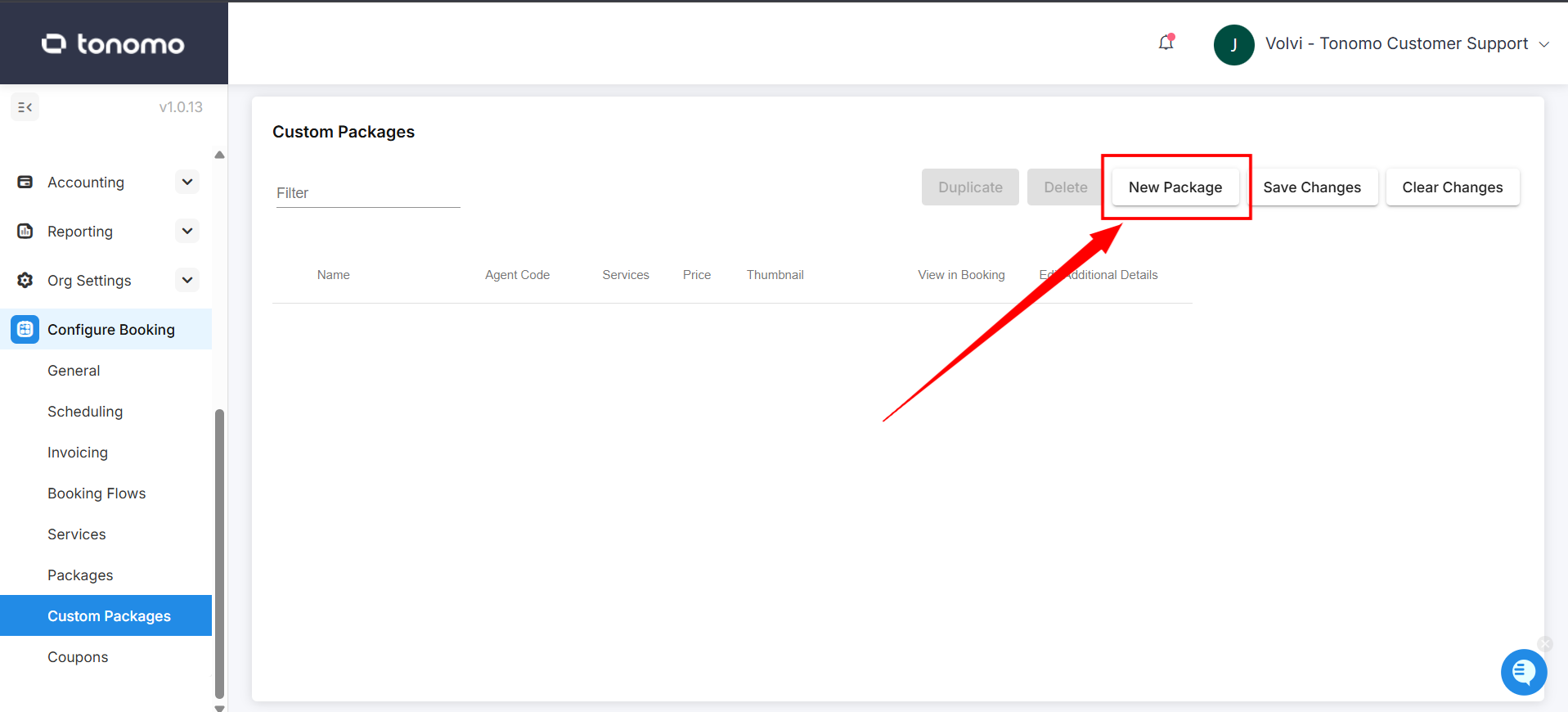
Then, click New Package.
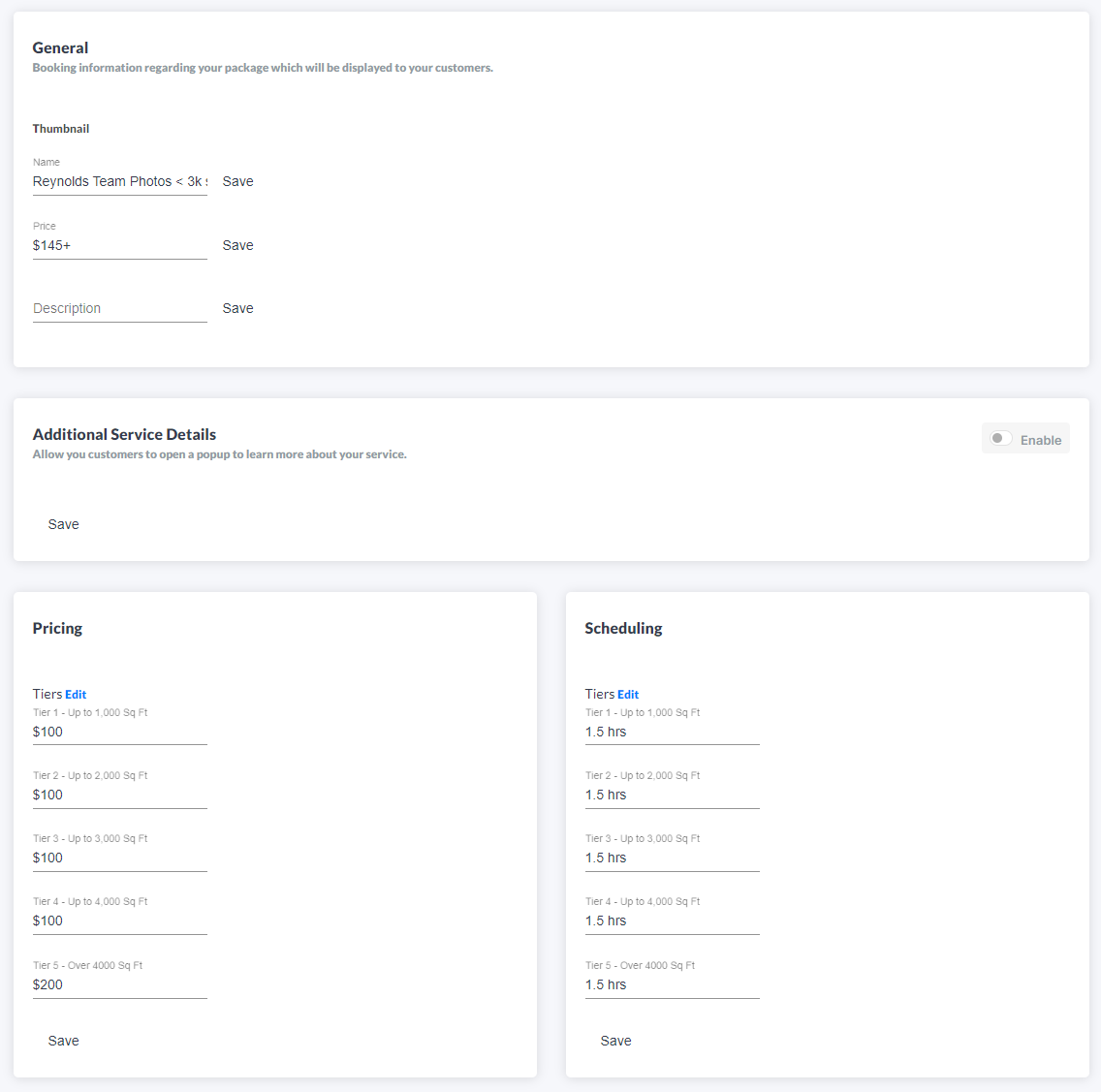
From there, enter all the information for the Custom Package and click Save Changes at the end. The Agent Code is what designates that Custom Package as part of a collection. So every Custom Package with the code "ACME" will be displayed together when an Agent goes to that Custom Package booking page.

Once done, click the Edit Additional Details icon and you can fill out the Custom Packages details like you would for a normal Package.
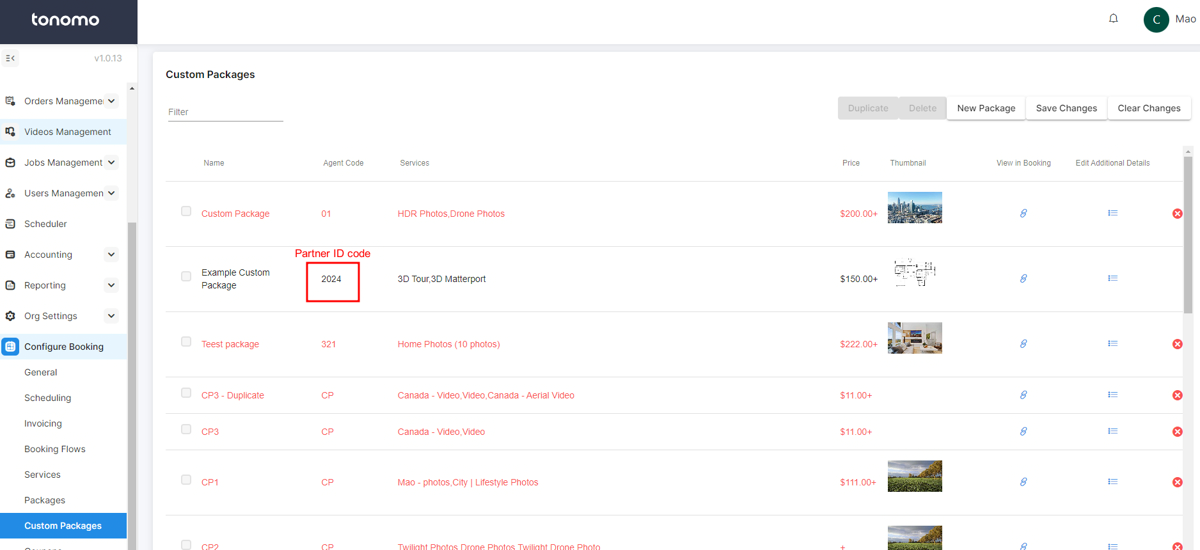
Finally, if you want to see all the Custom Packages for a specific Agent Code, just click the link button under View in Booking to the right of one of those Custom Packages.

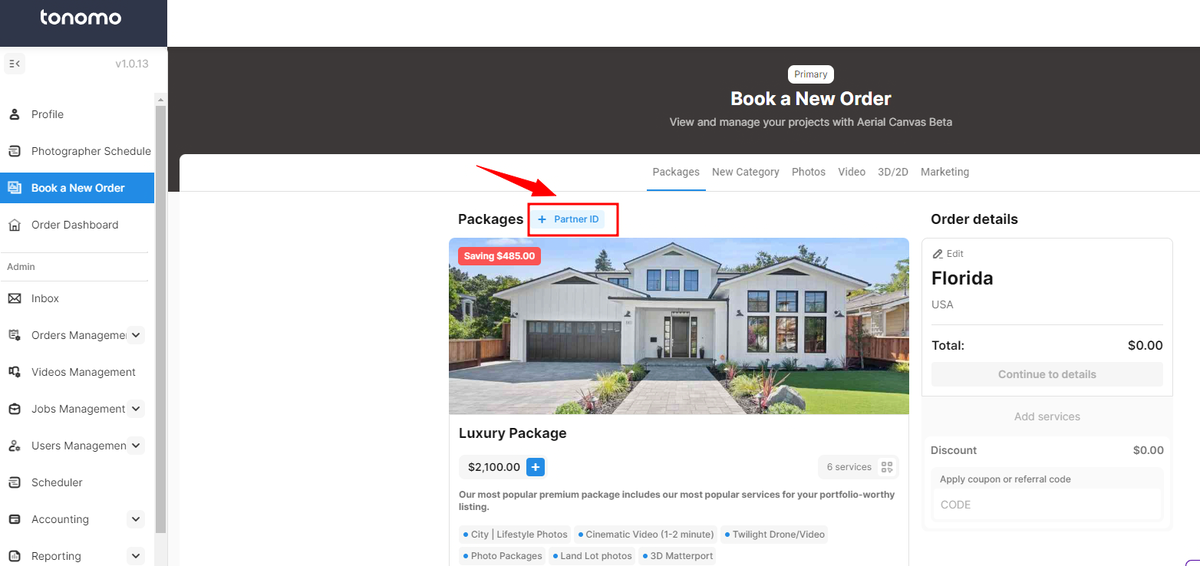
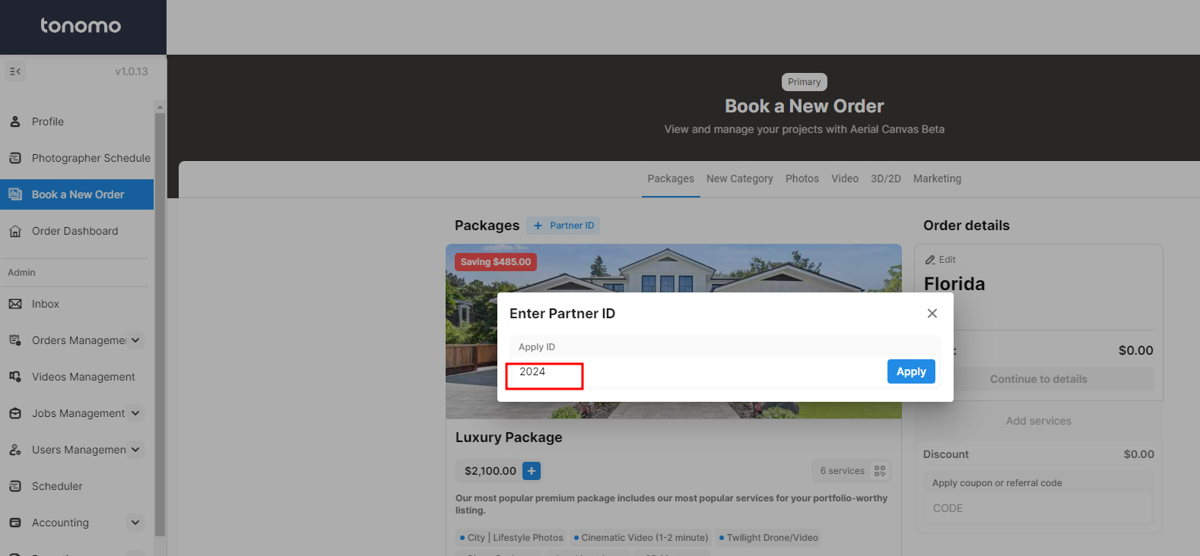
Using the Agent code to show the custom package while booking an order. Once you are done creating the custom package you can also access that by booking an order and inputting the Agent code in the Partner ID section. See the example steps below. Also, You can send the code to the specific agent that can only access the specific custom package.
Click the "Partner ID".
Input the specific code; for this sample, "2024" is the sample code.
After entering the partner ID, the custom package will show up.