Brokerages Management
Last updated: March 5, 2026
Empower your business with the flexibility to manage and organize customers seamlessly, grouping them based on brokerage, team, or any customized criteria. This strategic customer grouping enhances efficiency in multiple facets of your operations, including streamlined billing processes, optimized pricing strategies, and more.
Company Information
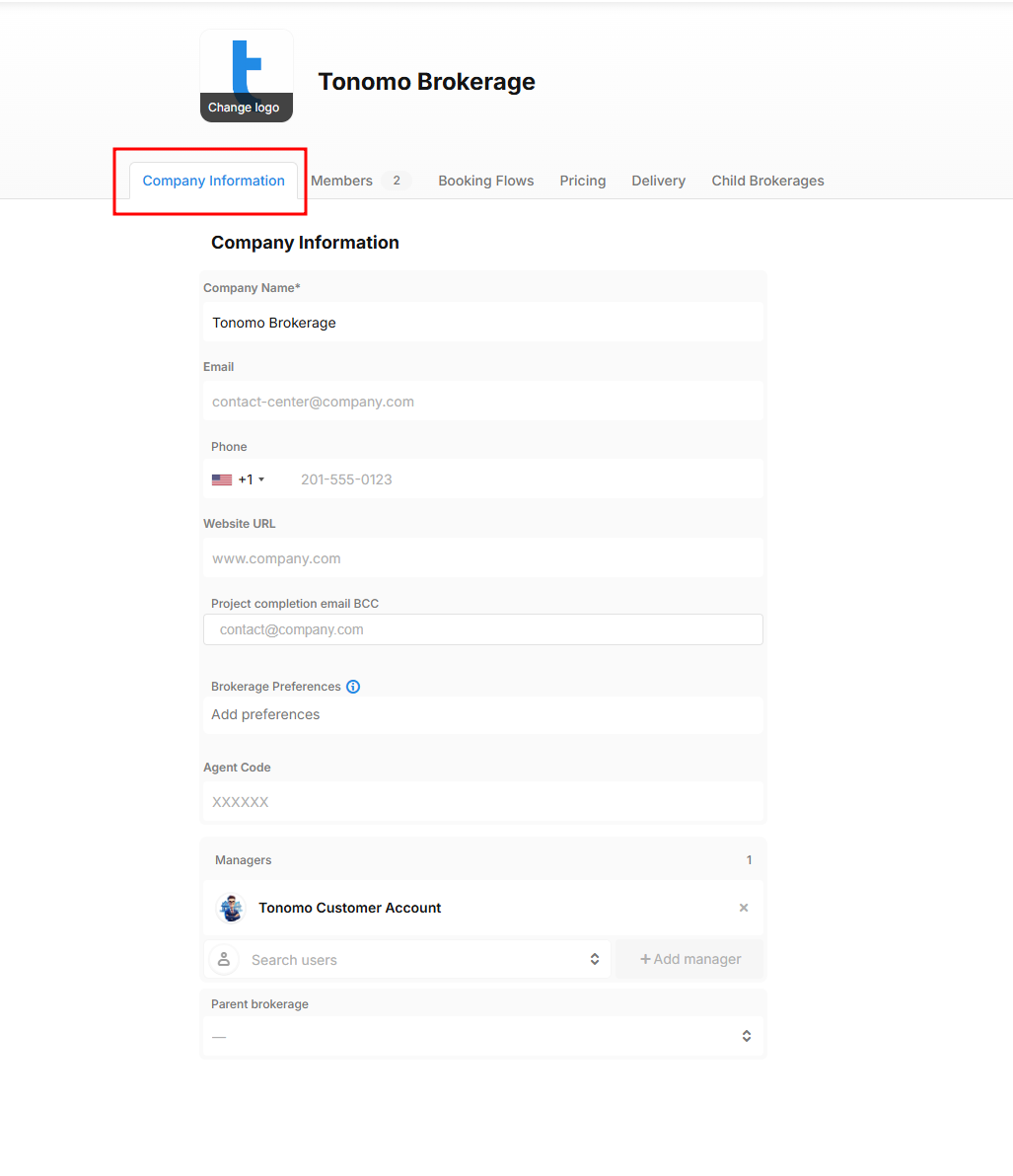
The Company Information section allows you to set up your brokerage details, including the brokerage name, logo, managers, and other relevant information.
Company Logo – Found at the top right of the section. Hover your mouse over the area to upload or change your logo.
Company Name – Also called the brokerage name. This field is required to create a brokerage.
Email – Add a branded email address to display on your brokerage profile.
Phone – Add a phone number to display on your brokerage profile.
Website – Add a website to display on your brokerage profile.
Project Completion Email CC – Useful for brokerage managers. Emails added here will automatically be CC’d on all project completion emails sent from Tonomo to brokerage members.
Brokerage Preferences – A notes section for the brokerage. Notes added here appear on the Orders Management page for all orders of brokerage members.
Agent Code – Use this as an identifier for the brokerage an agent belongs to.
Managers – Brokerage managers can manage orders for brokerage members, including booking, paying invoices, and other order-related tasks.
Parent Brokerage – Link related brokerages using this feature. Managers from the parent brokerage can access members of the child brokerage and manage their orders.
You can only assign a Brokerage Manager after the user has been added as a brokerage member.
Members
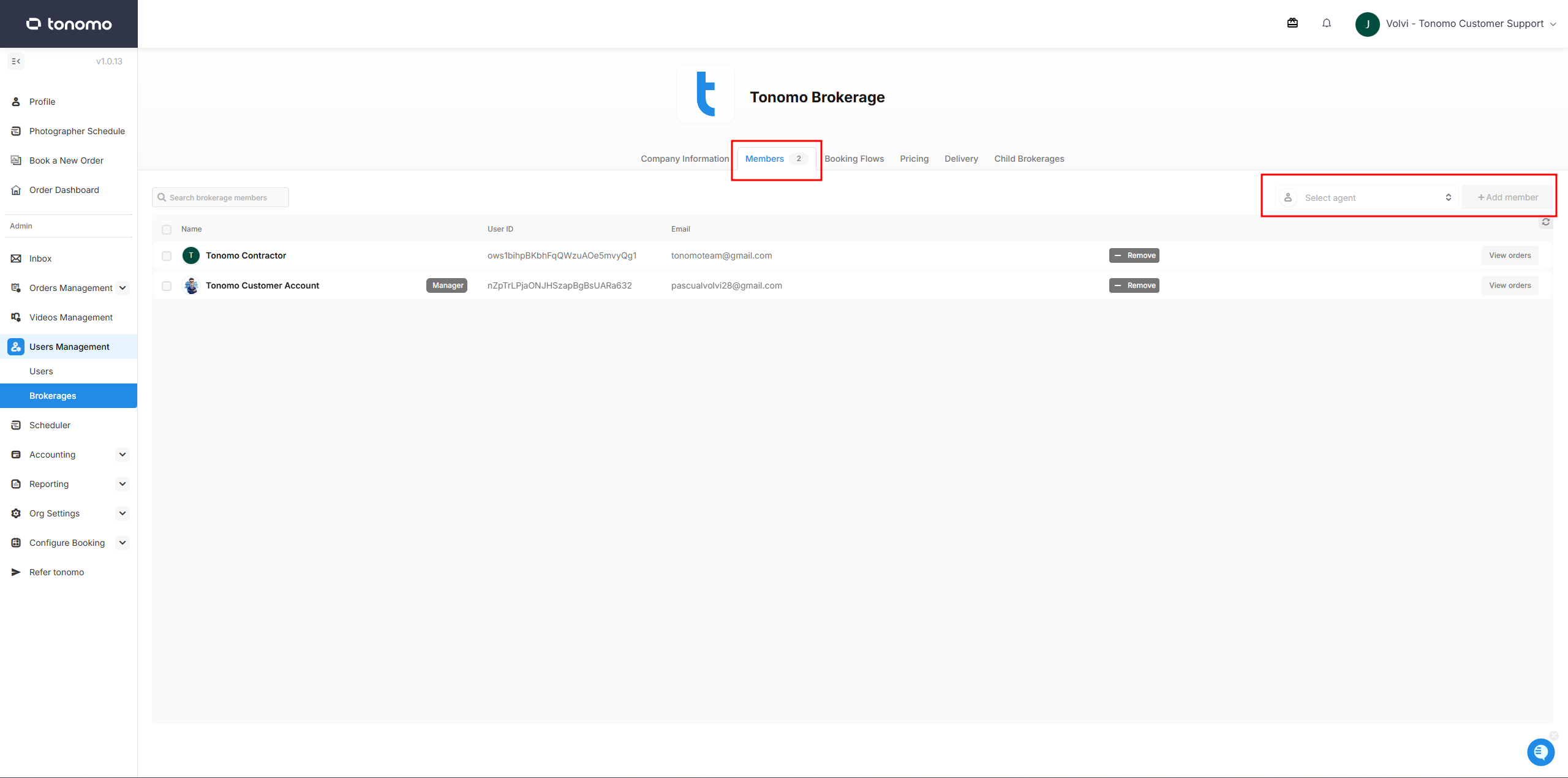
This section is where you can add and manage all brokerage members. Only users with admin permissions can add brokerage members.
To add a member:
Search for the user’s name.
Click “Add Member.”
Booking Flows
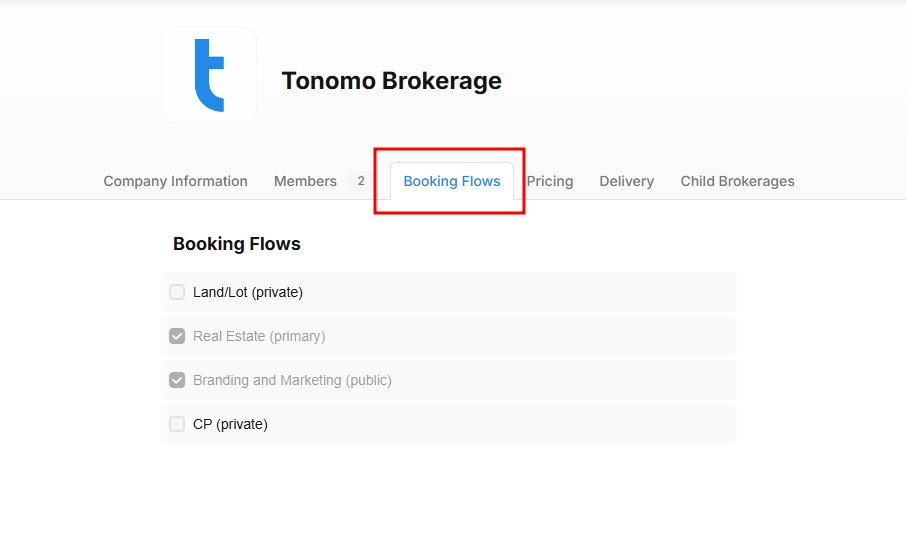
This section allows an admin to assign booking flows to a brokerage.
By default, private booking flows do not appear on user profiles unless the user has permission to access them, which must be manually enabled on the user’s profile.
When a booking flow is assigned to a brokerage using this Booking Flows section, all checked or assigned booking flows will automatically be visible to all brokerage members, even if the booking flow is set as private.
Pricing
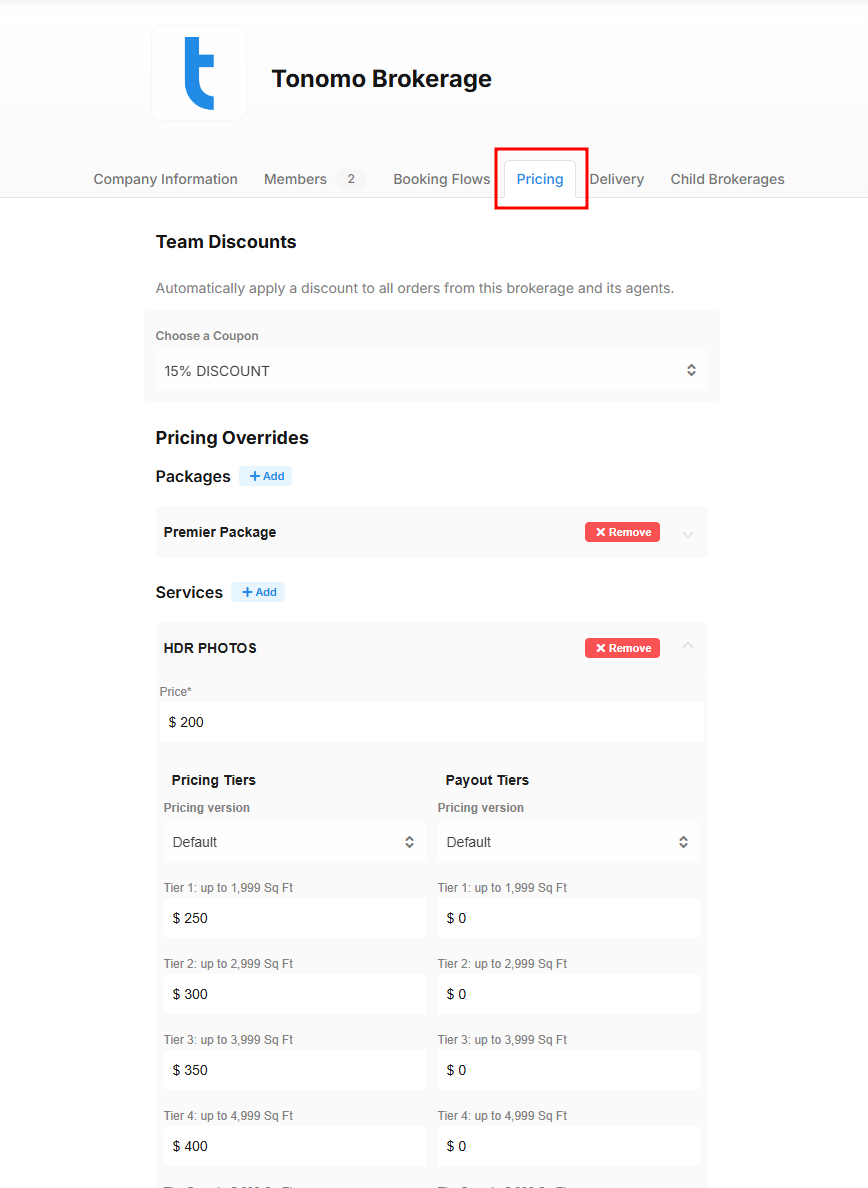
The Pricing section allows an admin to apply discounts or override service/package prices for a brokerage.
Team Discounts
Manually link an existing coupon to automatically apply it to all brokerage members. Once linked, the coupon will apply the discount—either percentage-based or a fixed amount—to all members automatically.
Pricing Overrides
In addition to applying a discount, an admin can manually override the price of a service or package for brokerage members. Instead of the usual price, the admin can set a fixed price specifically for the brokerage.
Delivery
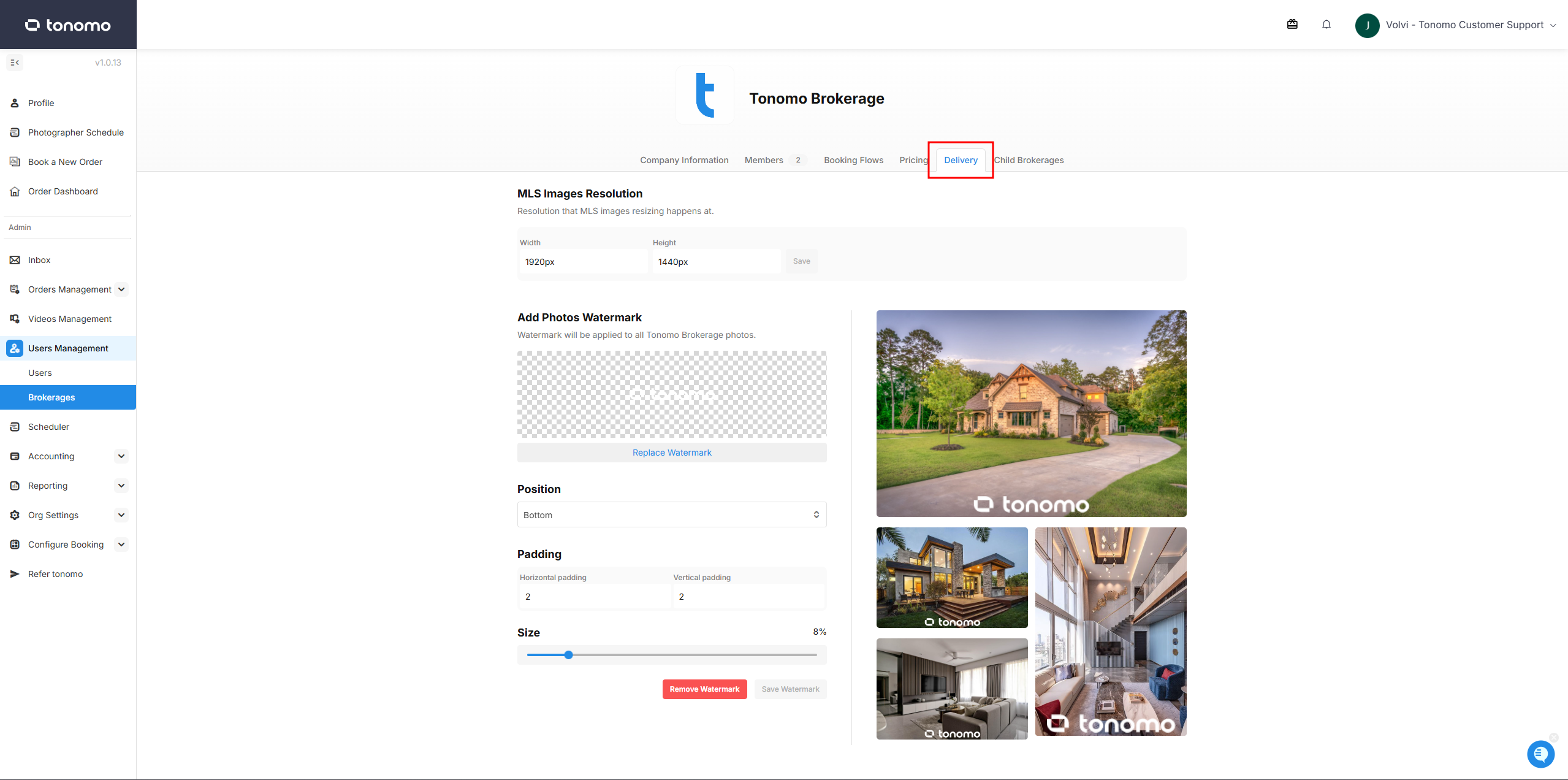
The Delivery section allows an admin to configure settings based on client preferences. On the right side, you can see a preview of how your settings will appear.
MLS Image Resolution
Instead of using the MLS image size set for the portal, a brokerage can set its own MLS image size in this section. This overrides the company-wide MLS size and applies the size specified here.
Add Photos Watermark
The Watermark feature allows an admin to add the brokerage logo—or another preferred logo—to photos. After uploading a logo, the admin can specify its position, padding, and size. The watermark will appear on downloaded MLS-sized photos.
Child Brokerage
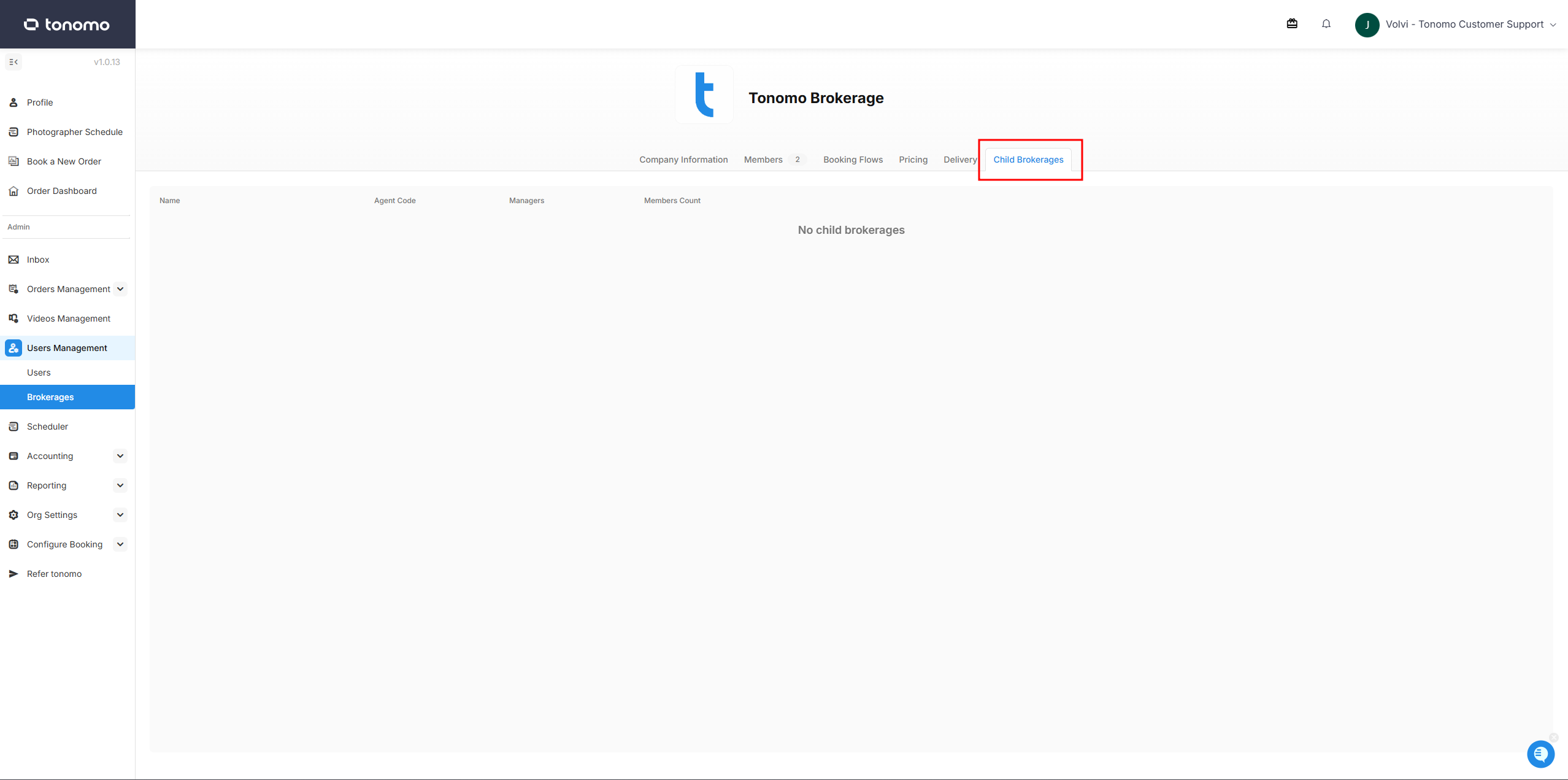
A parent brokerage will have a Child Brokerage list in this section.
Child brokerages can be set up by an Admin under the Company Information section, at the beginning of the setup process.