Portal Branding
Last updated: April 30, 2026
Overview
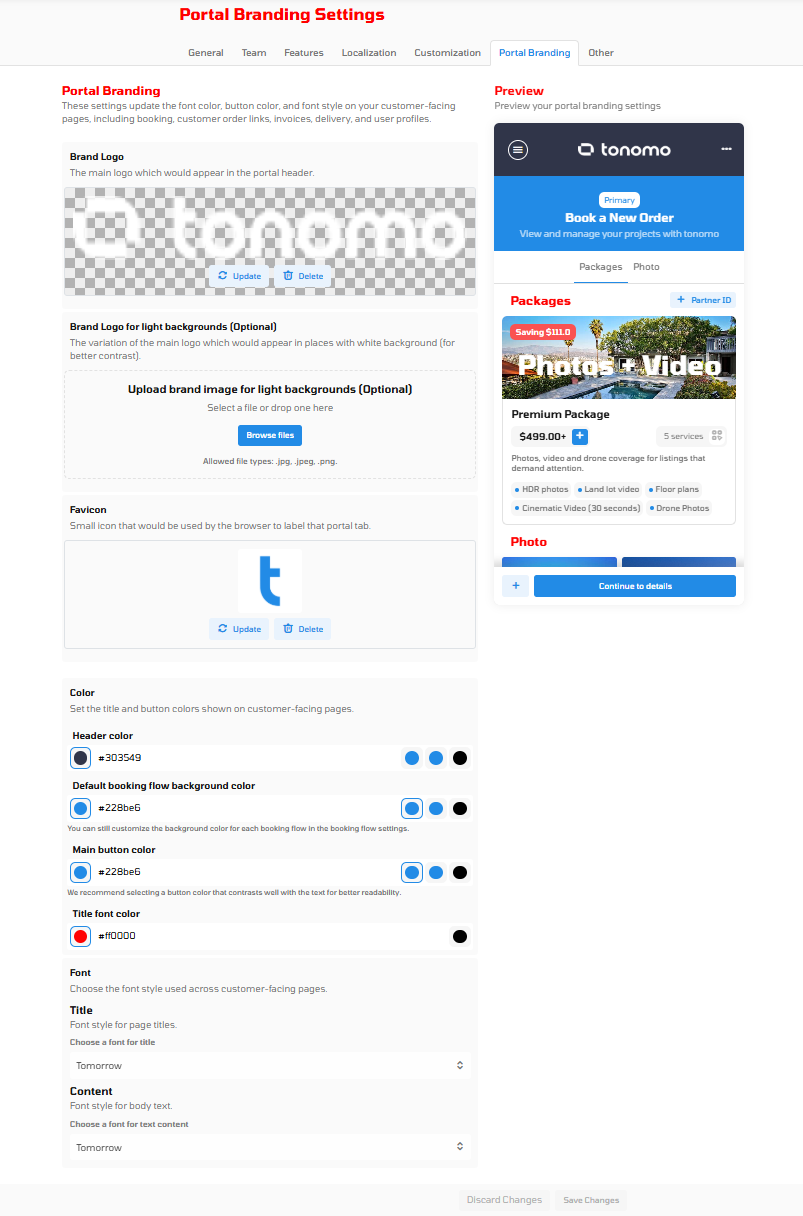
The Portal Branding Settings page allows you to customize the appearance of your customer-facing portal. Update your logo, icon, colors, and font styles to match your brand identity. These settings control how your portal appears on booking pages, customer order links, invoices, delivery pages, and user profiles.
Brand Logo
The main logo which appears in the portal header. Click "Update" to replace with a new logo or "Delete" to remove it. The preview on the right shows how your logo will appear to customers.
Brand Logo for Light Backgrounds (Optional)
The variation of your main logo designed for display on pages with white or light-colored backgrounds. This ensures your logo remains visible and maintains good contrast. Upload a new image using the "Browse files" button. Allowed file types: jpg, jpeg, png.
Favicon
Small icon that appears in the browser tab to label your portal. This is typically a simplified version of your logo. Click "Update" to replace or "Delete" to remove the current favicon.
Color
Set the title and button colors shown on customer-facing pages. Use color values or choose from the preset color options.
Header Color
The color used for the header section of your portal. Enter a hex color code (e.g., #303549) or select from the available color palette. This color appears in the top navigation and branding area.
Default Booking Flow Background Color
The background color displayed during the booking flow pages. This color sets the overall tone for the booking experience. You can still customize the background color for each individual booking flow in the booking flow settings.
Main Button Color
The color used for primary action buttons throughout the portal. Select a button color that contrasts well with the text for better readability. Recommended: Choose a color that provides strong contrast with text for improved accessibility.
Title Font Color
The color used for page titles and headings throughout the customer-facing portal. Choose a color that stands out and is easy to read against your background colors.
Font
Choose the font style used across customer-facing pages to maintain consistent branding.
Title
Font style for page titles. Select from available font options to determine how headings appear throughout your portal.
Content
Font style for body text. Choose the font used for all descriptive and content text on your customer-facing pages.
Preview
The Preview panel on the right displays a live preview of your portal branding settings. As you make changes to logos, colors, and styling, the preview updates to show how customers will see your portal.