General
Last updated: April 21, 2026
Overview
The General Settings page is the central hub for configuring your organization's contact information, branding, and operational details. These settings control how customers see your company across message templates, portals, and communications.
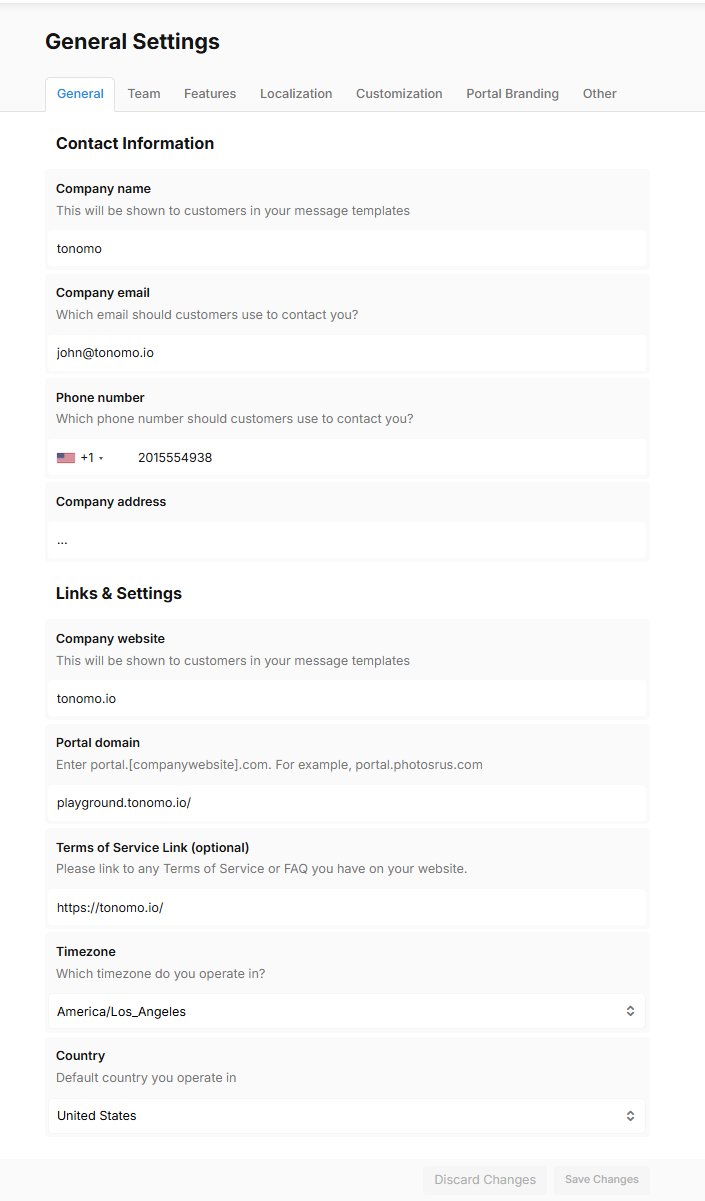
Contact Information Section
The Contact Information section allows you to define how customers can reach your organization.
Company Name
The name of your organization that appears in automated messages, templates, and customer communications. This is how customers will identify your company in all portal interactions.
Company Email
The primary email address customers should use to contact your organization. Ensure this is a monitored email account that can receive and respond to customer inquiries.
Phone Number
The primary contact phone number for your organization. Include the country code for international clarity.
Company Address
Your organization's physical mailing address. Include the complete address with street, city, state, and ZIP code.
Links & Settings Section
This section manages your web presence and operational configuration.
Company Website
The main website URL for your organization. This is displayed in message templates and customer communications.
Portal Domain
The custom domain for your customer-facing support portal. This is the URL customers use to access your support portal. Must be a valid domain or subdomain you control.
Terms of Service Link (Optional)
URL linking to your organization's Terms of Service or FAQ page. This is linked in the Terms of Service section on the checkout page.
Timezone
Your organization's primary timezone for scheduling and time-based operations. Select the timezone where your primary support team operates.
Country
The primary country of operation for your organization. Used for localization and regulatory compliance.
Saving Changes
After modifying any settings on the General Settings page:
Make your desired changes in each field
Click the "Save Changes" button at the bottom of the page
Review the confirmation message to ensure changes were saved successfully
Changes typically take effect immediately
To discard unsaved changes, click "Discard Changes"