Due Date
Last updated: March 22, 2026
Overview
This section indicates which jobs are due and should be prioritized. The due date can be set in the Order Details section and will appear below the Date section.
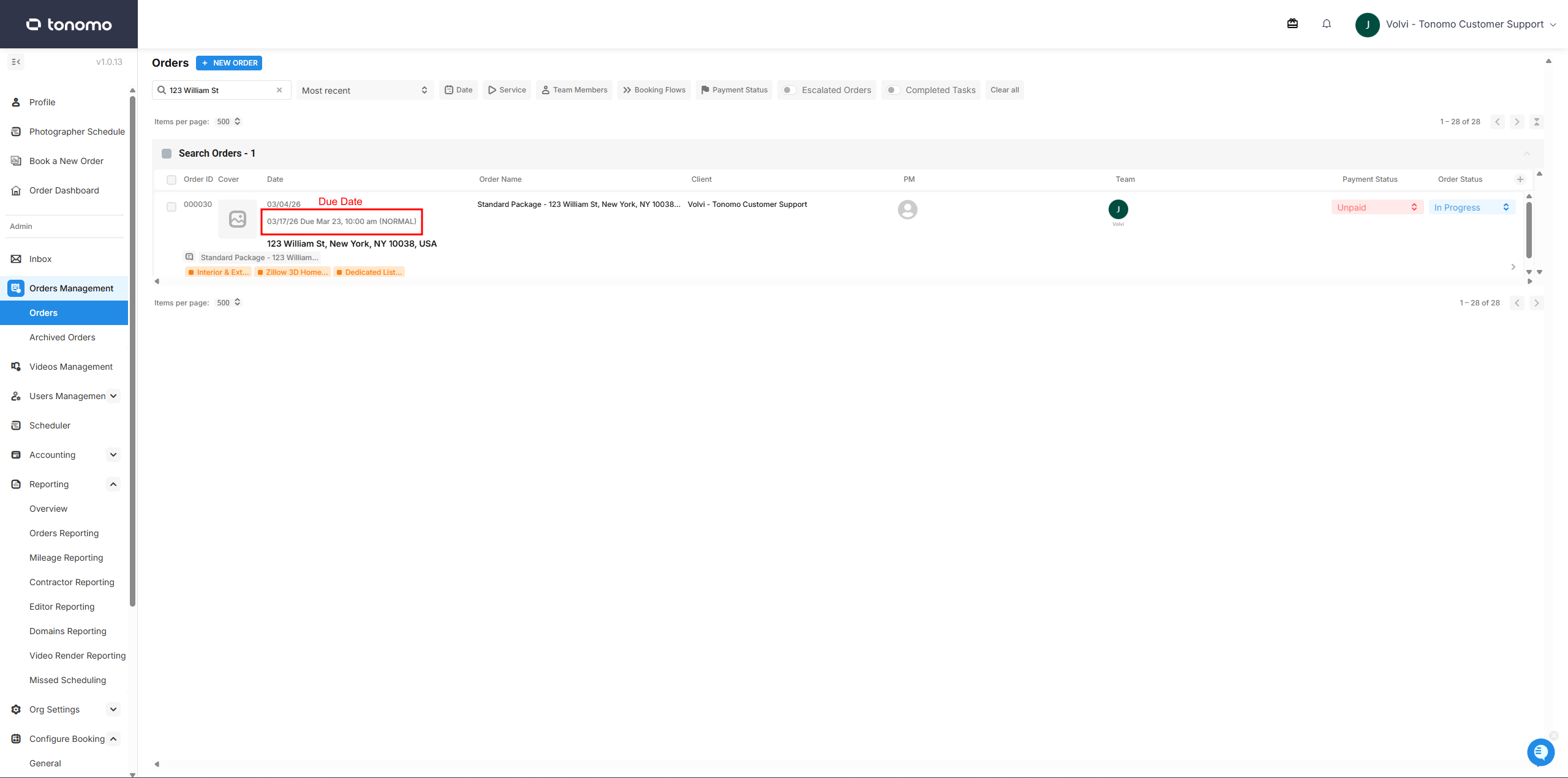
Setting the Due Date
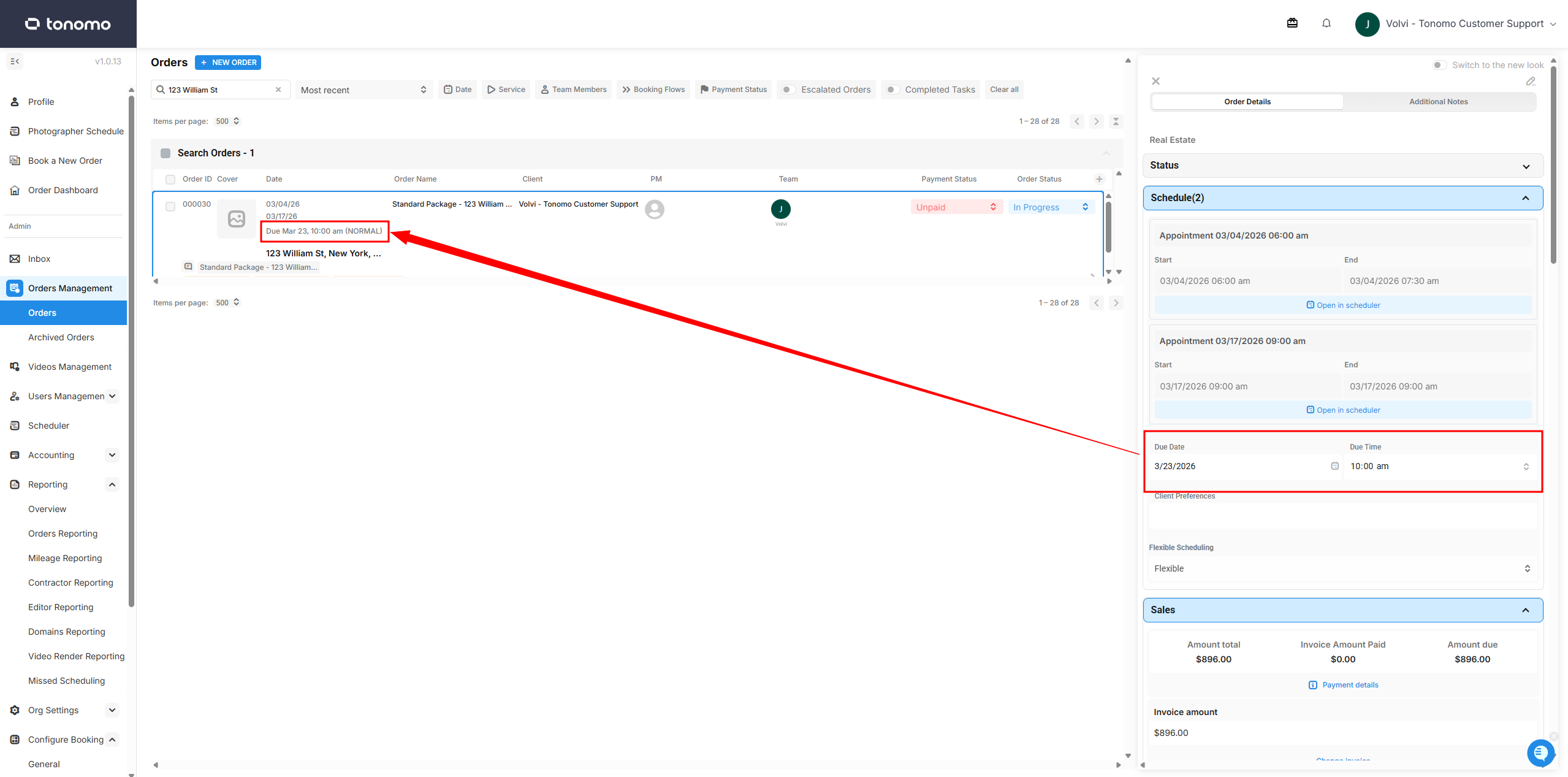
The Due Date can be set using either the original order details or the updated order details. Admins can set it in the Due Date section of both versions.
Using the Original Order Details
Once you've opened an order, the order details panel will appear. Navigate to the Scheduling Section and locate the Due Date field. After setting it, the due date will automatically display below the order date.
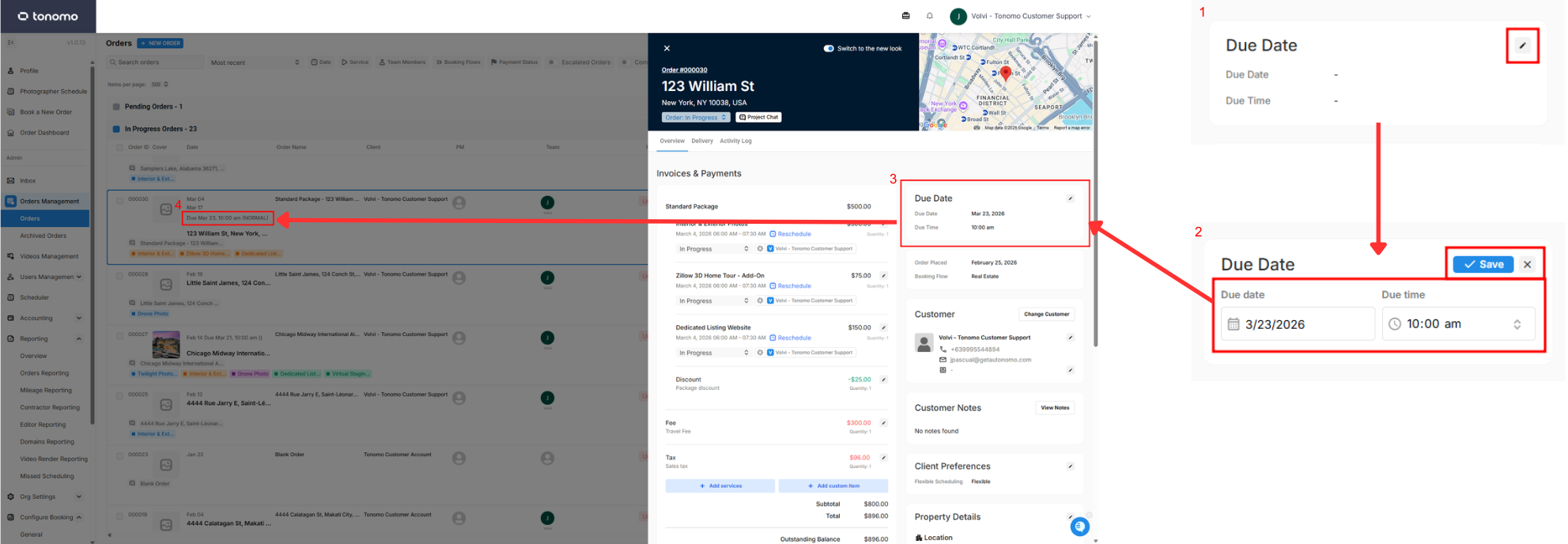
Using the Updated Order Details
In the updated design, there is a dedicated Due Date section directly in the overview. Admins can set the due date there, and it will automatically appear below the order date.
Filtering Orders by Due Date
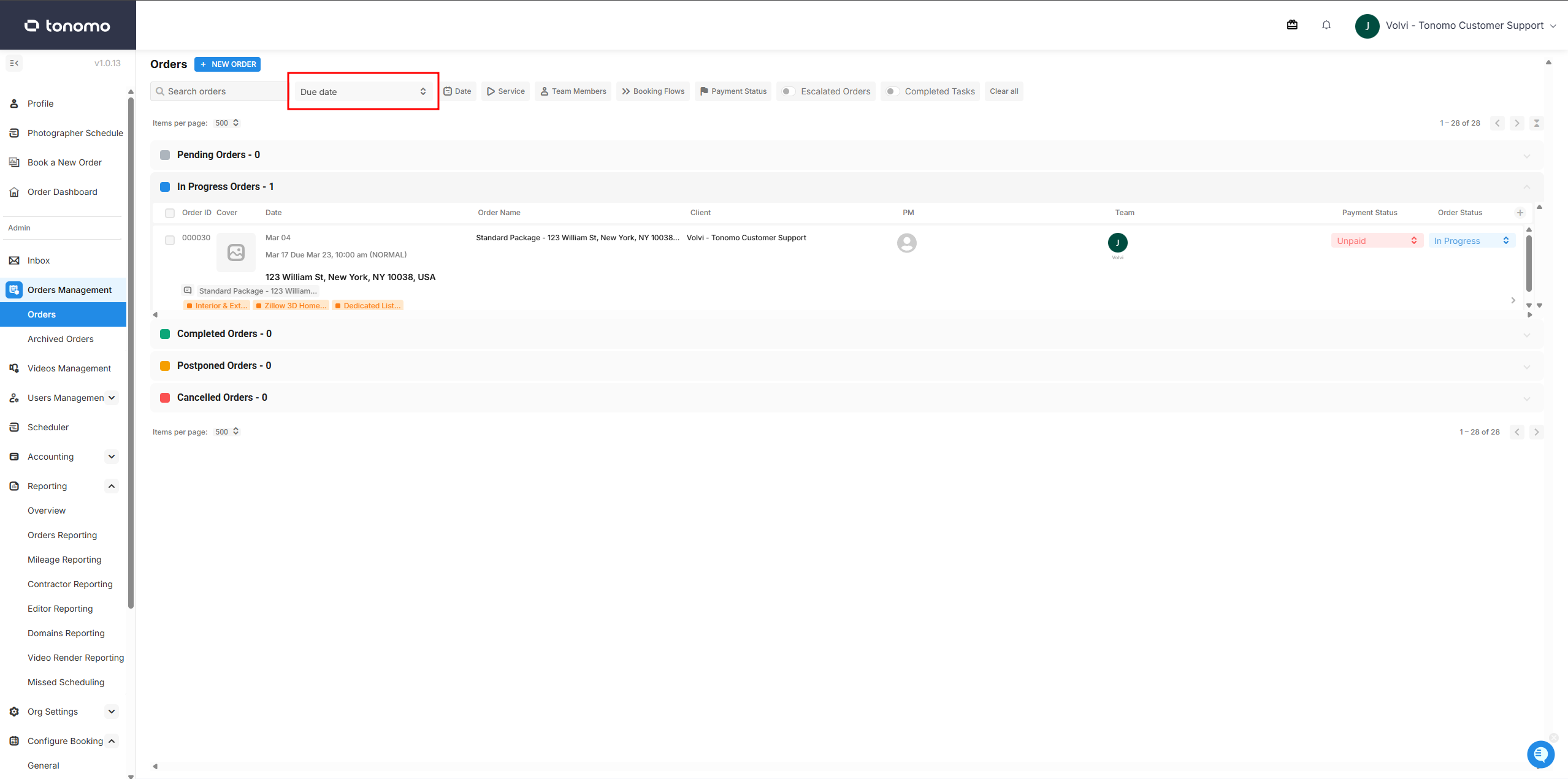
The Due Date filter is available on the Orders Management page. Instead of filtering by Most Recent or Scheduled Date, simply set the filter to Due Date to display only orders that have a due date assigned.
Additionally, admins can use the date filter to narrow results further by specifying a particular due date range they want the orders to appear in.