Order Details Redesign
Last updated: March 22, 2026
Overview
Order Details has a new and improved look and functionality, helping admins efficiently manage orders after they have been booked.
Switching Between Original and Redesigned Order Details View
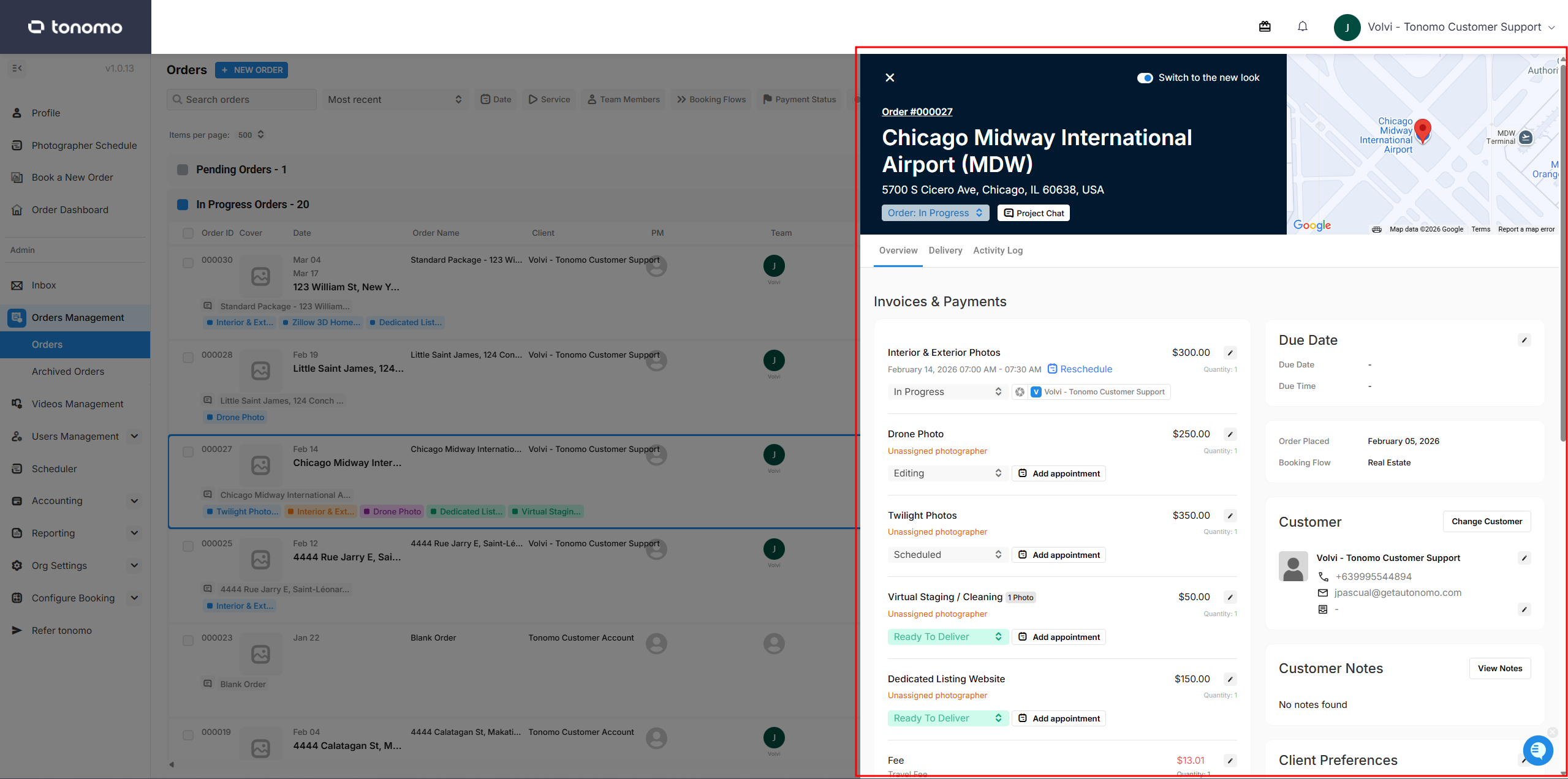
Switching Between Order Details Views To switch between the Redesigned and Original Order Details view, simply toggle the button in the top right corner — just below your name — when the Order Details section is open.
Order Header
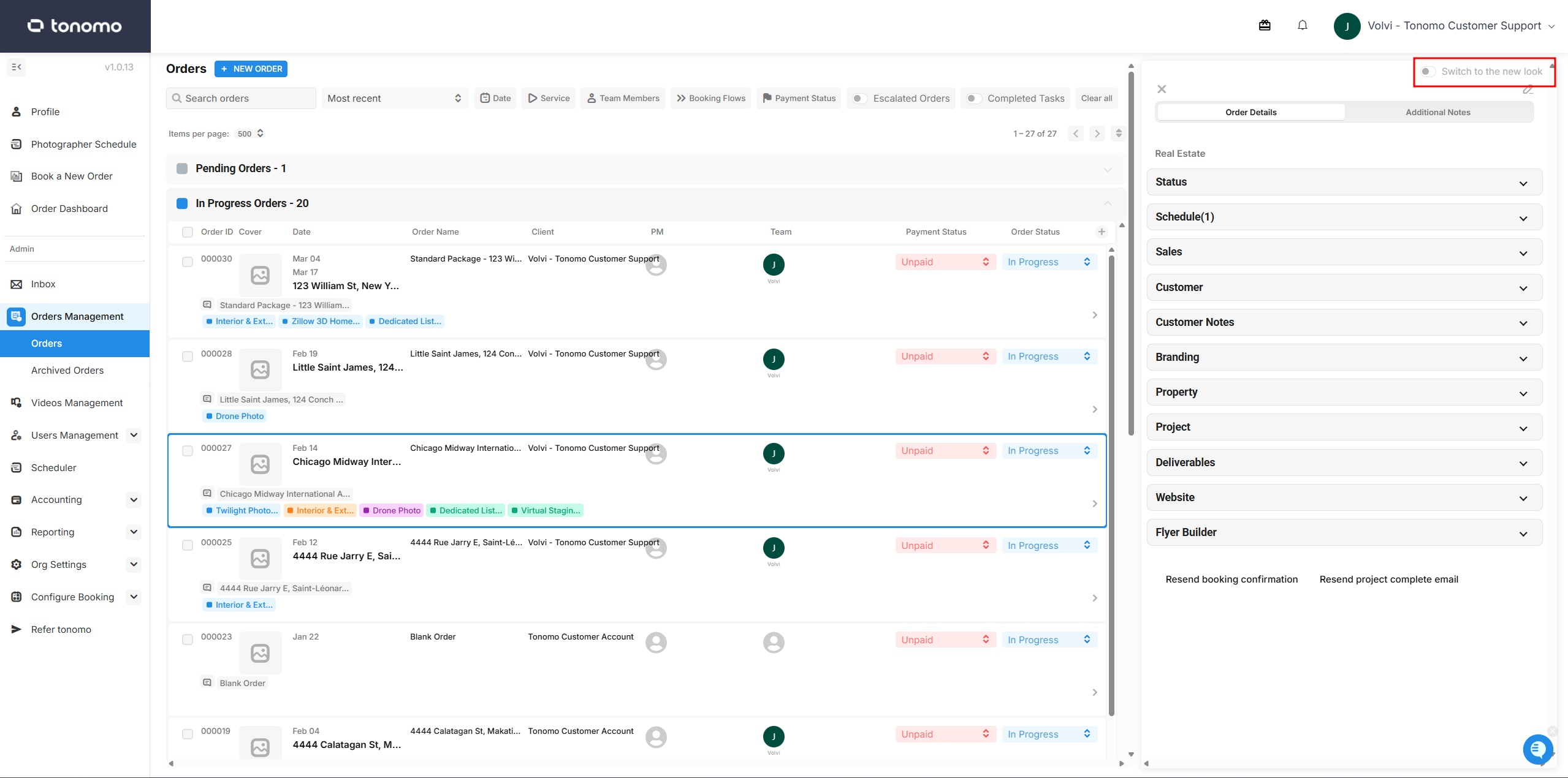
This section displays the following key details:
Switch Button — Toggles the Order Details design between the old and new look.
Order ID — Displays the unique order ID. When clicked, redirects the admin to the order status or customer page.
Address — Displays the address of the order.
Order Status — Allows admins to directly update the order status from the Order Header section.
Project Chat — When clicked, redirects the admin to the Project Chat section.
Interactive Google Maps — Displays a preview of the order location. The map is interactive, allowing admins to zoom in or out.
Overview
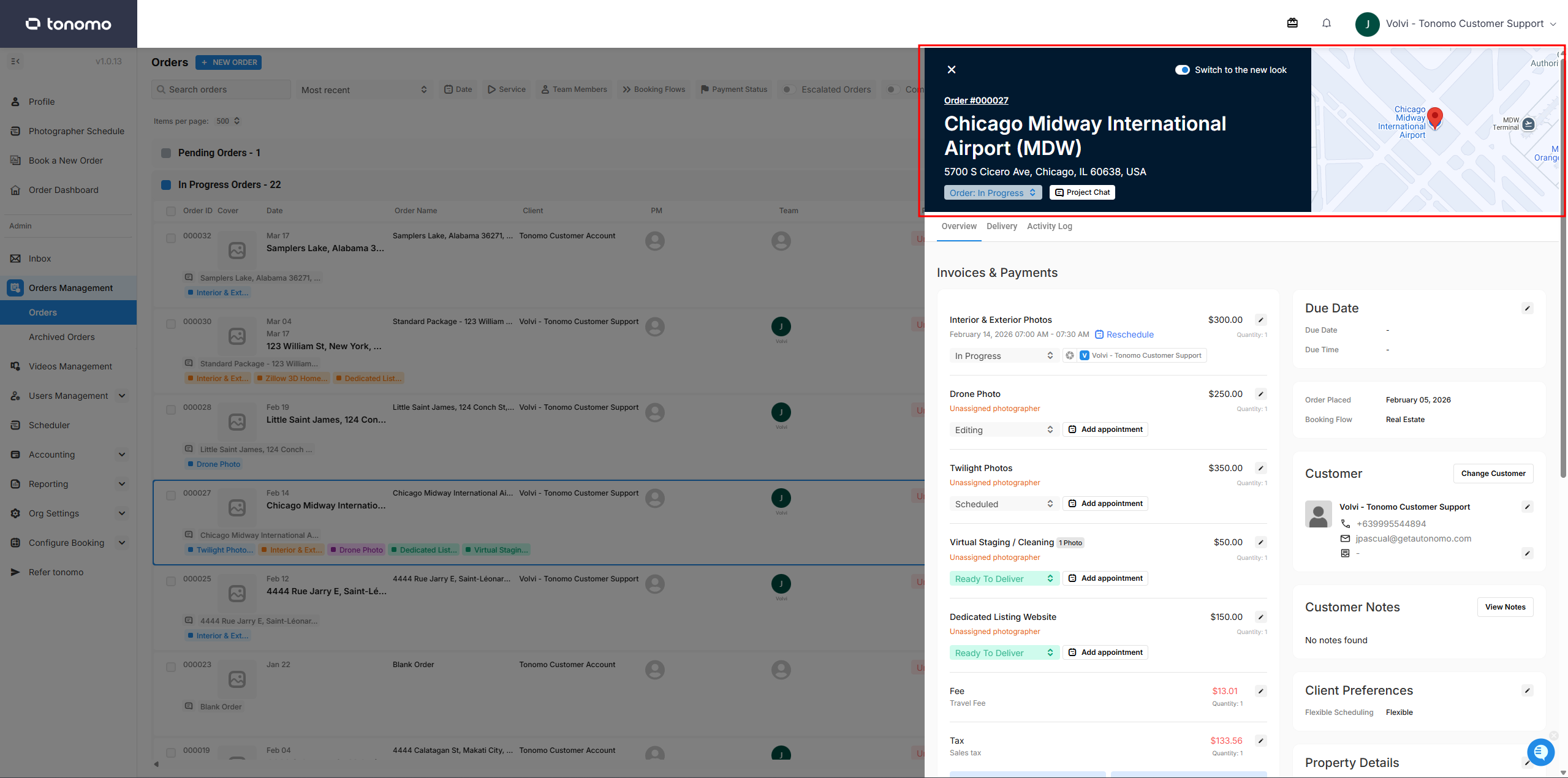
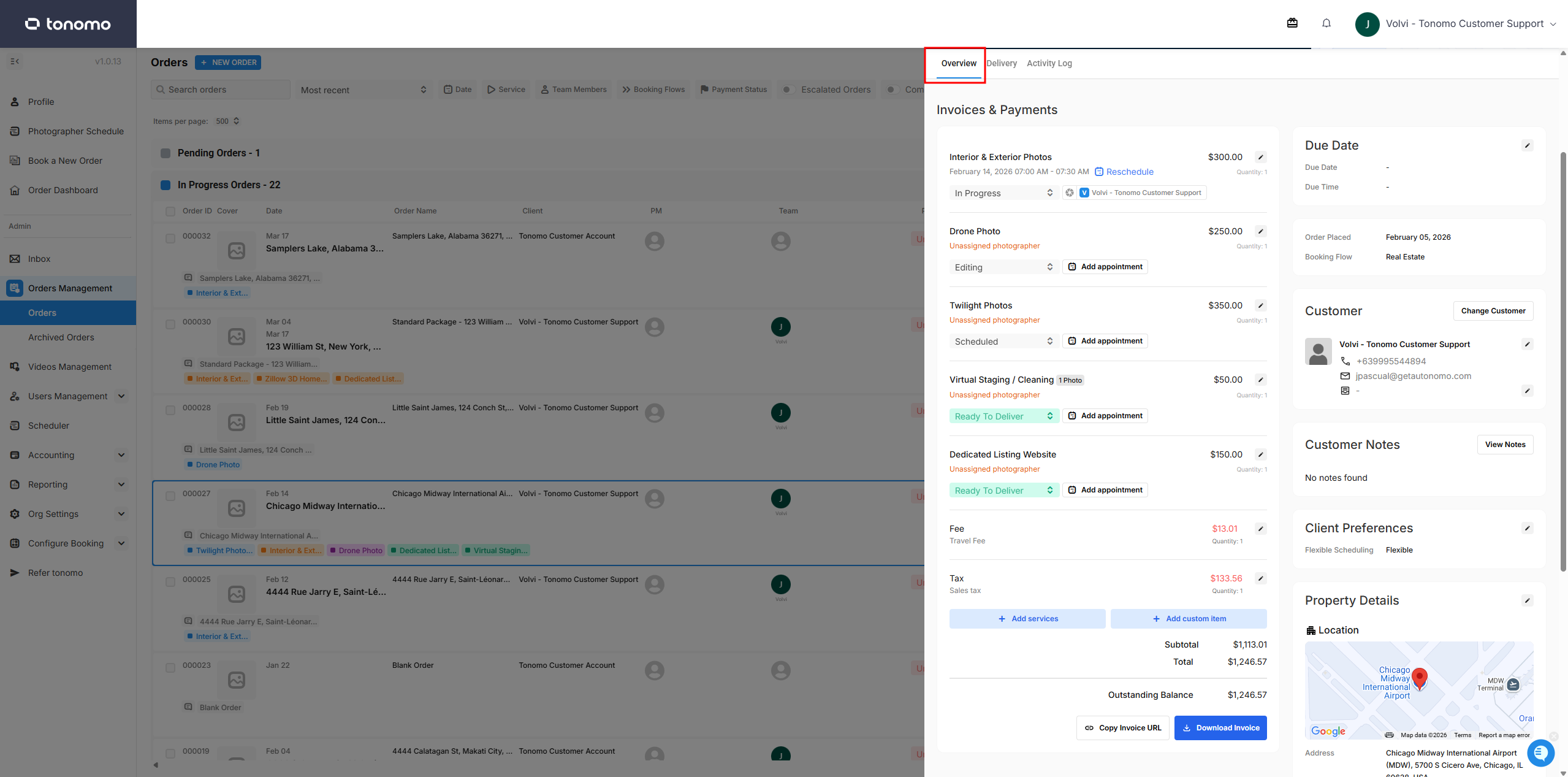
This section allows admins to update most of the order's details, including invoices, customer notes, property notes, and more.
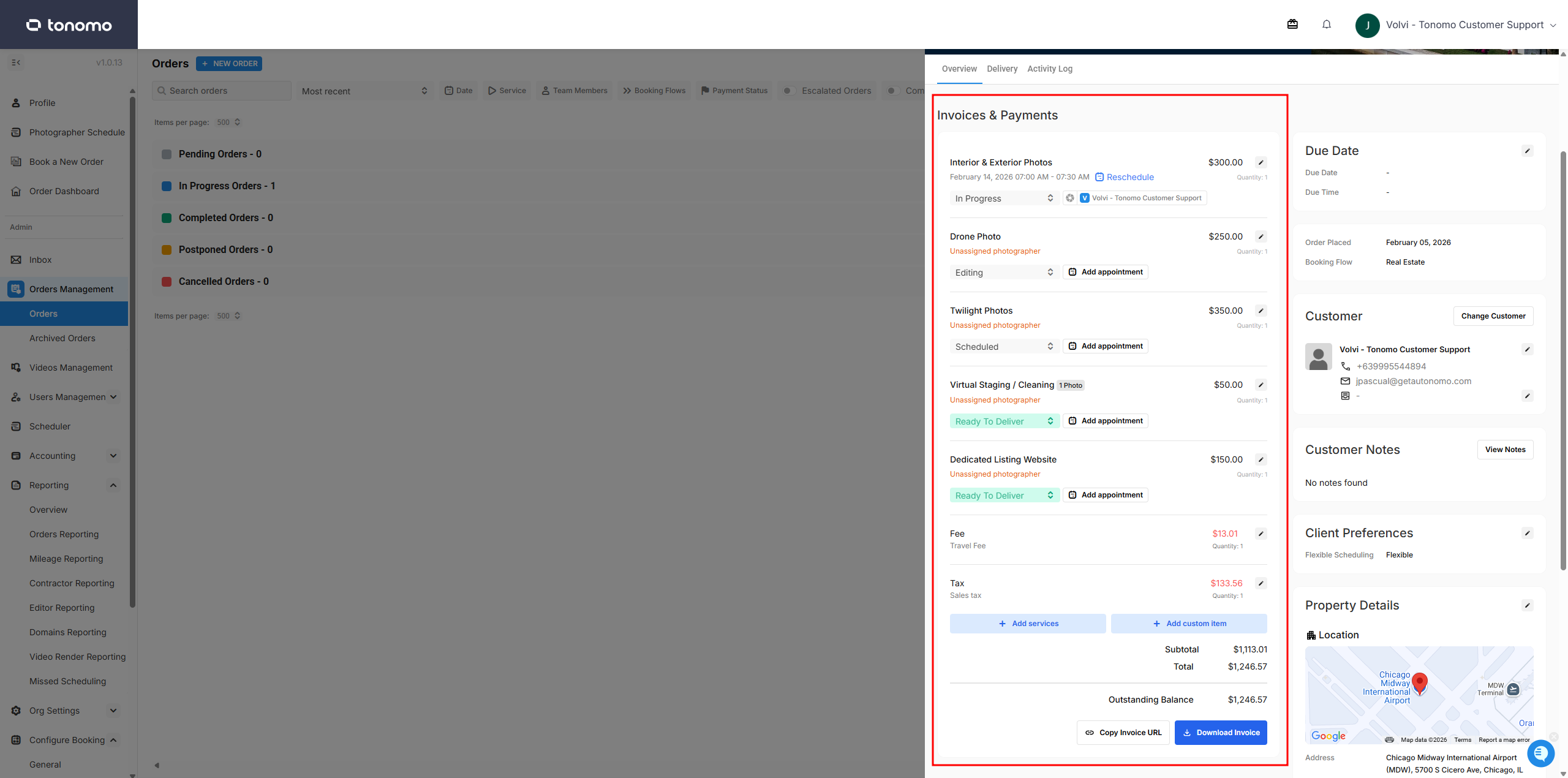
Invoices & Payments
This section allows admins to update the invoice and modify services. Each line item can be edited or deleted, and any applicable Travel Fee, Tax, or Additional Fee will also appear here.
Below the invoice line items, the schedule is displayed along with the assigned photographer's name. Admins can also directly open the event in the Scheduler to schedule or reschedule it.
At the bottom of this section, admins can find the Copy Invoice URL button to open the order status page, and the Download Invoice button to download a copy of the invoice.
Due Date
This section indicates which jobs are due and should be prioritized. The due date can be set in the Order Details section and will appear below the Date section. For more details, please refer to the Due Date Documentation.
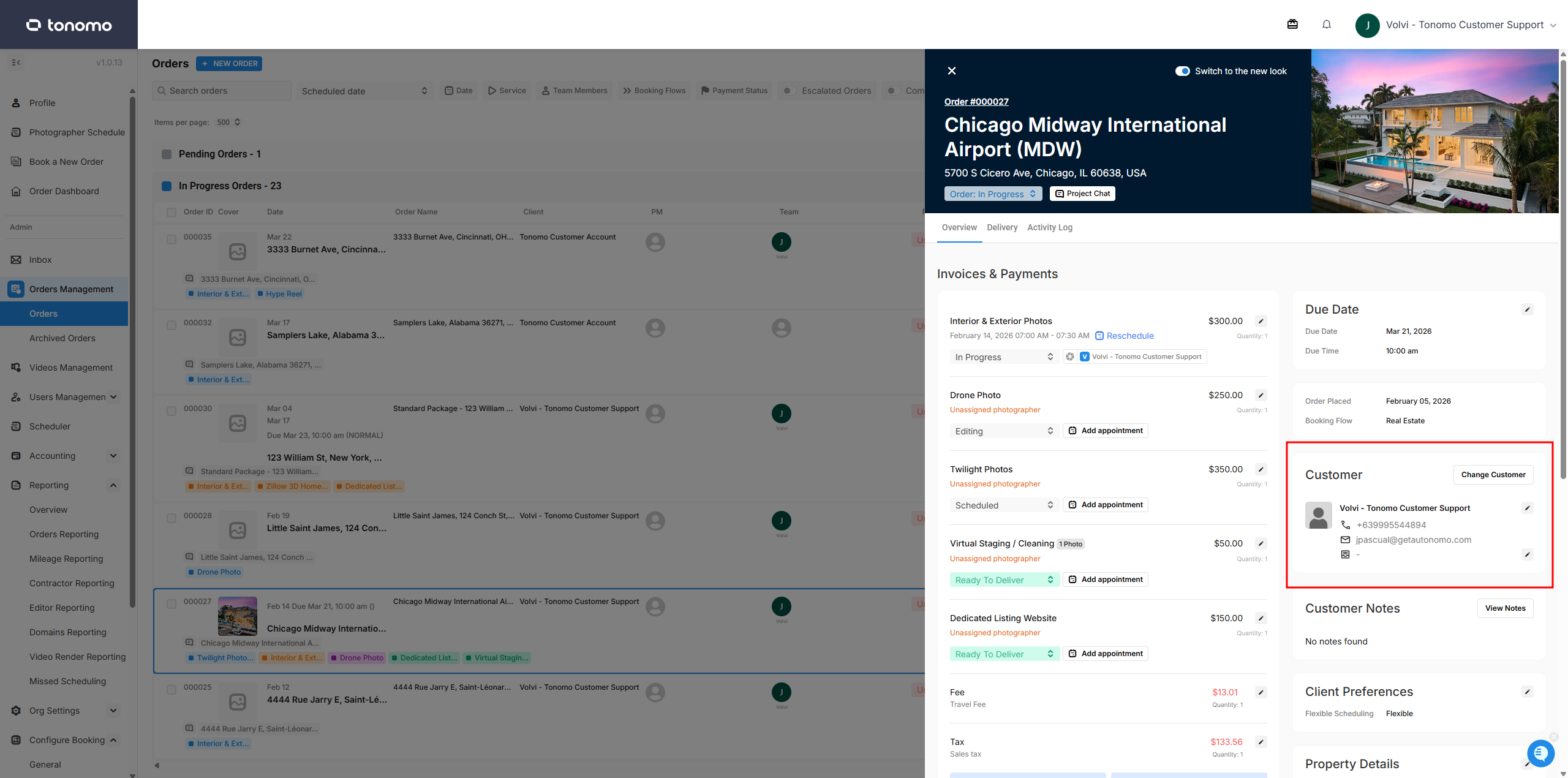
Customer
This section displays the customer's information. Admins can also update the customer's details or reassign the customer for the specific order.
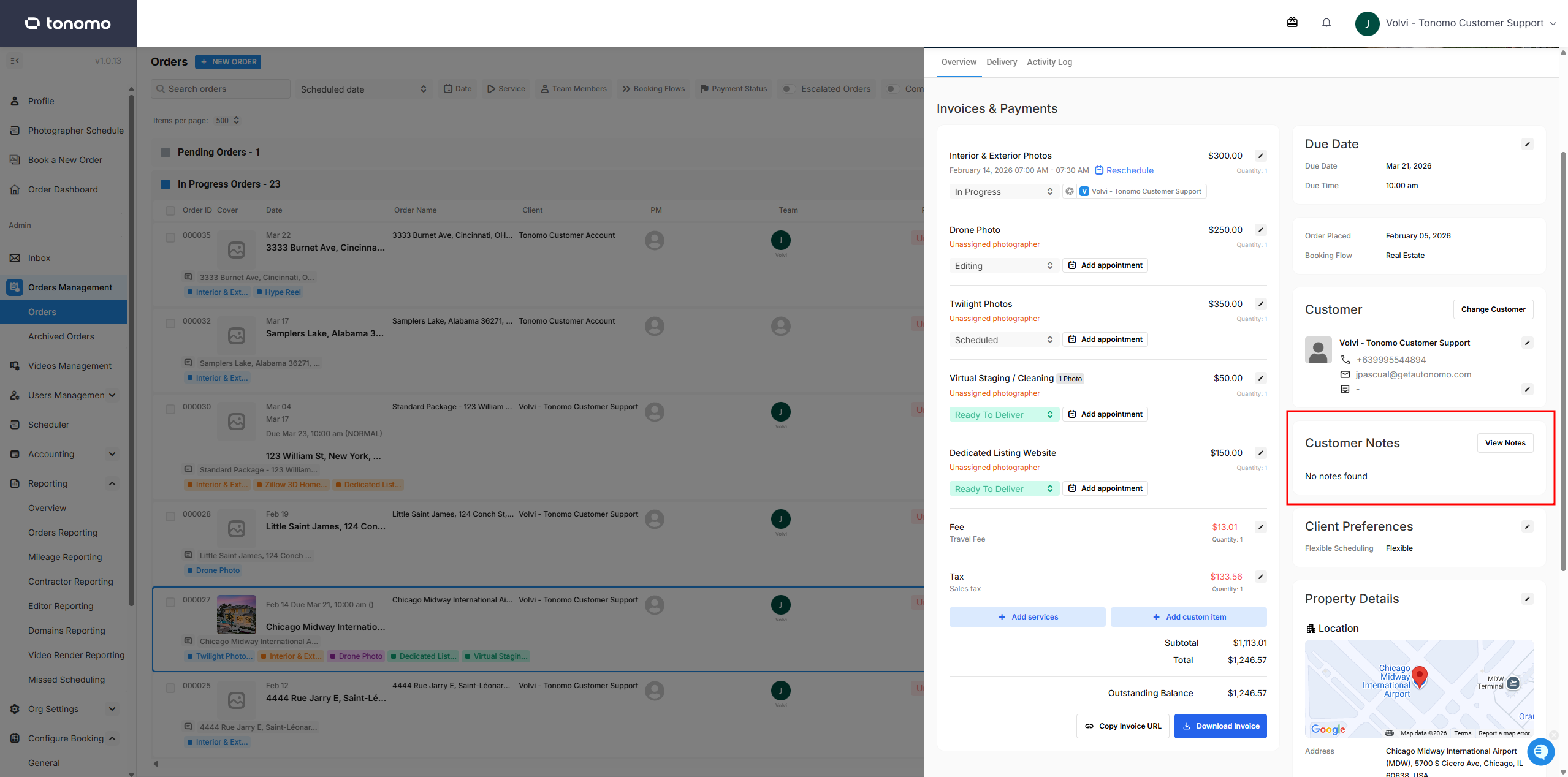
Customer notes
Also known as Private Notes, this section is only visible to and editable by admins. It is used to record internal notes specific to the customer — ideally, information that admins need to pass on to staff without the customer's knowledge. Clicking the View Notes button will redirect the admin to the Private Notes section on the client's profile.
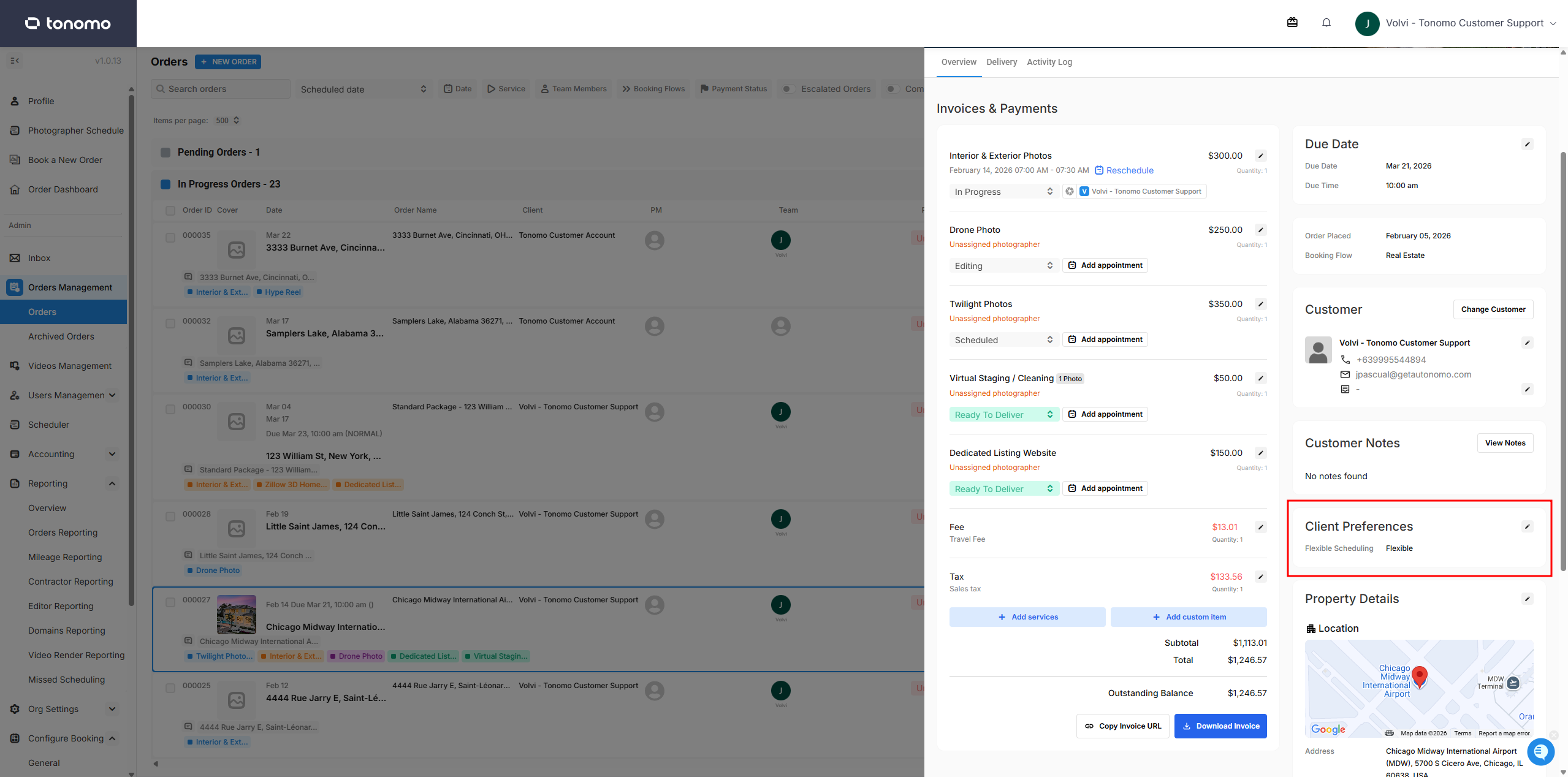
Client preferences
Client preferences are public notes, meaning both the client and staff can view them. These are populated through a question during the booking process that the customer fills out themselves. Alternatively, admins can populate it on their behalf with any information the client wants to communicate on every order.
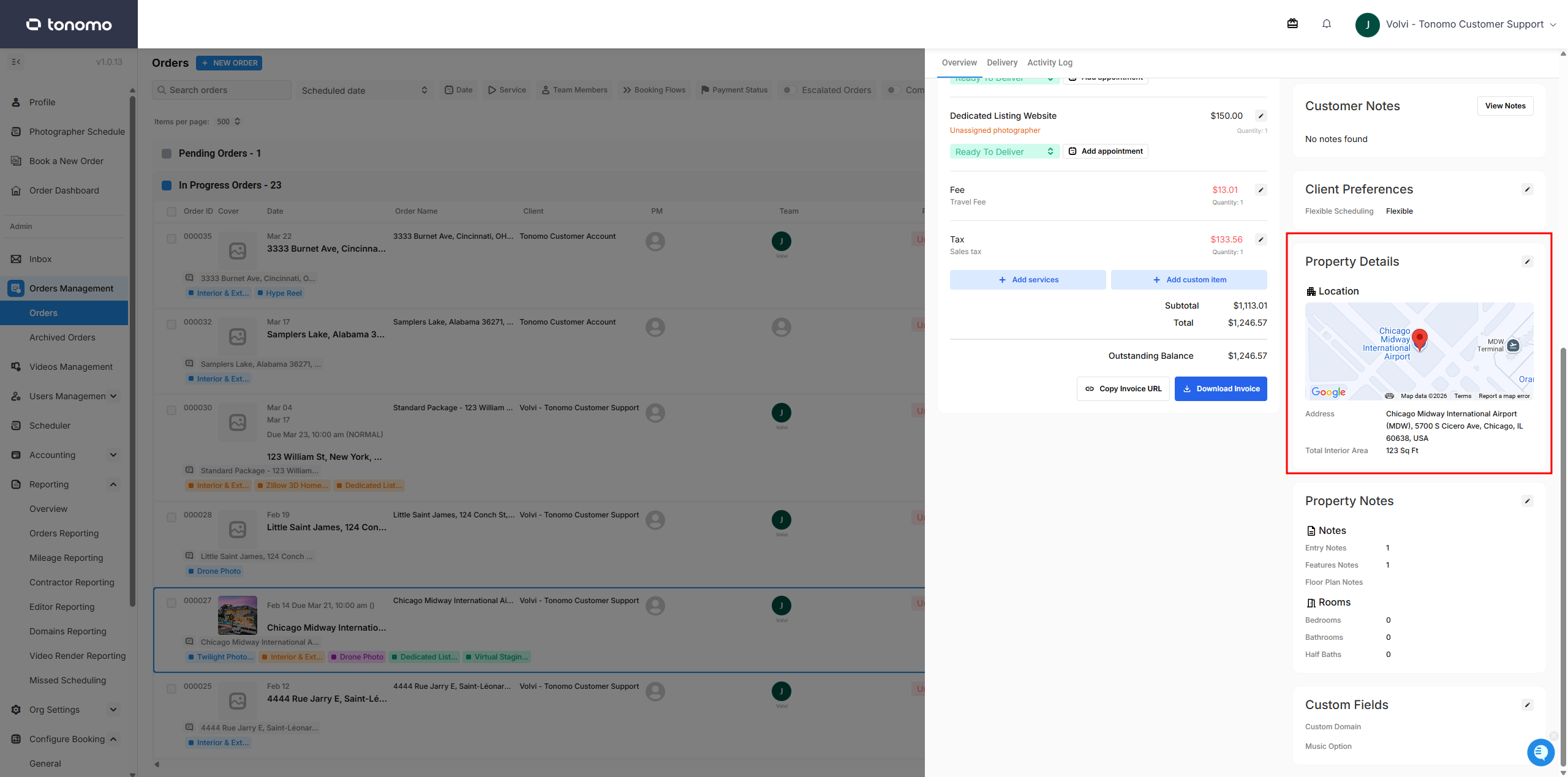
Property details
Property Details This section displays the order's address and total interior area (square footage). Admins can also update the order address from this section after the order has been booked.
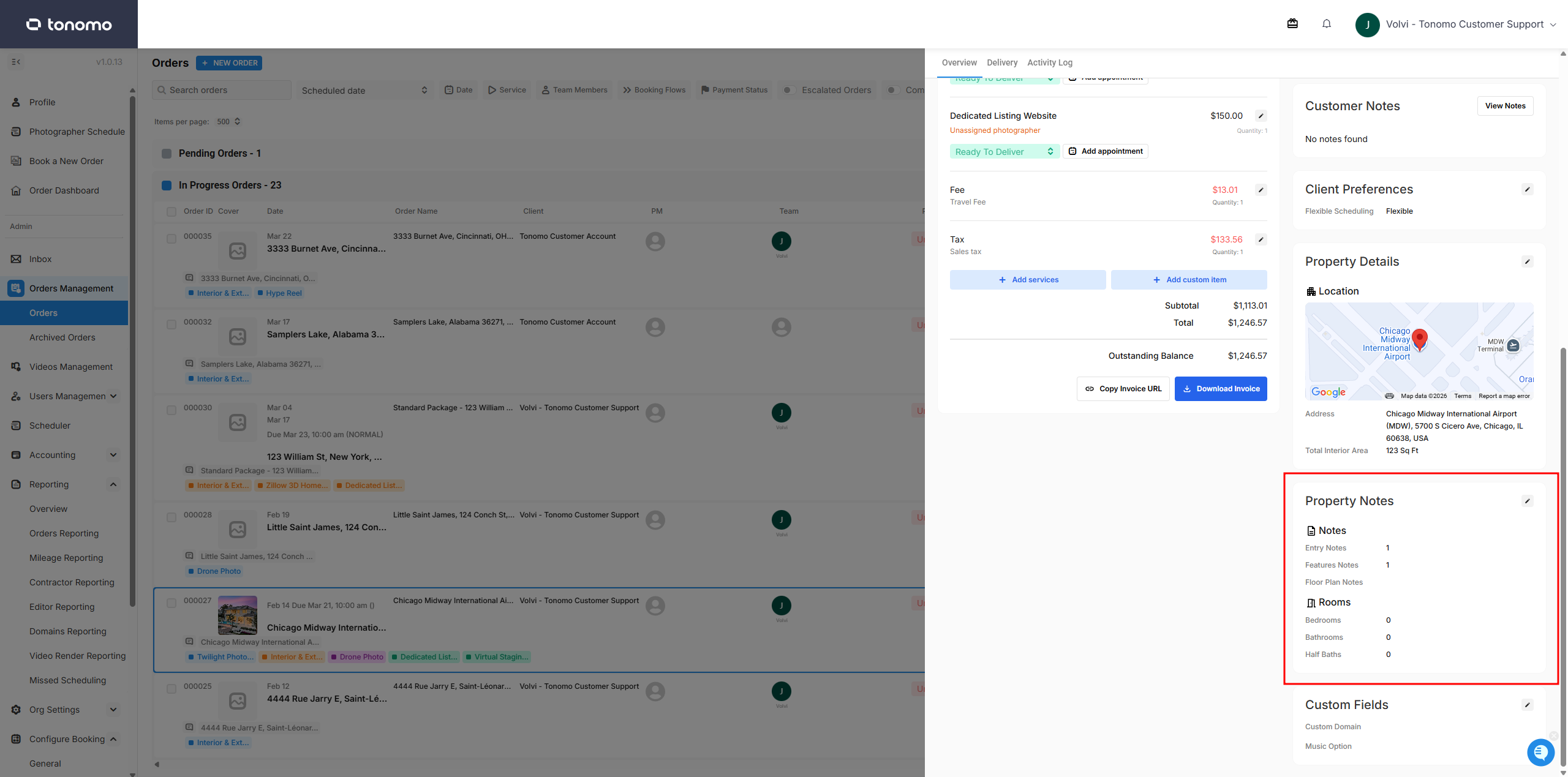
Property Notes
This section contains the client's answers to the entry notes, feature notes, number of beds and baths, and other questions, which can be enabled or disabled in the Booking Flow settings. While customers cannot edit these notes after submitting the order, they can communicate any changes to an admin, who will then update the notes on their behalf.
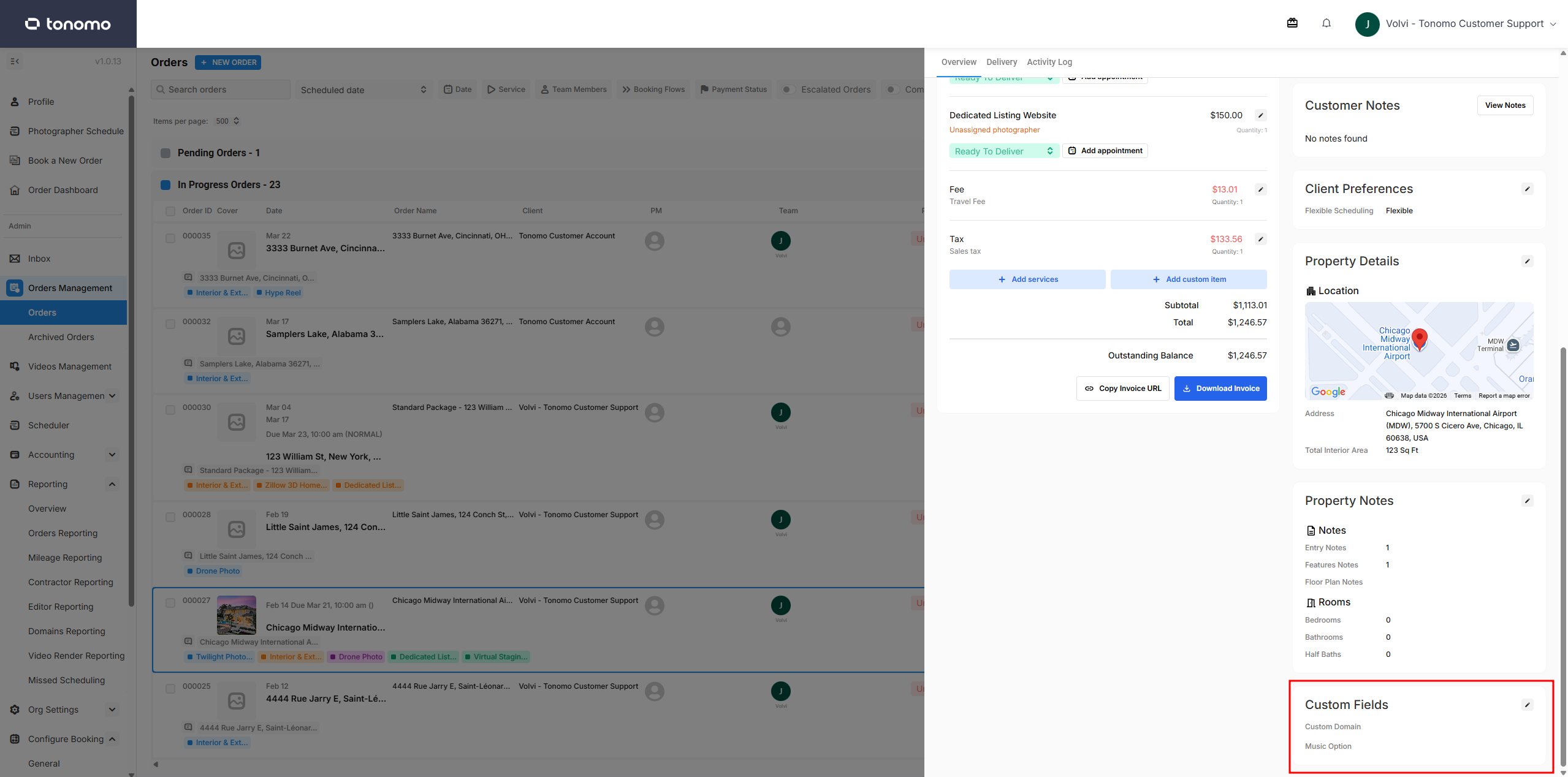
Custom Fields
This section displays the client's answers to any custom questions set by the admin in the Booking Flow settings, along with the Custom Domain and Music options when enabled. Similar to Property Notes, customers cannot edit these answers after submitting the order. Any changes must be communicated to an admin, who will then update the notes on their behalf.
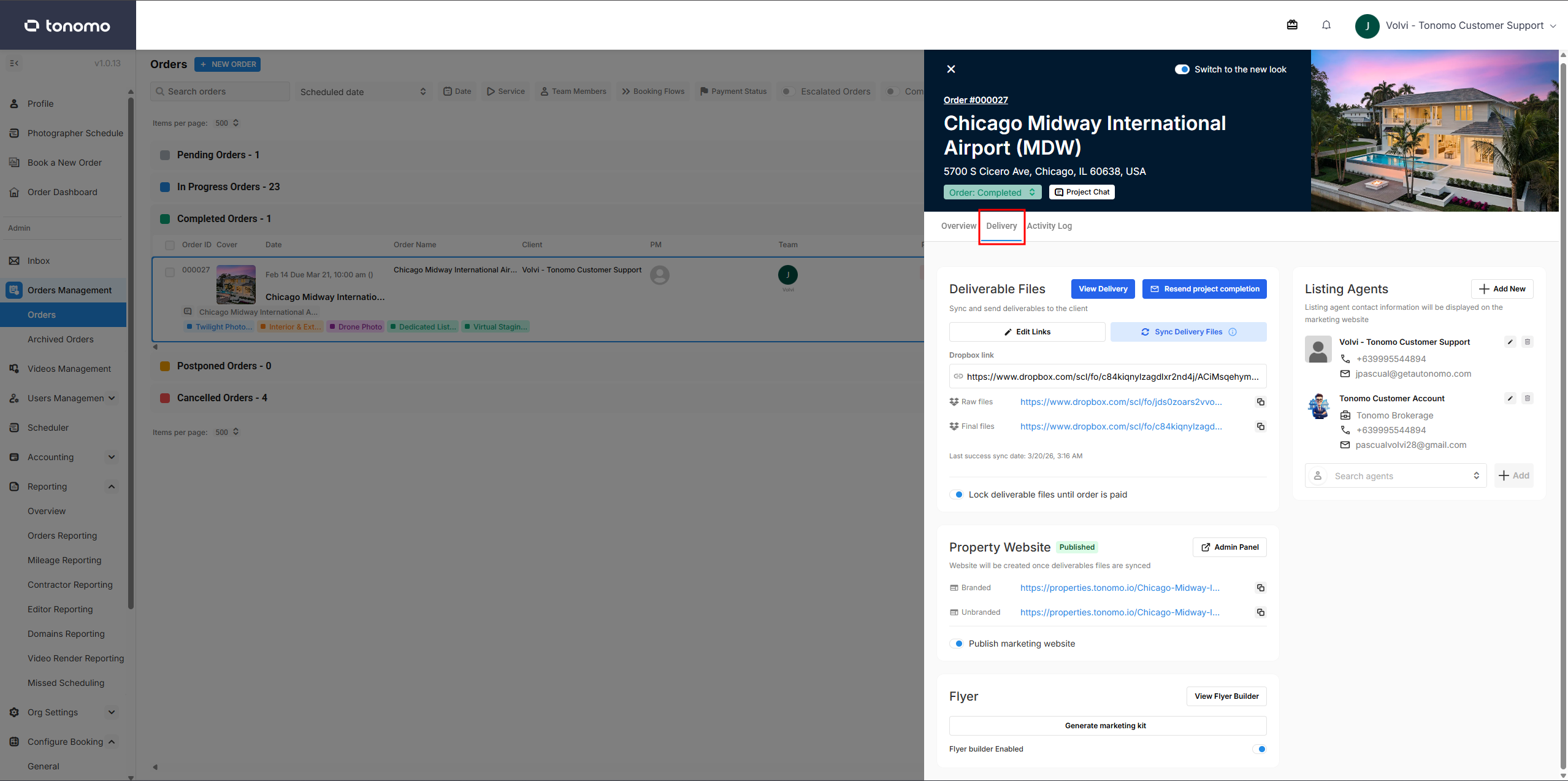
Delivery
This section contains the deliverables along with the marketing kit, property website, and listing agent details. Admins can also update and sync the delivery files, as well as lock or unlock files on a per-order basis.
Deliverable Files
Deliverables This is the main area of the Delivery section, where the folder links, sync button, and lock deliverables option are located.
Once the edited files are uploaded to the final Dropbox folder, the admin can click the Sync Delivery Files button. After a successful sync, the delivery folder will be created along with the View Delivery button.
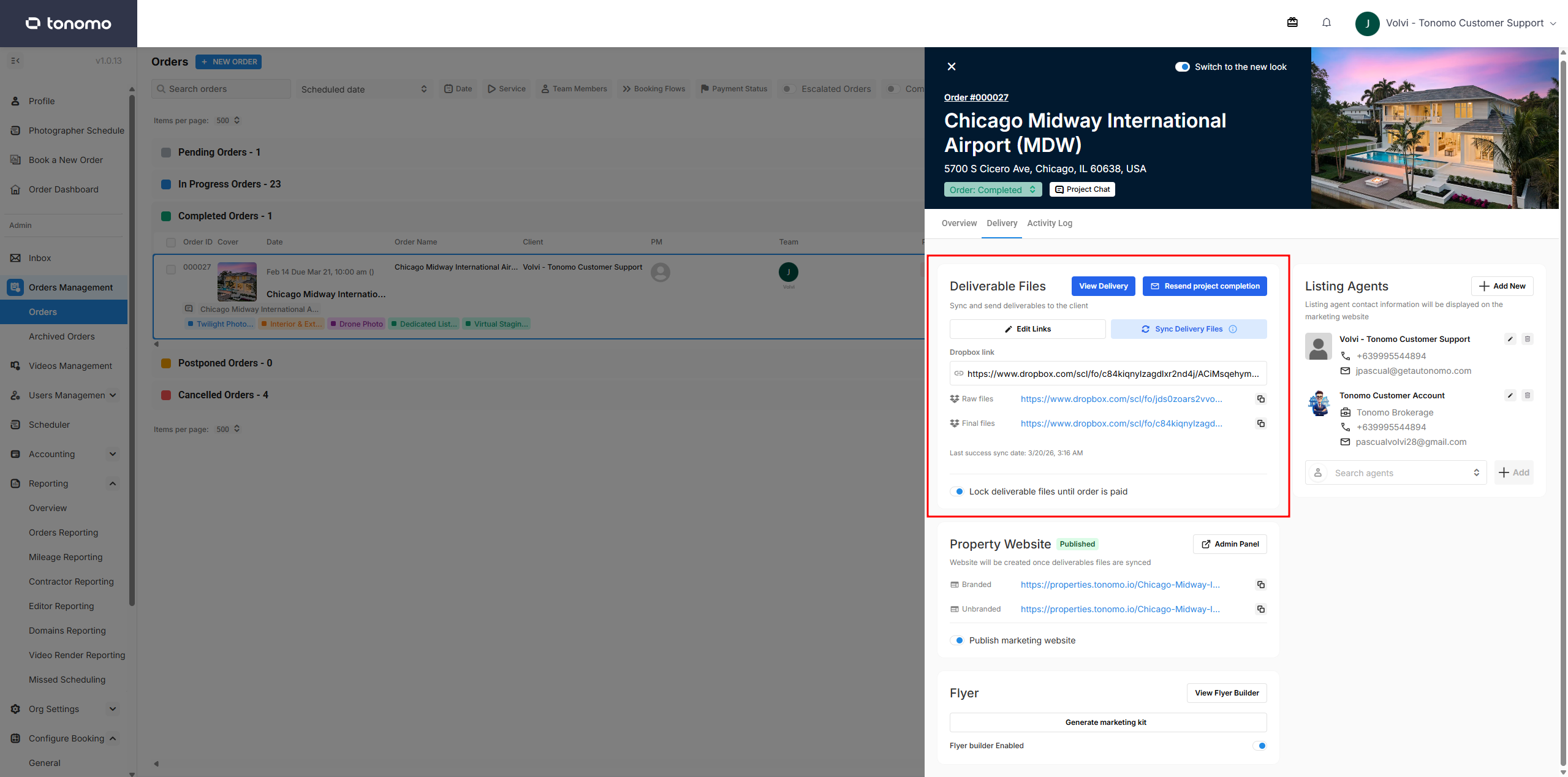
Lock delivery files until order is paid
This feature is only accessible to admins and allows them to enable or disable the lock deliverables feature on a per-order basis.
When Enabled — Clients will not be able to download the files when the order is marked as unpaid. This restriction is automatically lifted once the order is paid.
When Disabled — Clients can download the files for the order regardless of the payment status.
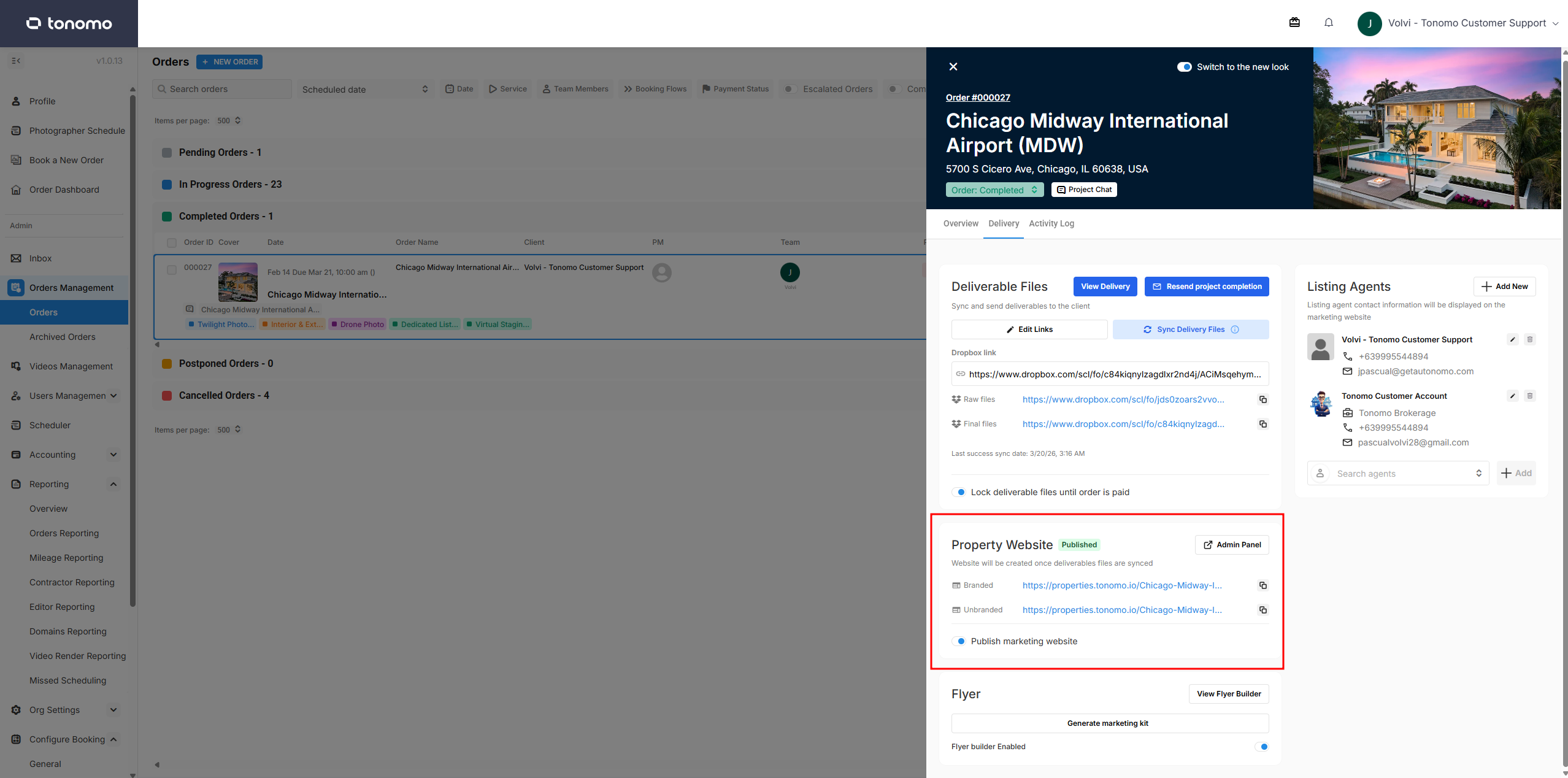
Property Website
When enabled, a listing website or property website will automatically be added to the order's delivery page. Both branded and unbranded links will be provided for the customer to use. For more details, please refer to the Single Property Website documentation.
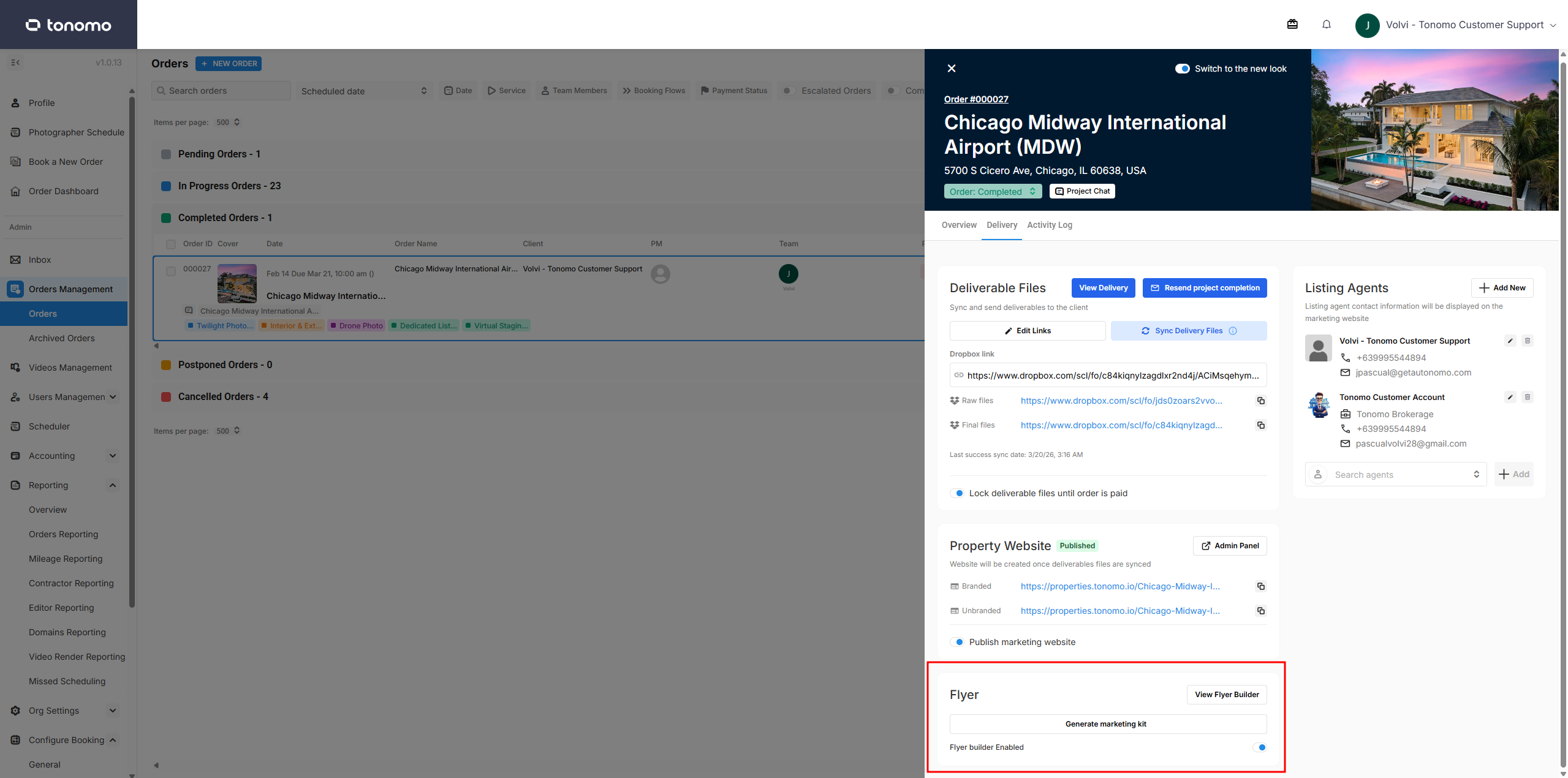
Flyer
This section is where admins can find the marketing kits and flyers for the order. Admins can generate marketing kits by clicking the Generate Marketing Kit button, or edit individual flyers using the Flyer Builder button.
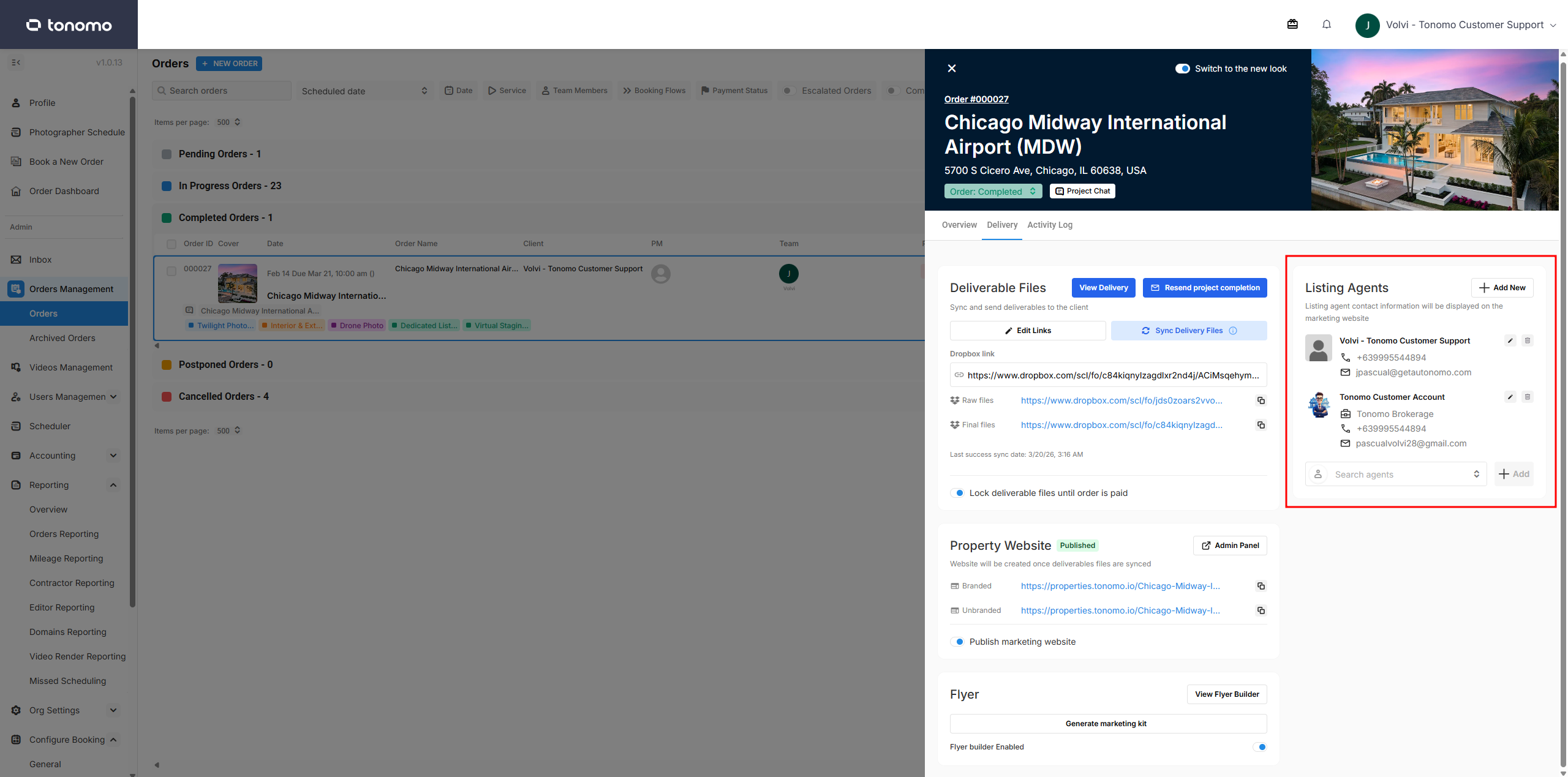
Listing Agents
Also known as Branding, this section is used to add additional agents to the Branding section of the delivery page and listing website. This is especially useful when a client is co-listing an order with another agent. Admins can add, remove, or edit agent profile information directly from this section.
Activity Log
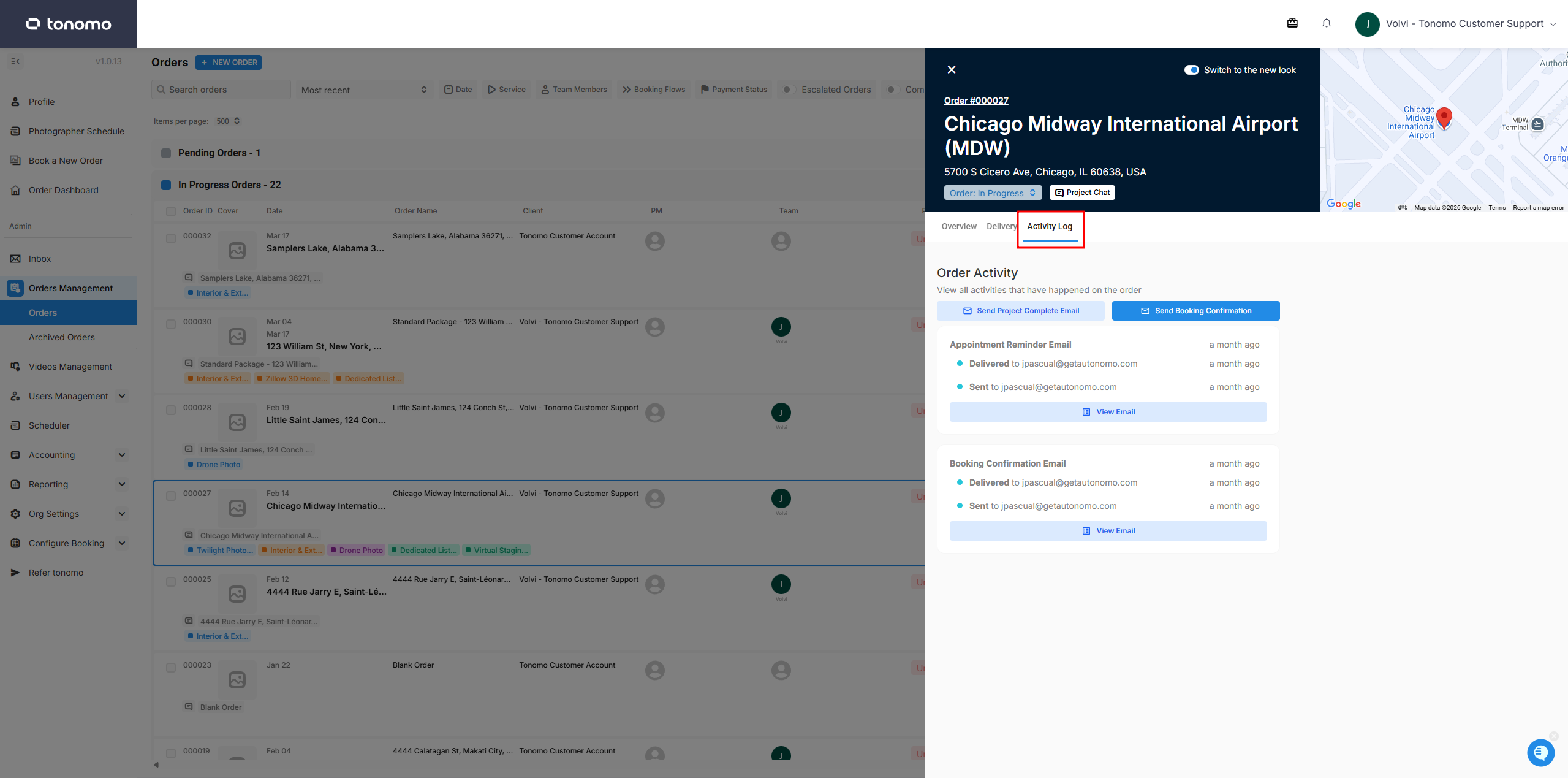
This section contains the Send Project Complete Email and Send Booking Confirmation Email buttons, which allow admins to resend either email template to the client.
Additionally, all email activity is recorded in this section along with the email preview. Admins can monitor whether an email was sent successfully and whether the client has opened it.