Project Chat
Last updated: March 10, 2026
Project Chat is where you can update service statuses, assign editors, use the checklist for admins and photographers, and manage team communication, among other uses.
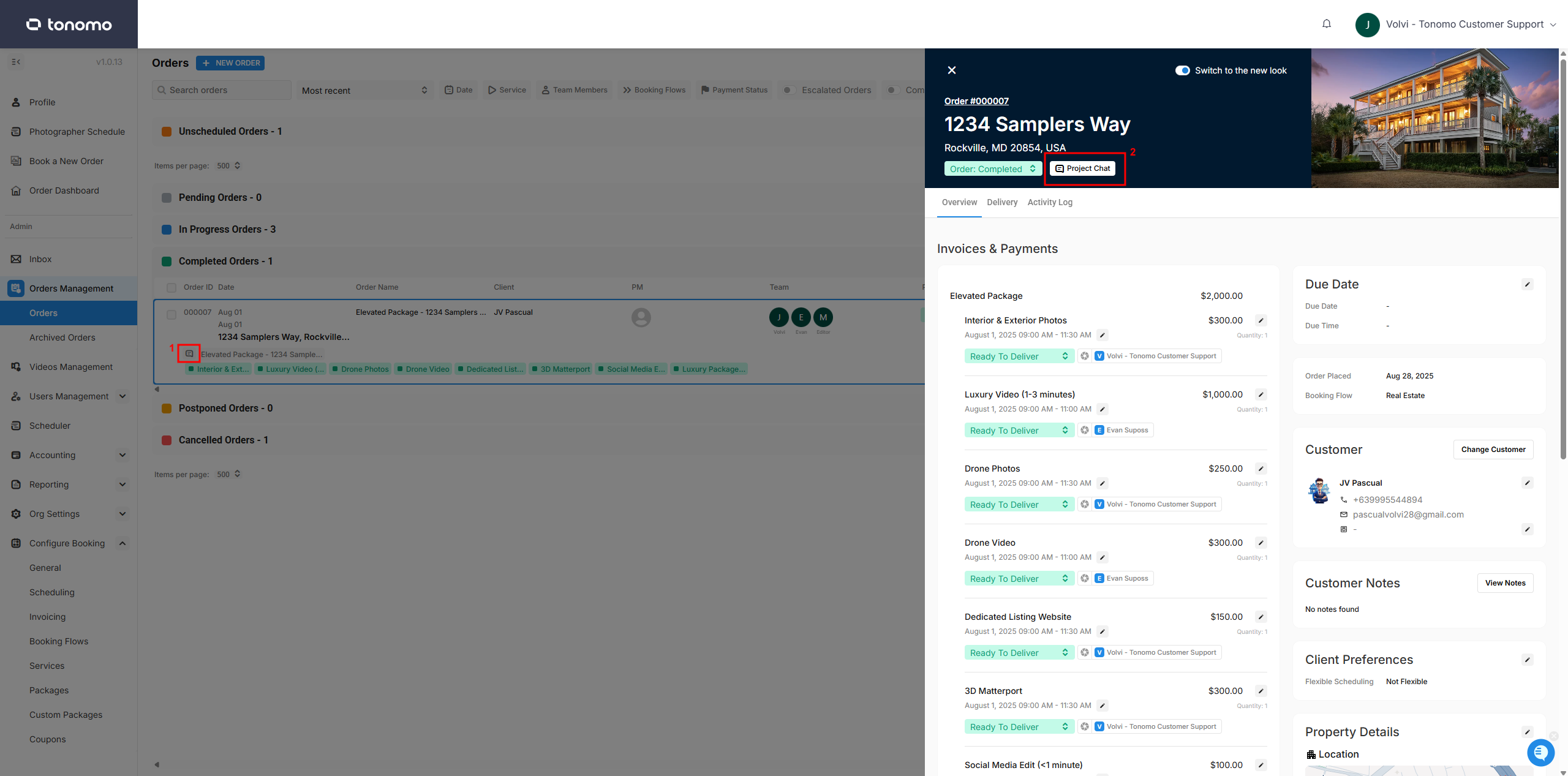
You can access Project Chat from the Orders Management page in two ways:
Via the Project Chat icon: On any order, click the icon located above the list of services.
Via the order details: Click an order to open its details. In the new design, you’ll see a Project Chat button next to the order status—click it to enter the chat.
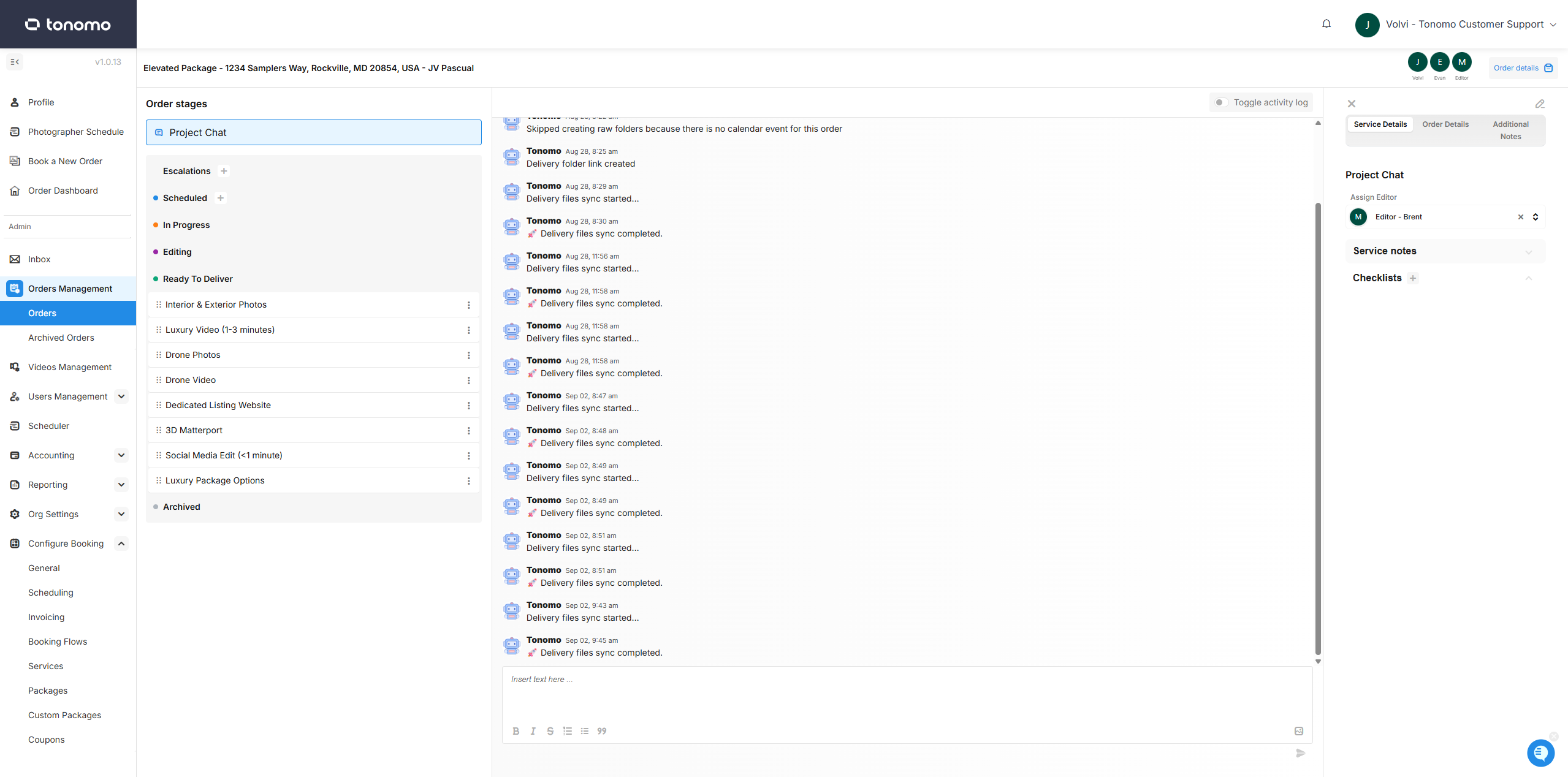
Once you open Project Chat, you’ll gain access to detailed information about the order, along with tools to help you manage it effectively.
Service Status
On the left-hand side, you’ll see the status of each service included in the order. Each service can have its own default status—such as Pre-Production, Production, Post-Production, Complete, or Archive. As the project progresses, you can simply drag and drop services into the appropriate status.
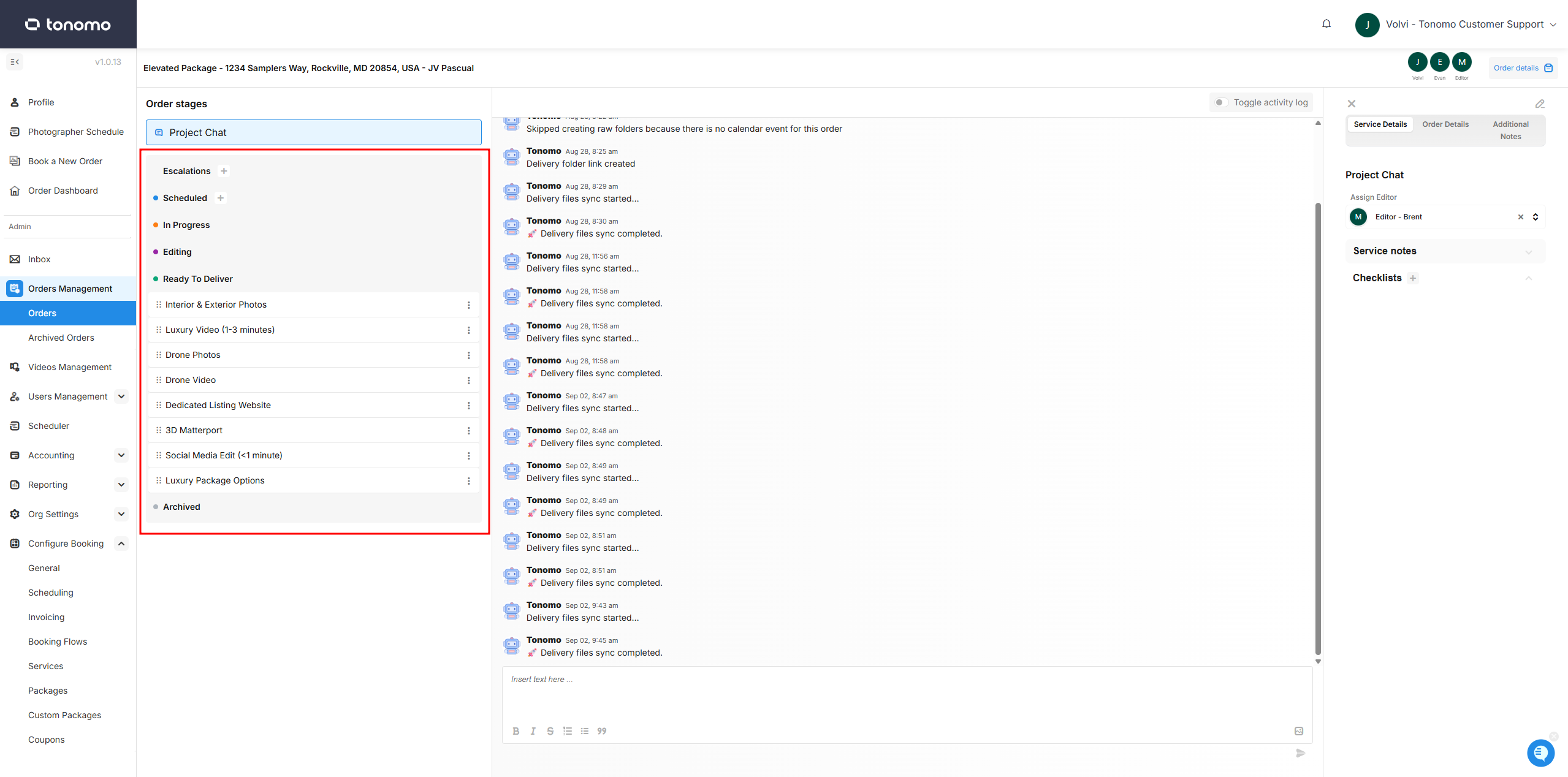
You can edit these statuses in the Customization section under Org Settings. Only the names can be changed, but their function will stay the same. For more details, check out this guide.
Project Chat
The center section has two main uses.
Project Chat Box
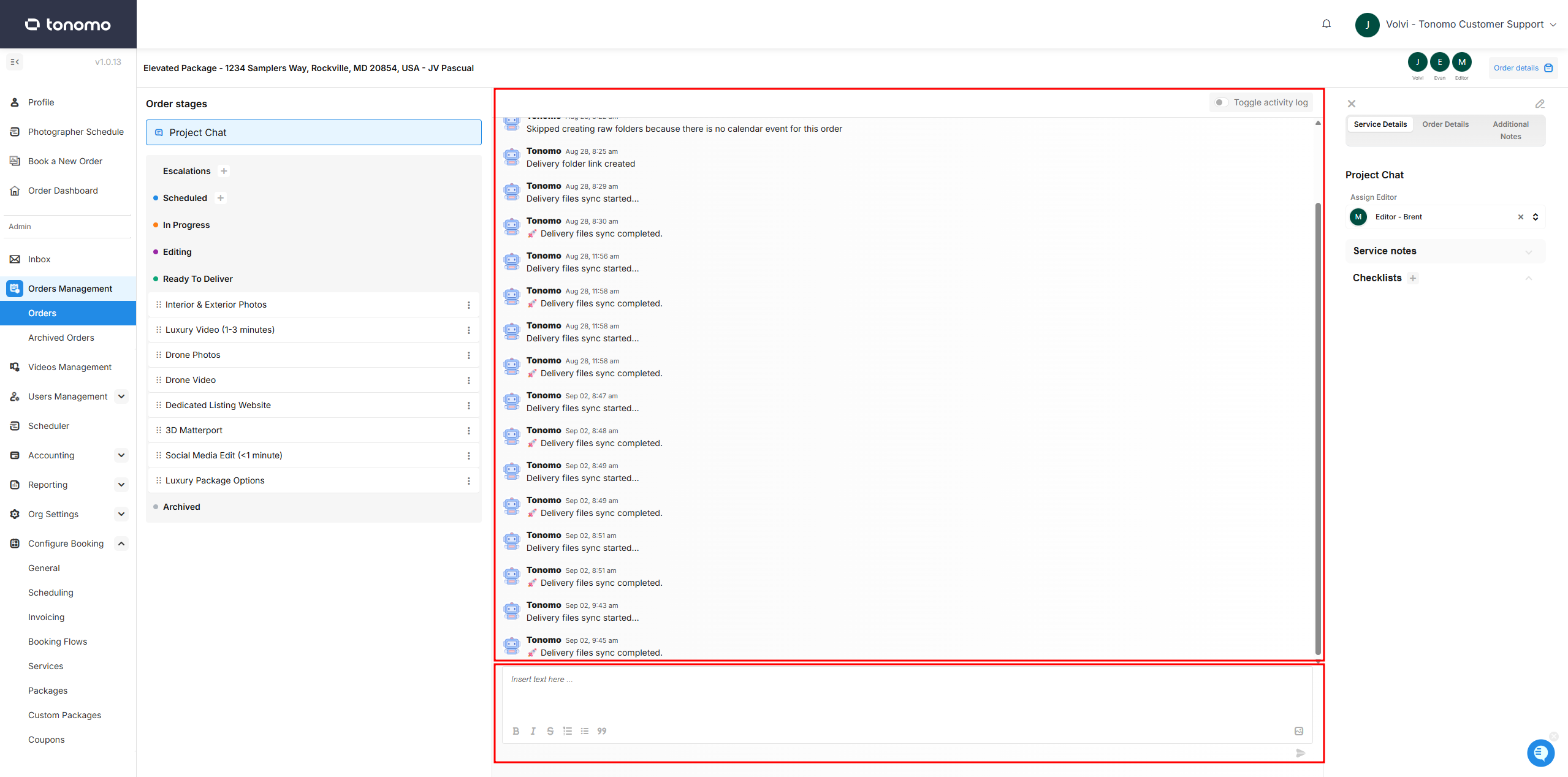
The first is Project Chat (or Order Chat), where teammates can discuss the project internally—these messages are never shared with the Agent. The large box in the center shows the chat history, and the box at the bottom is where you type new messages.
If you’ve used Slack or other messaging apps, it works the same way. You can tag teammates by typing ‘@’ and their name (for example, @JohnSmith) to notify them. You can also tag groups, like @Project Manager or @Video Editor, to notify everyone in that role at once.
Project Chat Activity Log
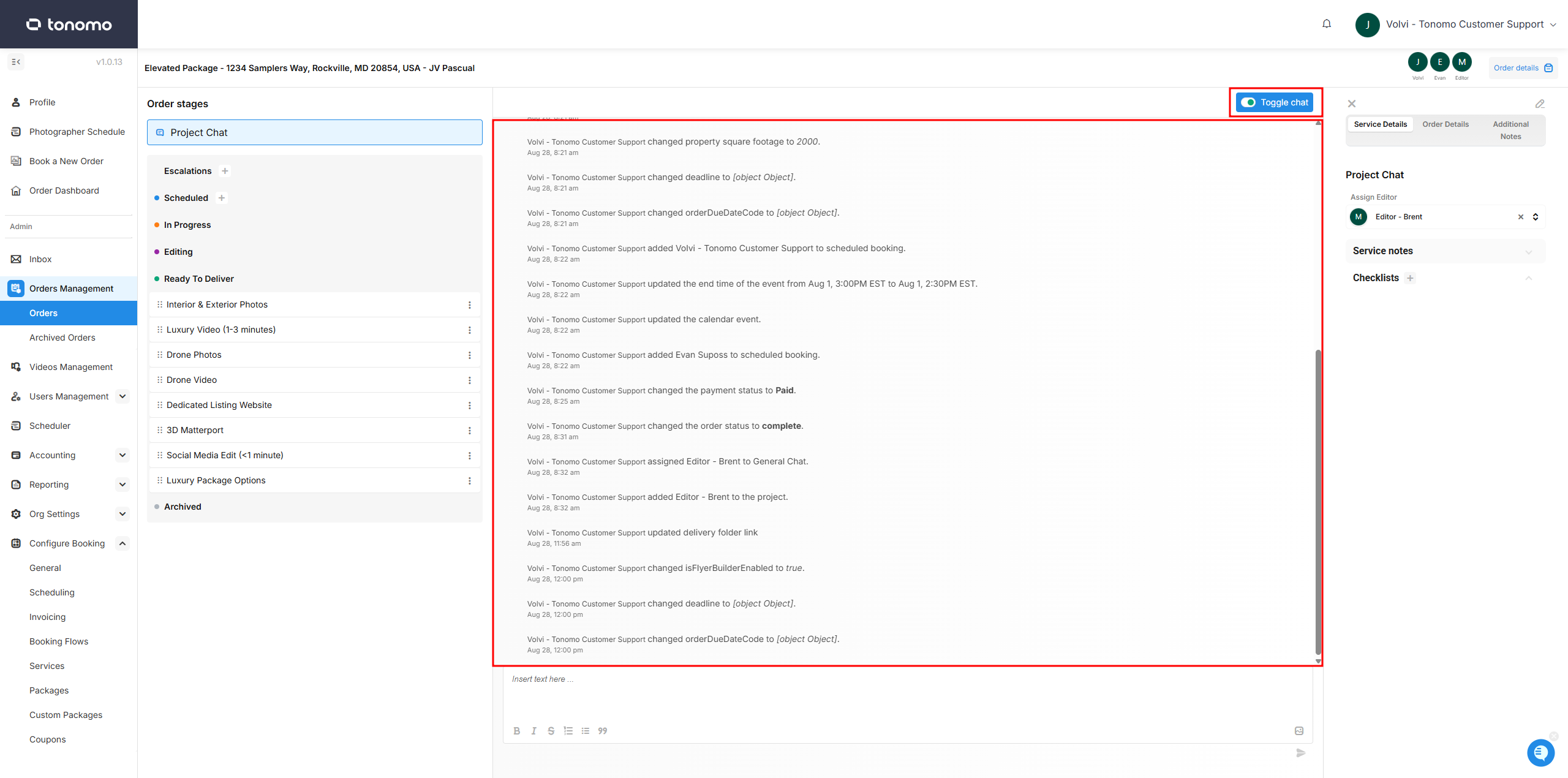
At the top, there’s a toggle to turn the activity log on or off. When it’s on, the system will display notes whenever someone makes a change. For example: Volvi – Tonomo Customer Support changed property square footage to 2000. This update will then appear in the activity log section.
Service Chat Box and Activity Log
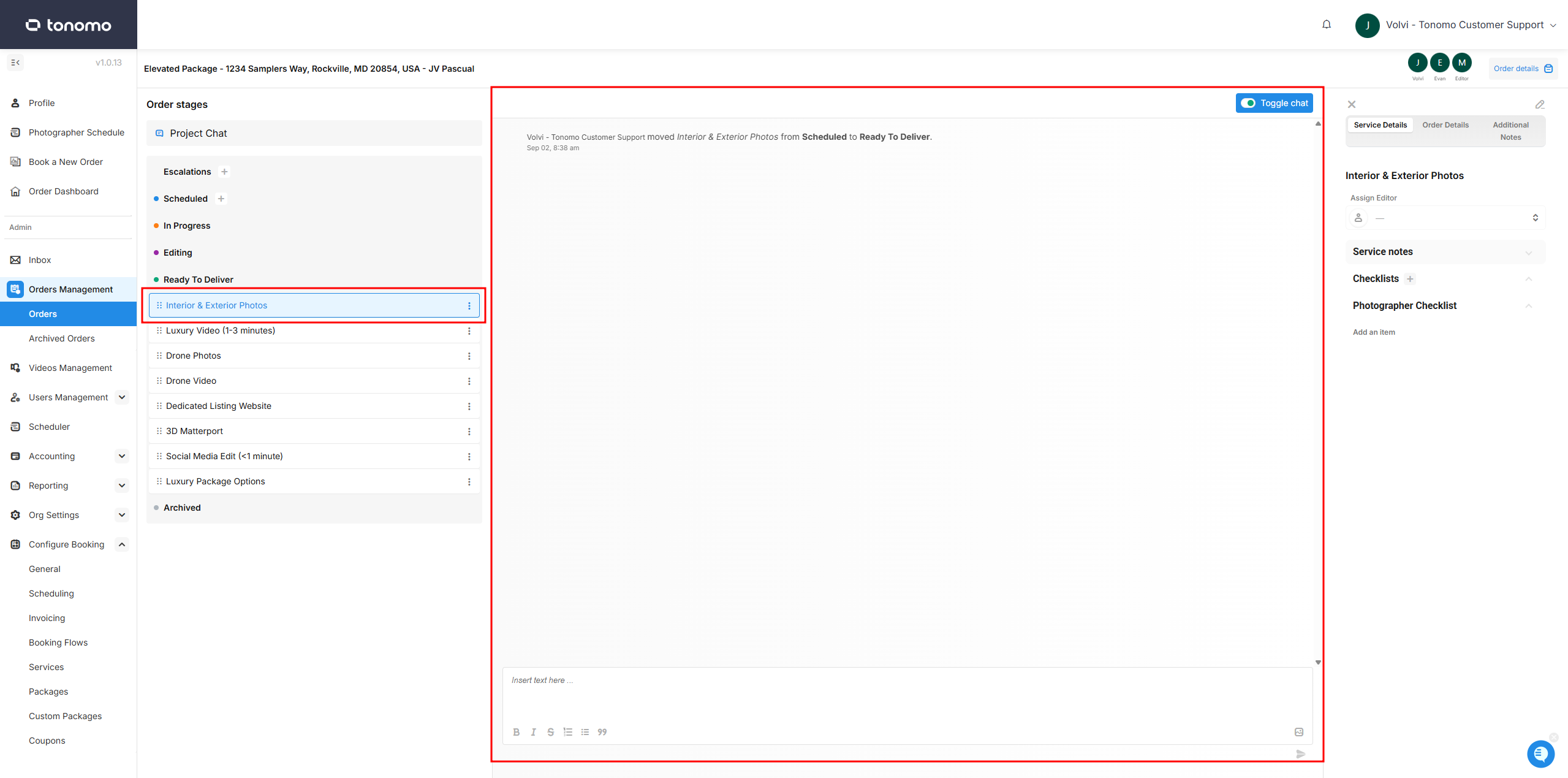
Additionally, you can click on a specific service to open a project chat box and activity log just for that service. This is helpful for focused conversations with your team and to see which members moved the service to a new status. From here, you can also view the checklist assigned to that service and even assign a different editor if needed.
Service Details
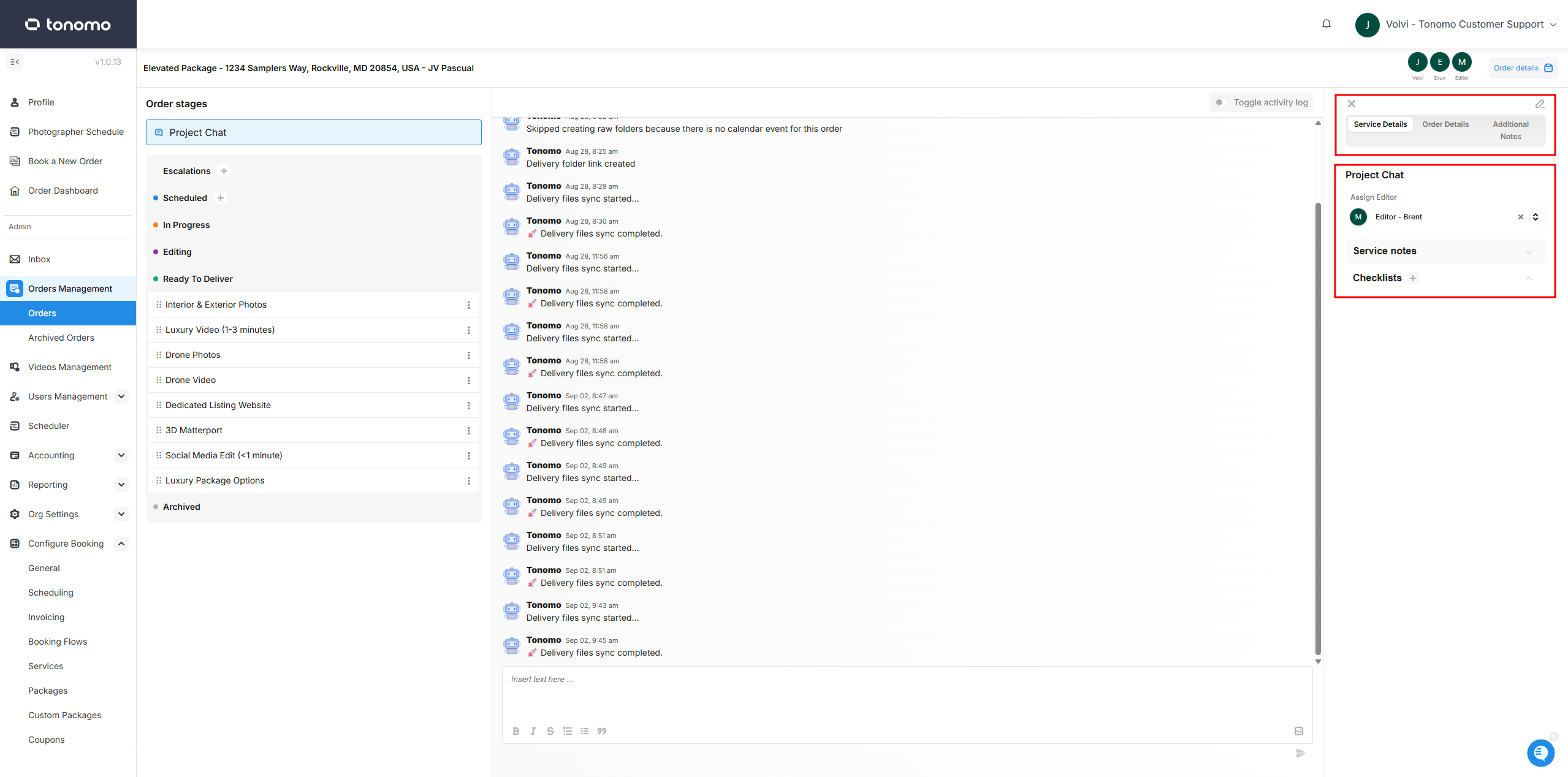
On the right side of the screen are more project details. We see Service Details, Order Details, and Additional Notes along the top tabs. Order Details are the same as we described in Manually Creating Orders, and Additional Notes is a note field if needed.
Under Service Details are the Assign Editor Section, Order Notes, and Checklists. These can be edited and changed by any Staff or Admins and checked off as work is completed. If you want these fields to be pre-configured, see our guide on Notifications and Checklists