Updating the Address of an Existing Order
Last updated: May 28, 2026
To update the property address for a client’s order, or if an incorrect address was entered during booking, follow these steps:
Select the order that needs updating.
Go to the "Property Details" section in the order dashboard.
Review the current address, total interior area, notes, and the number of rooms and bathrooms.
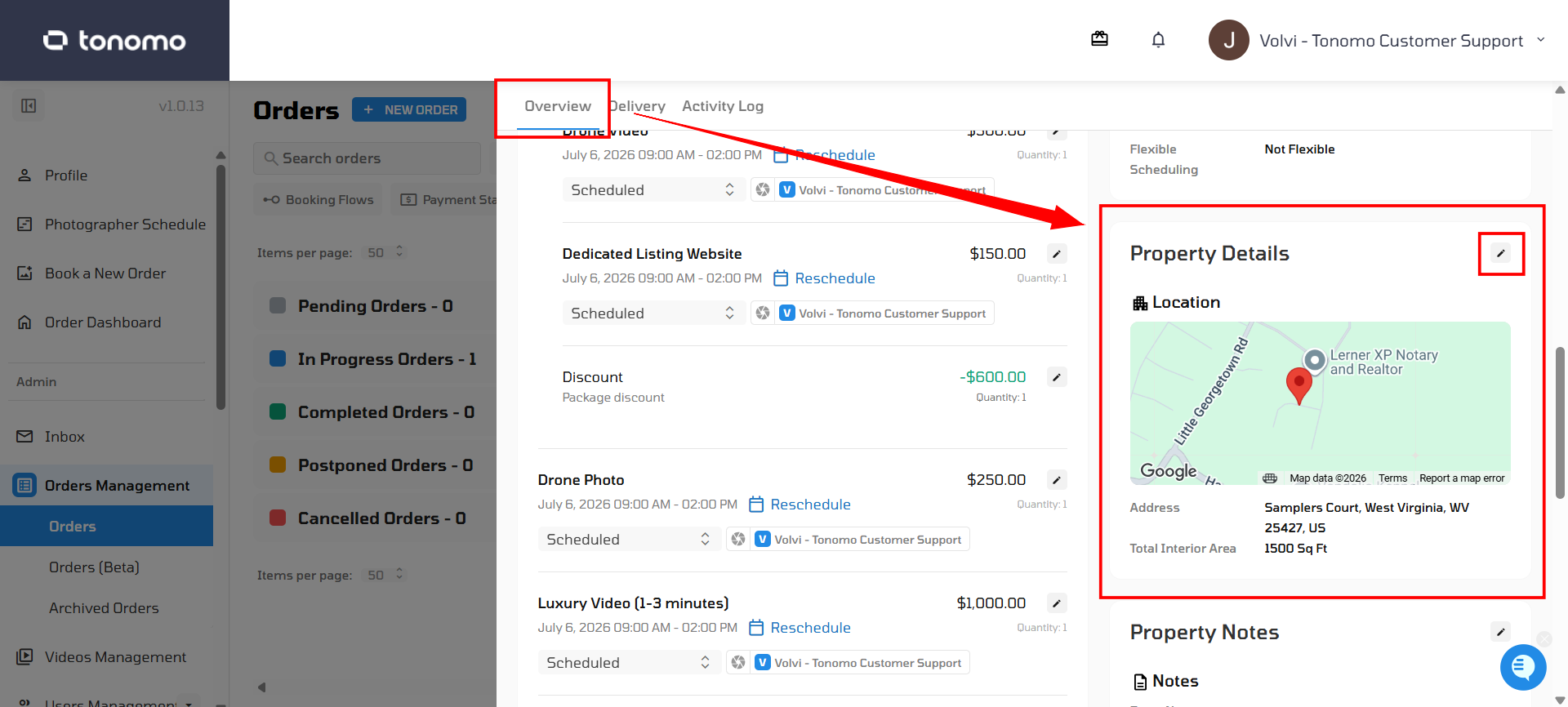
Enter the new address in the provided field. Google Maps will suggest an address. If no suggestion appears, enter it manually. Please don't forget to click save or click the Add Property Address button below.
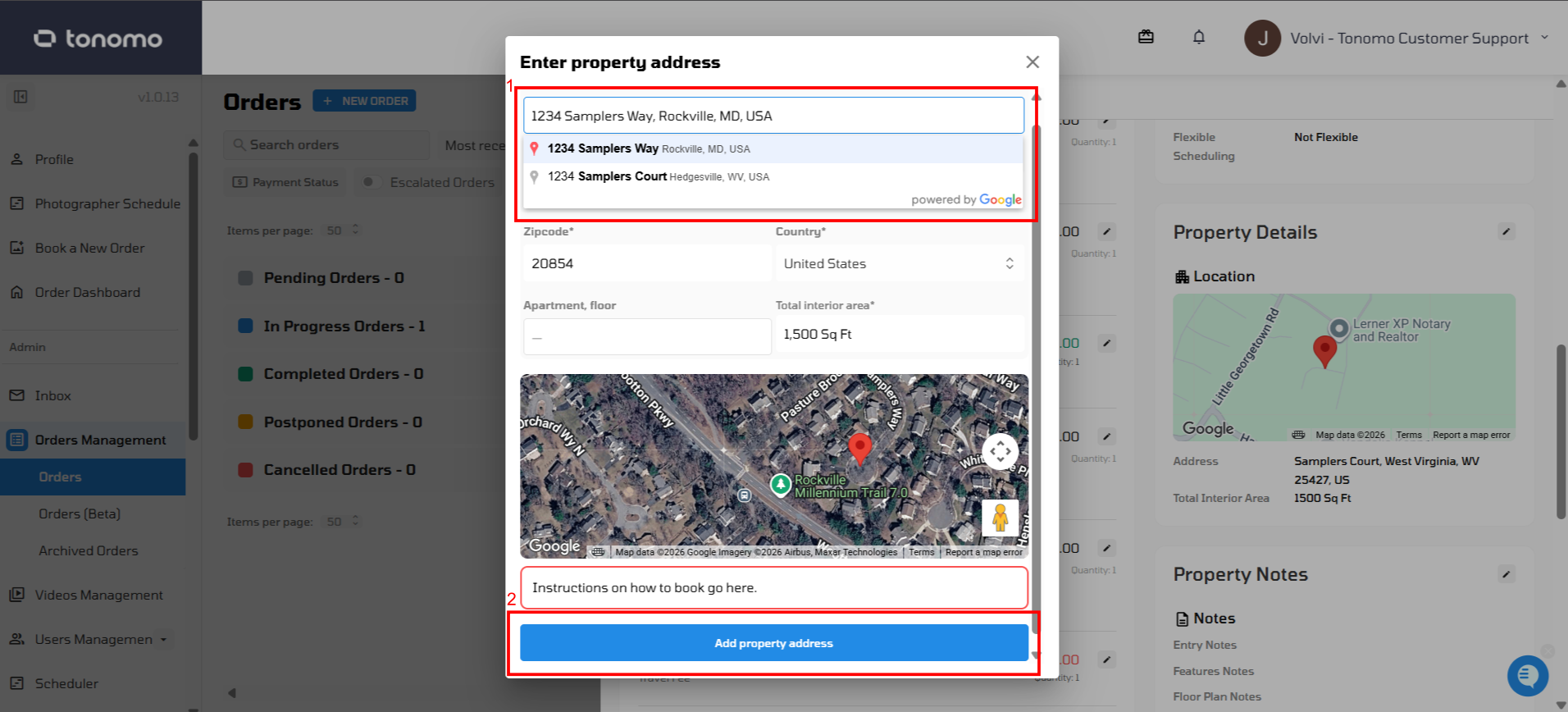
After entering the address, a message will appear below to confirm your changes.

Once you update the address, you will see an option to update the invoice. Please note that changing the address may cause a change in the travel fee, which could increase or decrease based on the new location. Also, if you change the property address while the website is enabled, you will need to manually update the address in the website admin panel.