Cancelling Orders
Last updated: August 12, 2025
An existing order can be canceled in two ways—either by an admin directly from the Order Management page, or by the client through the Order Status page after booking.
By Admin
Canceling an order as an admin is a straightforward process. You can do this from either the Order Management panel or the Order Details panel of each order.
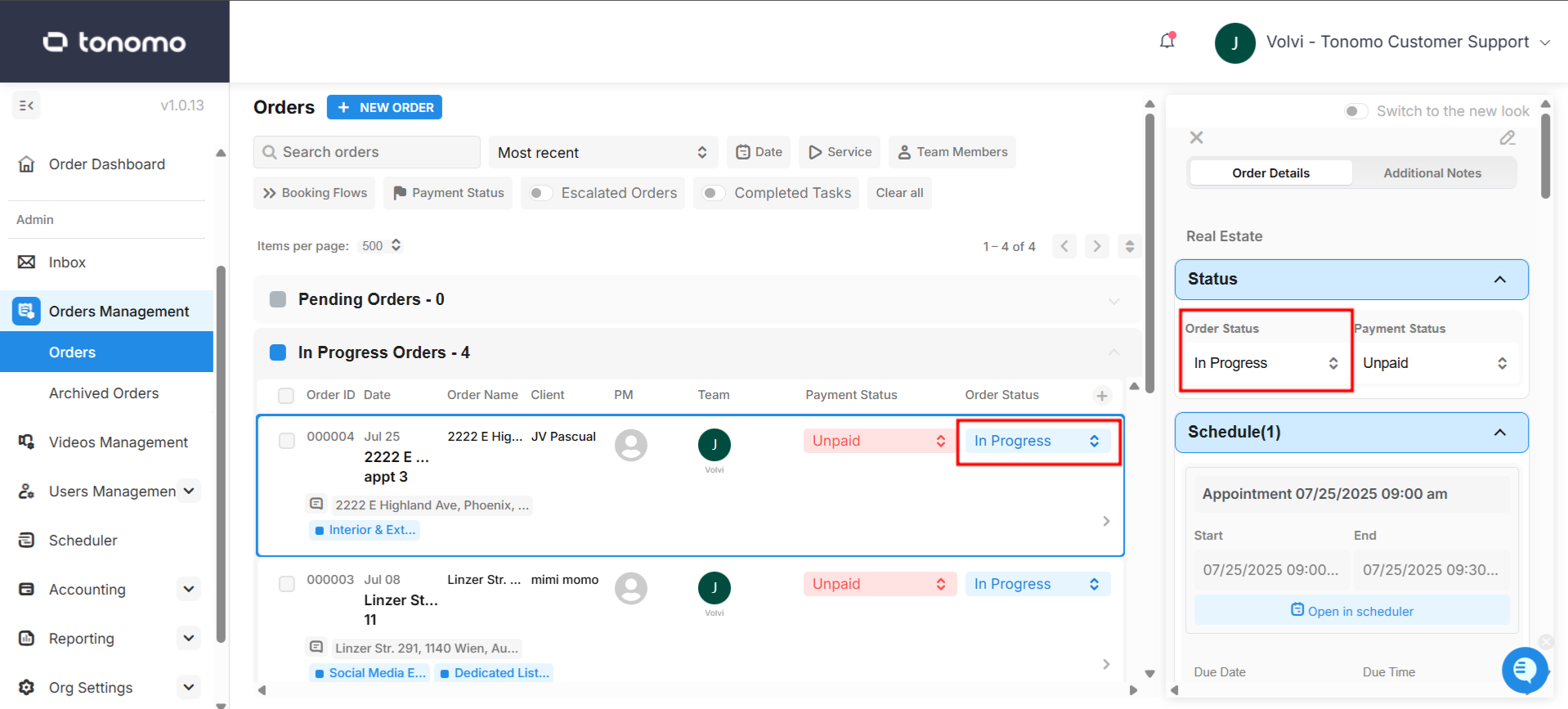
When you change the Order Status to Cancelled, the system will prompt you to confirm the action. Select OK to delete the order data, or choose Cancel to stop the process and keep the order status as In Progress.
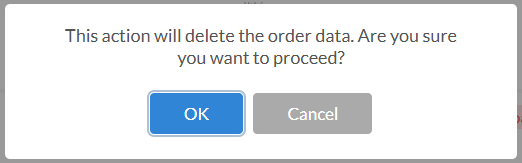
If you choose to delete the event, the user will receive a notification from their calendar provider informing them that the event has been canceled.
By Customer
Customers can cancel a shoot from the Order Status page by clicking Cancel and then confirming with Cancel Booking.
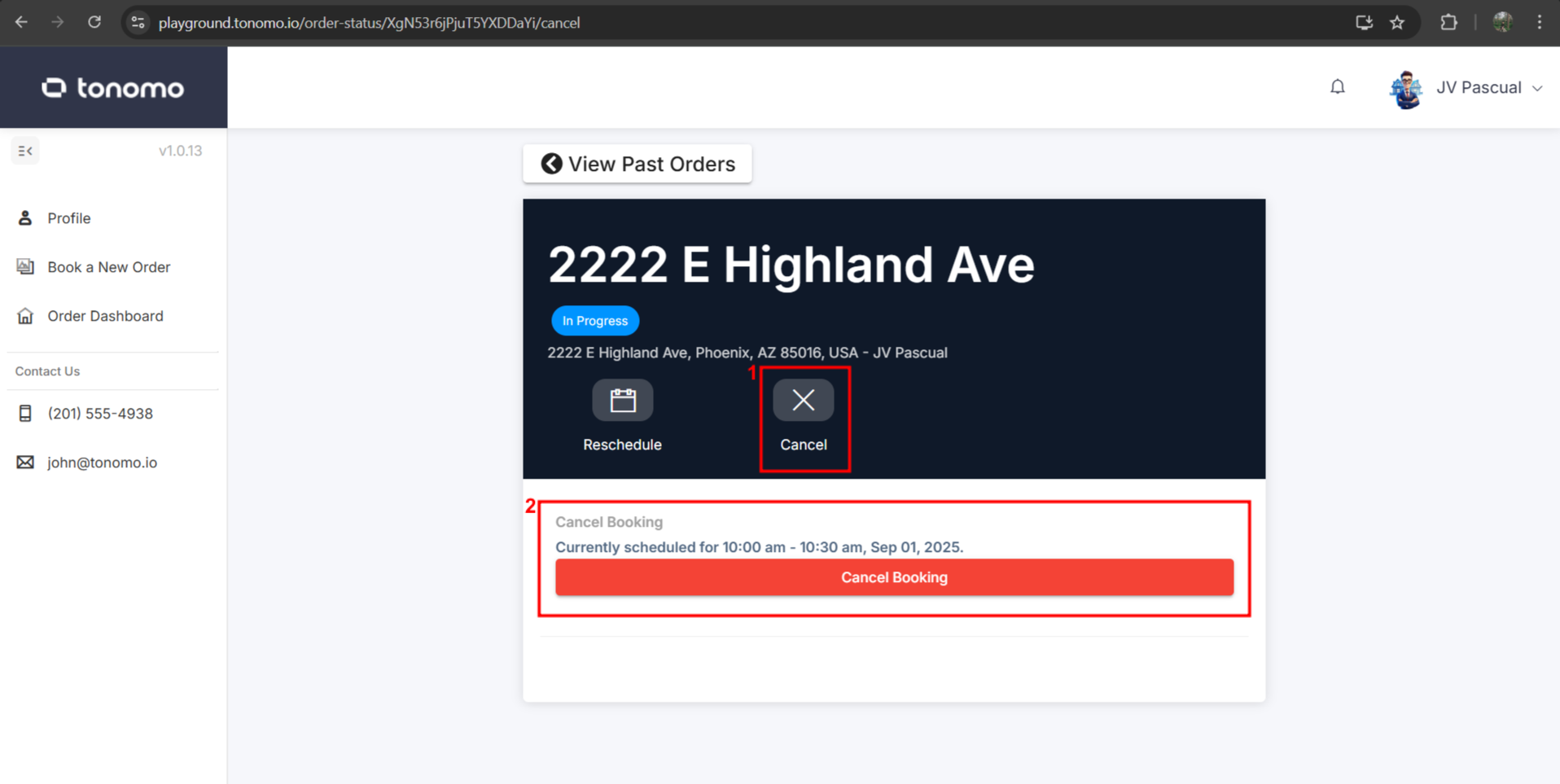
This option is only available if the Allow Cancellations setting is enabled in your booking flow settings.