Add Additional Customers to Calendar Event and CC Email
Last updated: August 12, 2025
Here’s how to add additional customers to the calendar event:
In Order Management, click the order to open the Order Details panel on the right, then click Open in Scheduler.
Hover over the event and click the pencil icon to edit.
After clicking edit, this window will show up. You can either click the X to remove the existing guest or enter an email address into the Additional Guests section. Tap your enter key after entering each email address. Click Save Event when you're done.


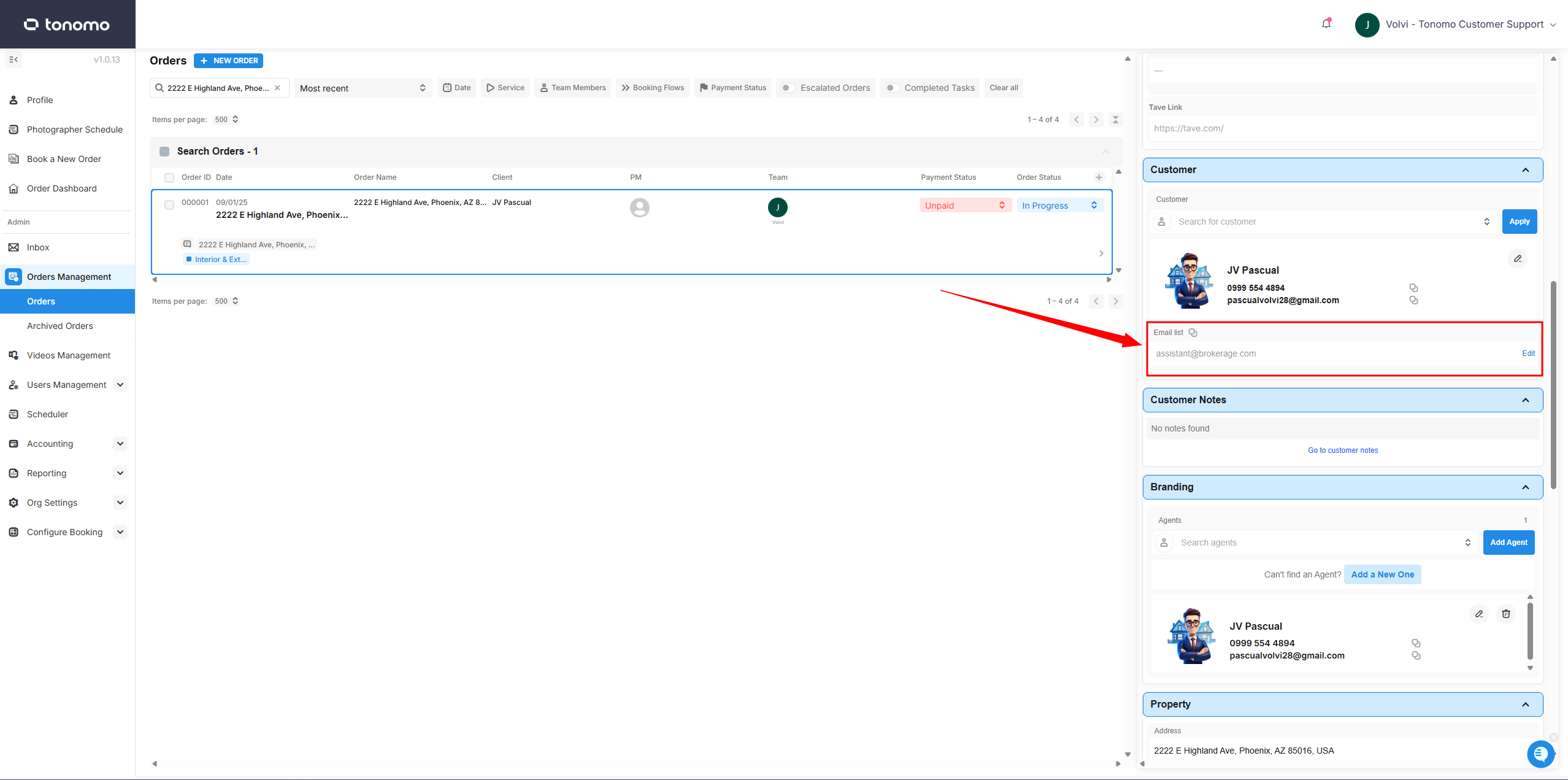
Here’s how to add an email in the CC section:
Click the order in Orders Management to open the Order Details section. In the Customer section, add the email address to the email list—it will automatically CC that address on all emails.