Services
Last updated: March 24, 2026
Services
Services are why your customers are looking to hire you! Examples of services are Home Photos, 3D Scans, Aerial Video, or whatever else your agency can provide. Of course, we aren't just going to throw a big list at the Agents looking to book with you — we’ll help you present your offerings in the best light to drive sales.
As with all of our setup steps, the goal isn’t pixel perfection on the first go. We’re going to get started with the significant components and refine them over time.
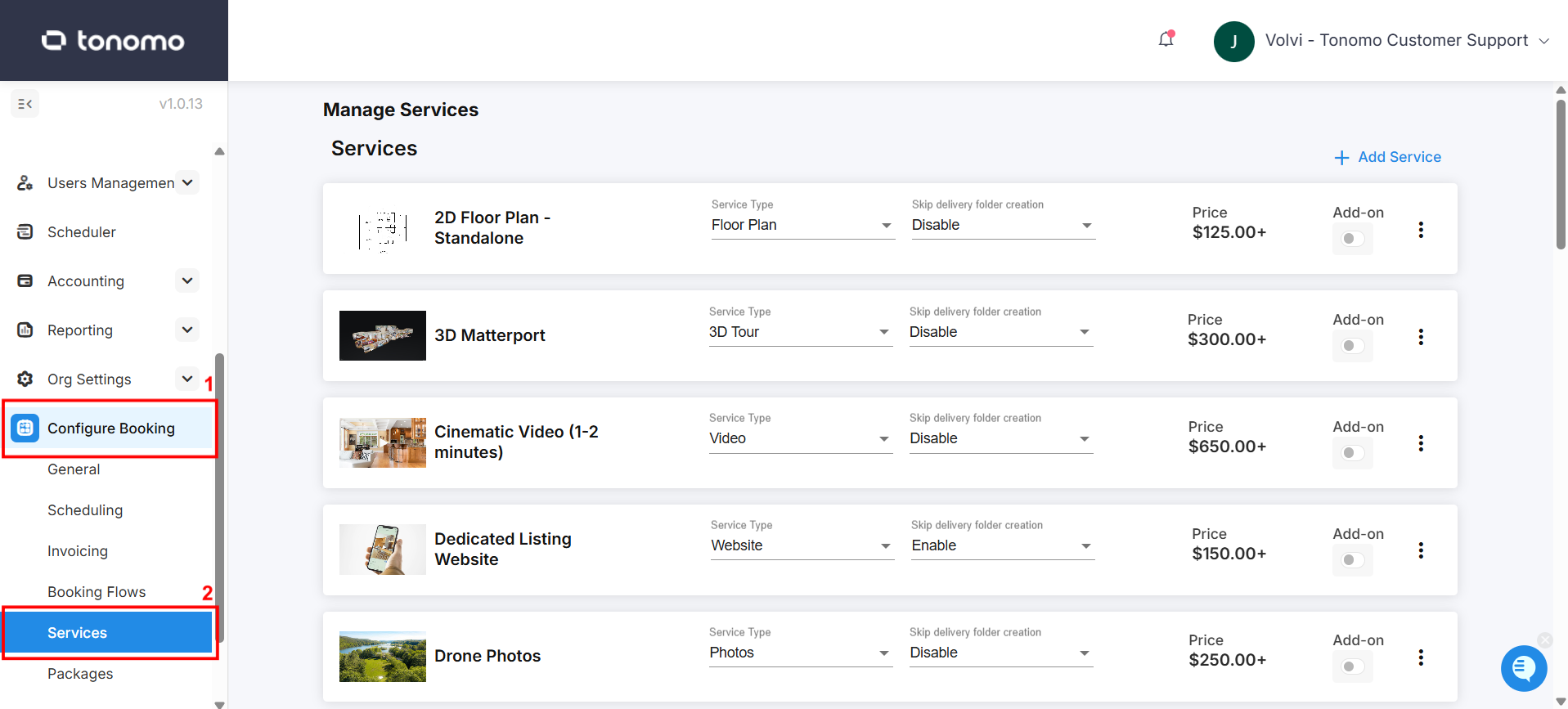
To get started, navigate to the Services section under Configure Booking.
Core Service vs. Add-On
We allow you to add two distinct types of Services: Core Services and Add-Ons.
Core Service is something like a 30 Second Highlight Video. It's a standalone service that someone could order on its own and get a finished product.
Add-On is something like Virtual Staging, which would be an upsell or custom option for Home Photos. Virtual Staging isn't something you can do without the Home Photos, so it is an Add-On instead of a Core Service.
Here are some more examples of the differences between Core Service and Add-On.
Core Service | Add-on |
Photos | Virtual Staging |
2D Layout | Illustrated 2D Layout |
30 Second Highlight Video | 15 Second Agent Intro/Outro |
As you can imagine, some of the difference is a matter of preference. For you, perhaps you would only do 2D Layouts if someone is ordering 3D Matterport. Then you would make 2D Layout an Add-On as opposed to a Core Service.
Haven't planned out your Services and Packages clearly yet? We put together a worksheet to help organize your offerings. Click here to access it, log into your Google Account and then click File > Make Copy in the top left corner. If you don't have Google, copy/paste to Excel.
The first spreadsheet is an example and the second is a worksheet for you to fill out.
Adding Services
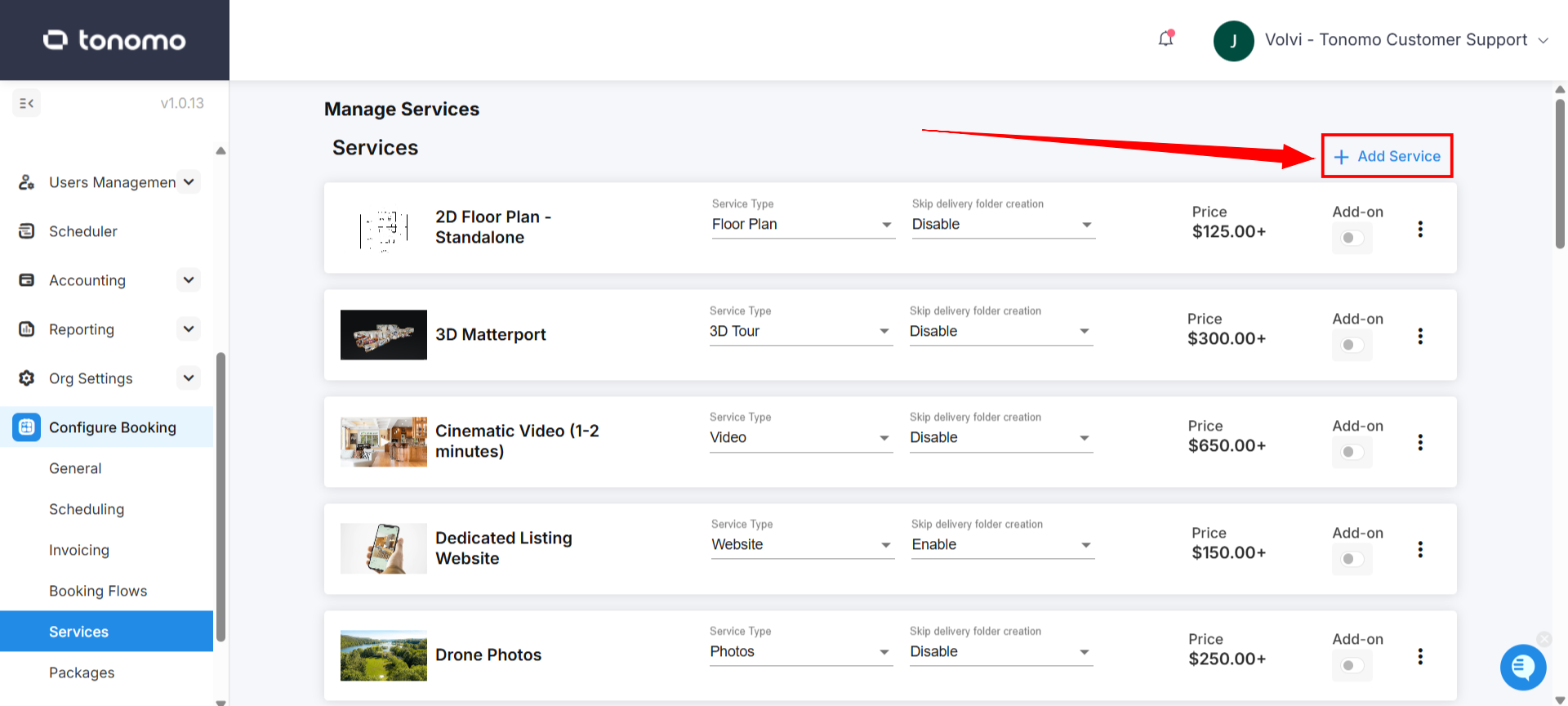
Whether you're adding a Core Service or an Add-On, the setup is the same, with a few tweaks at the end for Add-Ons. First, expand the Category for the Service you want to add and then click + Add Service. This will take you to a new window with quite a few options. Let's break that down.
General Information
First, configure the general information for your Service. This includes a thumbnail, title, description, and price. Below is a visual of what this information looks like to the booking Agent.
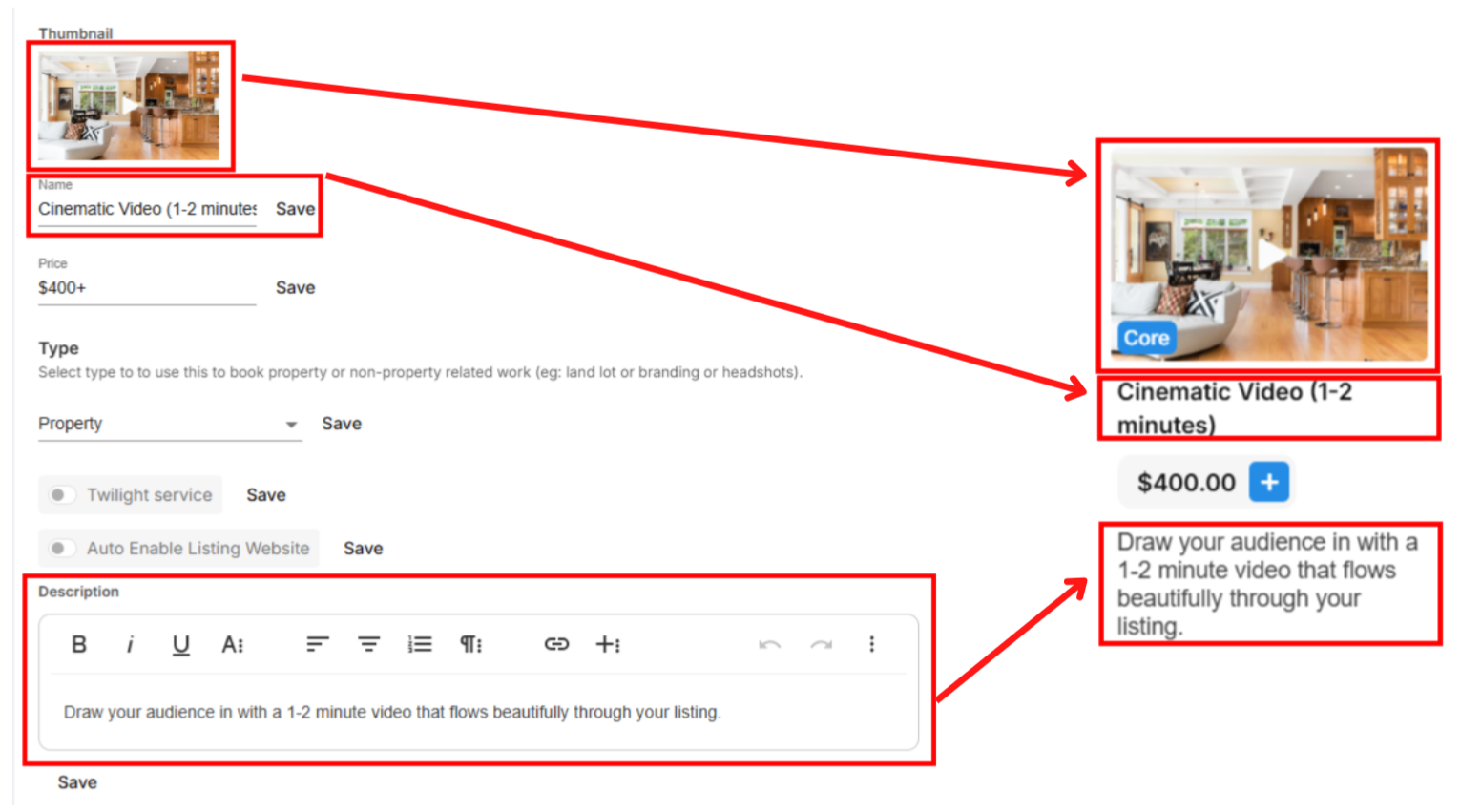
Our thumbnails for Services are 190x127. We recommend a resolution of 1280x850.
The Price field is only used for Services with Custom Tiers.
For the Description, we recommend only one short sentence. It should be just enough to differentiate it from other Services without turning your booking process into a wall of text.
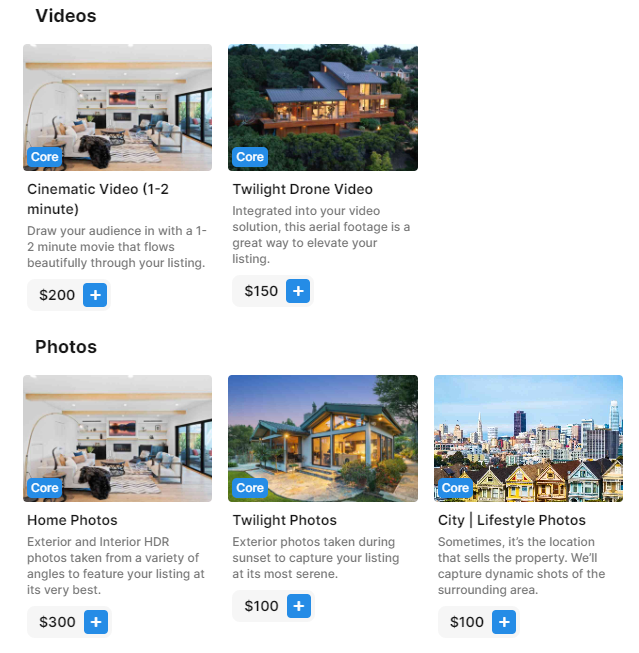
Here's an example of a well-configured Services page. It provides enough content to clarify the Services without overwhelming the Agent.
Additional Service Details
To enhance the presentation of your Services, we support a number of Additional Service Details that are appropriate for one kind of Service or another. To learn more about this, please refer to this section.
Pricing Tiers
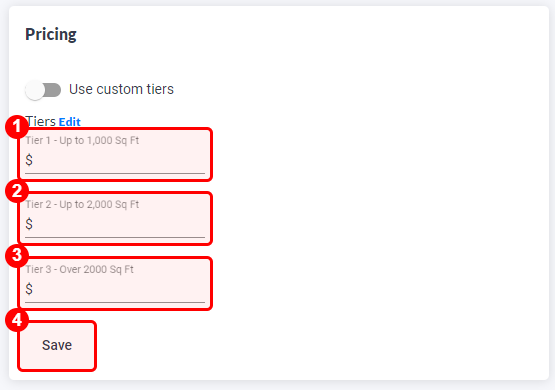
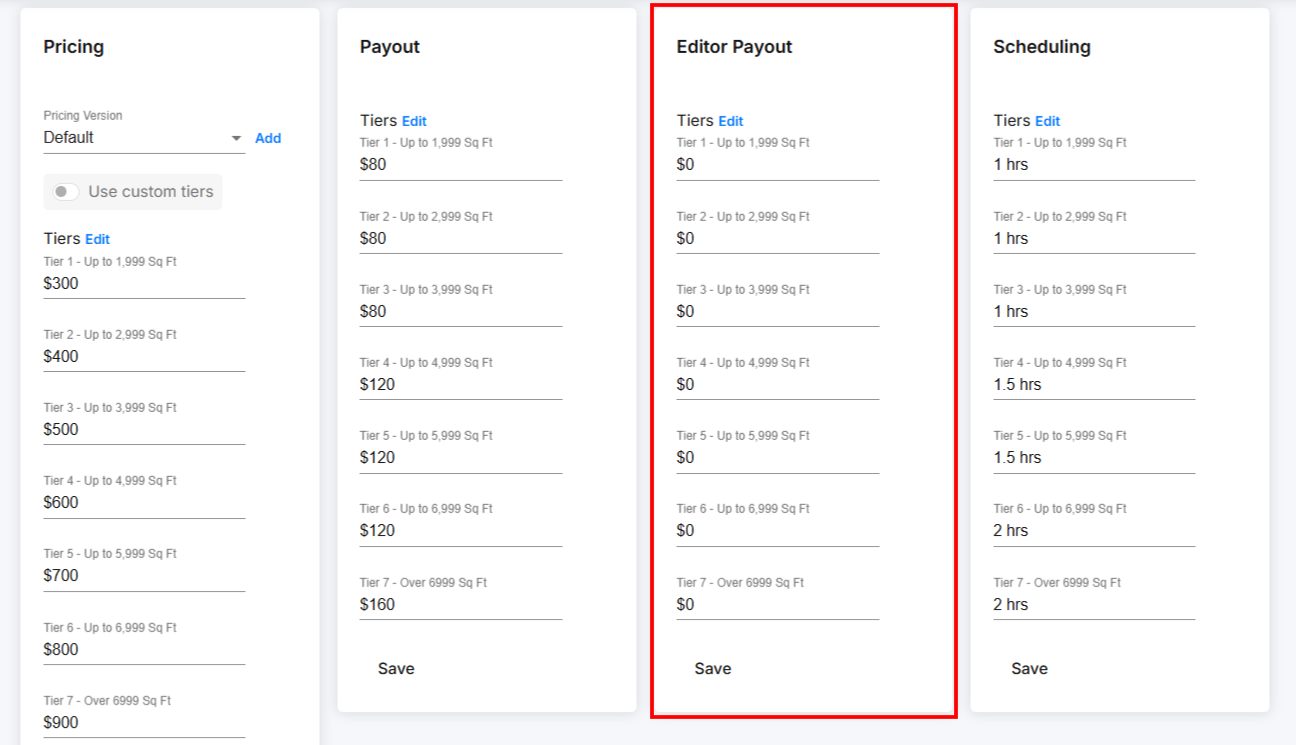
Scrolling down, we can specify the price for every tier. Enter the price for every Tier. This information will inform the Order Management and Reporting features. Click Save at the bottom when you're done.
These are the Tiers we set in the Displaying your Pricing guide. If you need to revisit these, click that blue Edit button next to "Tiers" and return when you're done!
If you want the price to be the same regardless of the size of the home (like perhaps for Lifestyle Photos), just enter the same dollar amount in each tier.
Custom Tiers without Using the Sq Ft
You'll notice the Use custom tiers toggle there. This is an option for you to customize the pricing for a specific Service that isn't based on Sq Ft. For example, you may use that toggle to display different prices for different numbers of photos. That looks like this in the booking process:
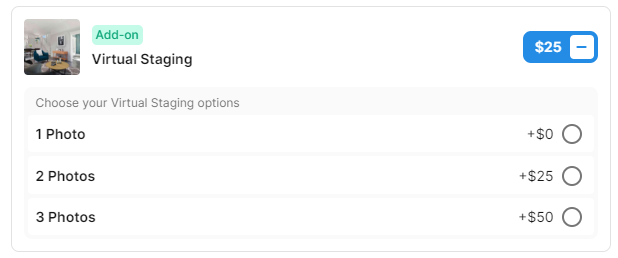
And this is how you configure that offering on the Services page:
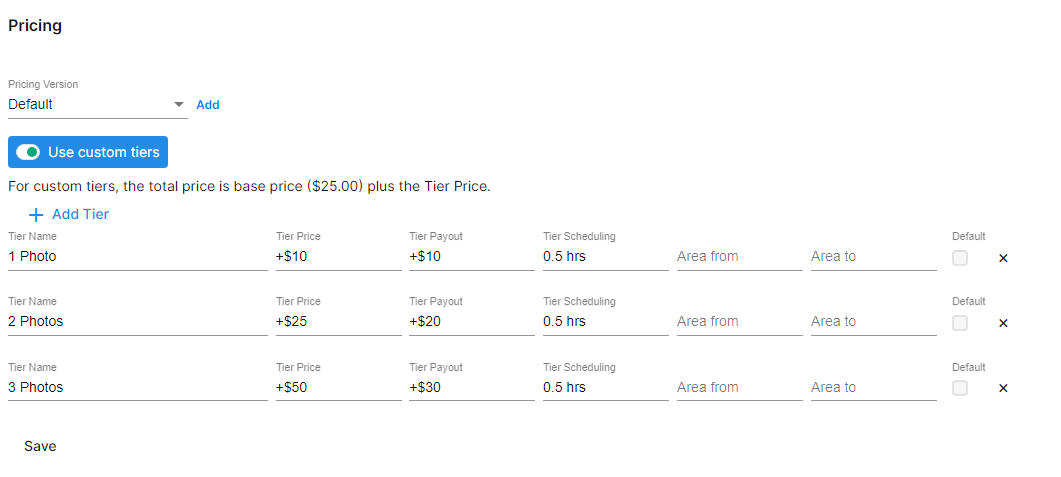
Their Tier Names are the number of photos in that Tier, then the price for each Tier, the number of hours needed to schedule that Service. In this case, the hours were the same, but you can adjust that per tier.
The Tier Price is in addition to the default price you set when you created the service. So if the price you set under the name of the Service was $25 and the user selects 2 Photos, they'll be charged $50.00.
Always click "Save" once editing is done.
Custom Tiers Using the Sq Ft
This is an option for you to customize the pricing for a specific Service that is based on Sq Ft. For example, you may use that toggle to display different prices for 3D Matterport depending on Sq Ft. That looks like this in the booking process:
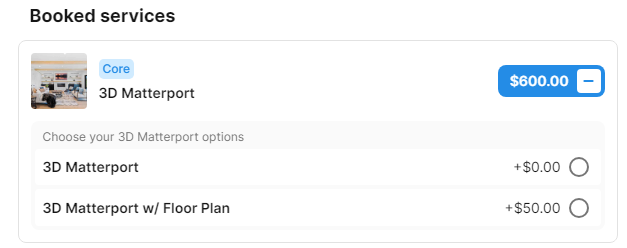
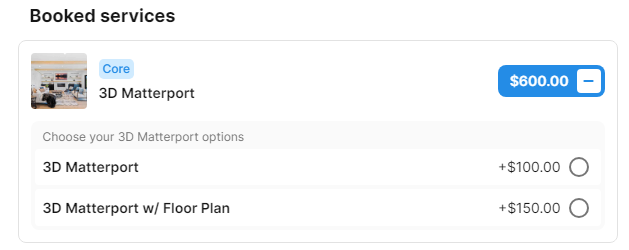
And this is how you configure that offering on the Services page:
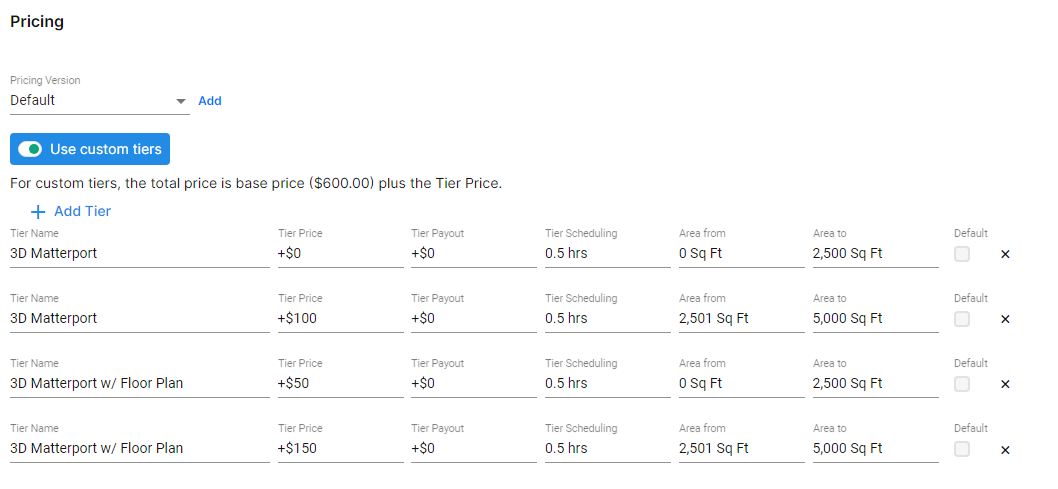
This custom tier method allows you to create a unique tier name (see sample above) and input the square footage range for that specific tier. You can also set the tier prices, payout, and scheduling. For example, if a customer booked 1,000 Sq ft, it will only show the specific tier for that Sq ft range and booked 2,600 Sq ft for another sample. Also, if you want to remove the limit, just leave the "Area to" blank and the system will read it as infinity.
The Tier Price is in addition to the default price you set when you created the service. So if the price you set under the name of the Service was $600 and the user selects 3D Matterport w/ Floor plan at 2,501 Sq Ft to 5,000 Sq Ft range, they'll be charged $750.00.
Always click "Save" Once editing is done.
Scheduling Tiers
Tonomo includes advanced Scheduling features, allowing Agents to book the time(s) that work for them before they complete the booking. This informs and expedites the project management process. For each Service, you need to specify how long your employee(s) will spend on-site with the agent. This does not include the time spent editing or managing the project.
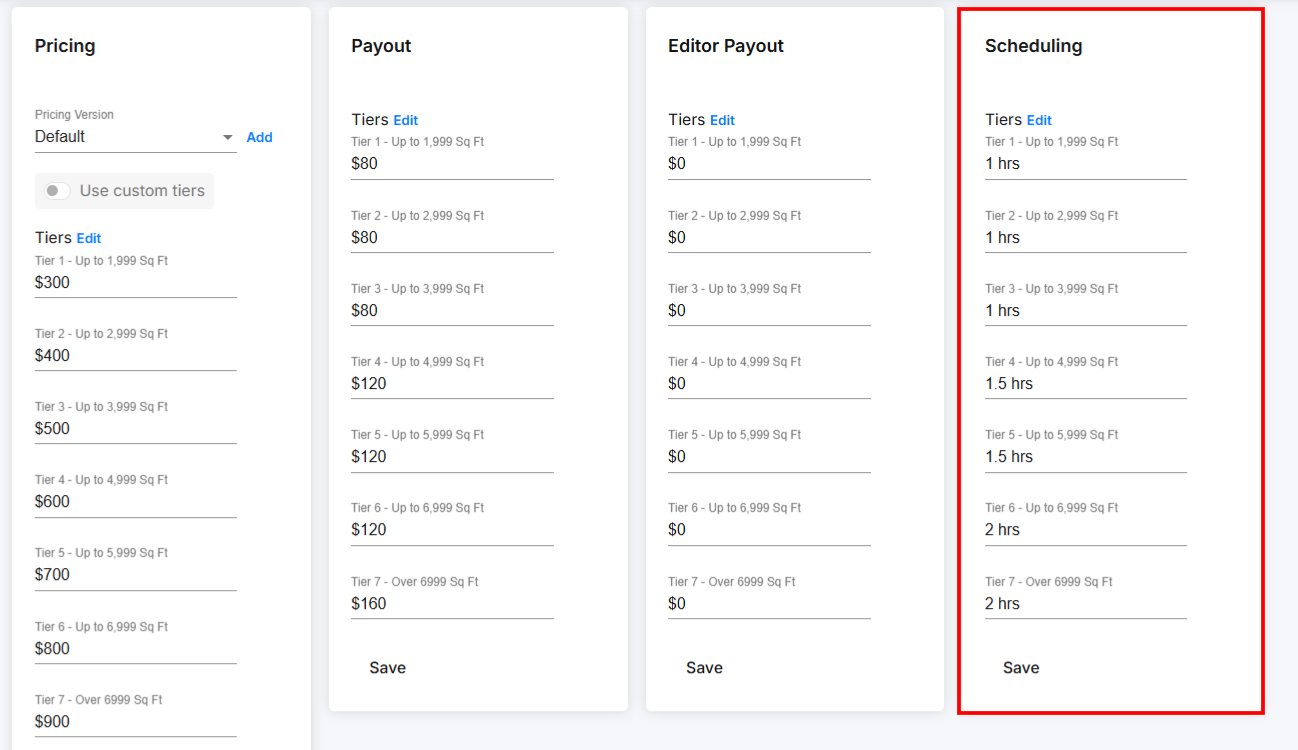
Click each Tier and enter the number of hours you estimate each tier will need. As always, you can adjust this information at a later time. Make sure to hit Save when you're done!
Contractor Payout
Tier Payout refers to how much you want to pay each employee for completing a specific Service or Package per tier. This payout will automatically appear in the Contractor Reporting section for easy tracking.
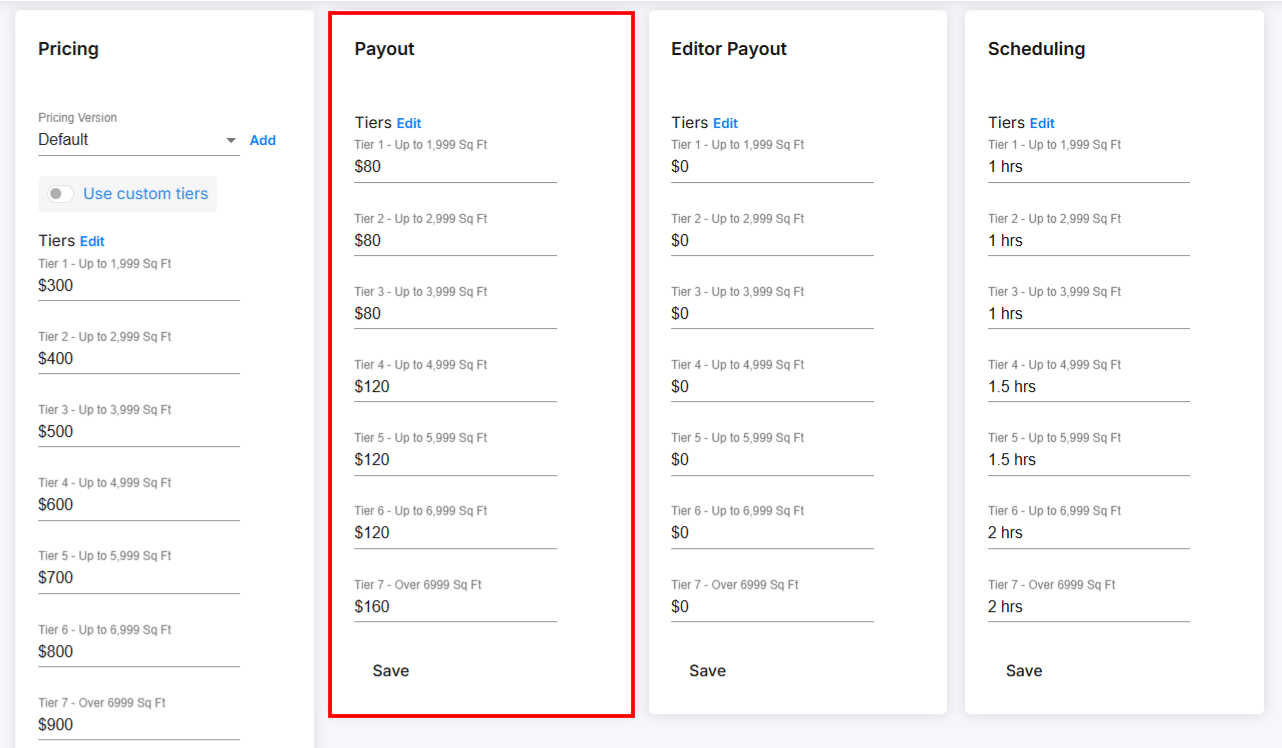
Editor Payout
Similar to the contractor payout, you can also indicate how much your editor will receive for completing a job.
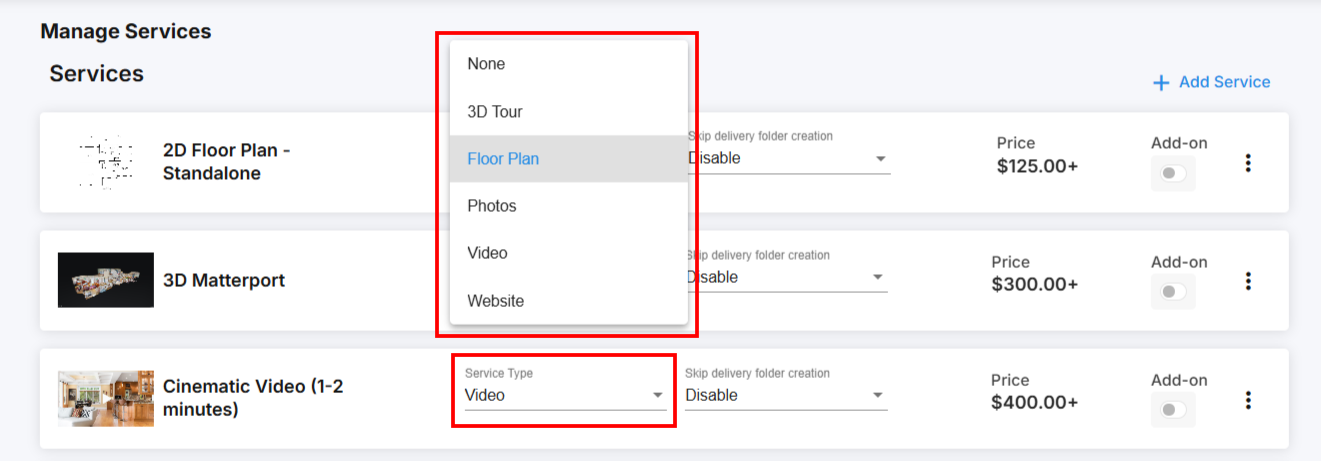
Service Type
The final step that must be done for all Services is to set the Service Type for the order. Navigate back to your list of Services and then under the Service Type dropdown, select the appropriate option. If you're missing an option you need, let us know!
This setting enables our Dropbox integration to perform properly.
Don't Create a Delivery Folder
One of Tonomo's features is creating Dropbox folders for your delivery assets. If you don't want to create a separate folder for a Service, set the Skip delivery folder creation field to Enable.

This is common for a service like Virtual Staging where you are just going to include the Virtual Staging in the standard Home Photos folder instead of delivering them separately.
Add-Ons
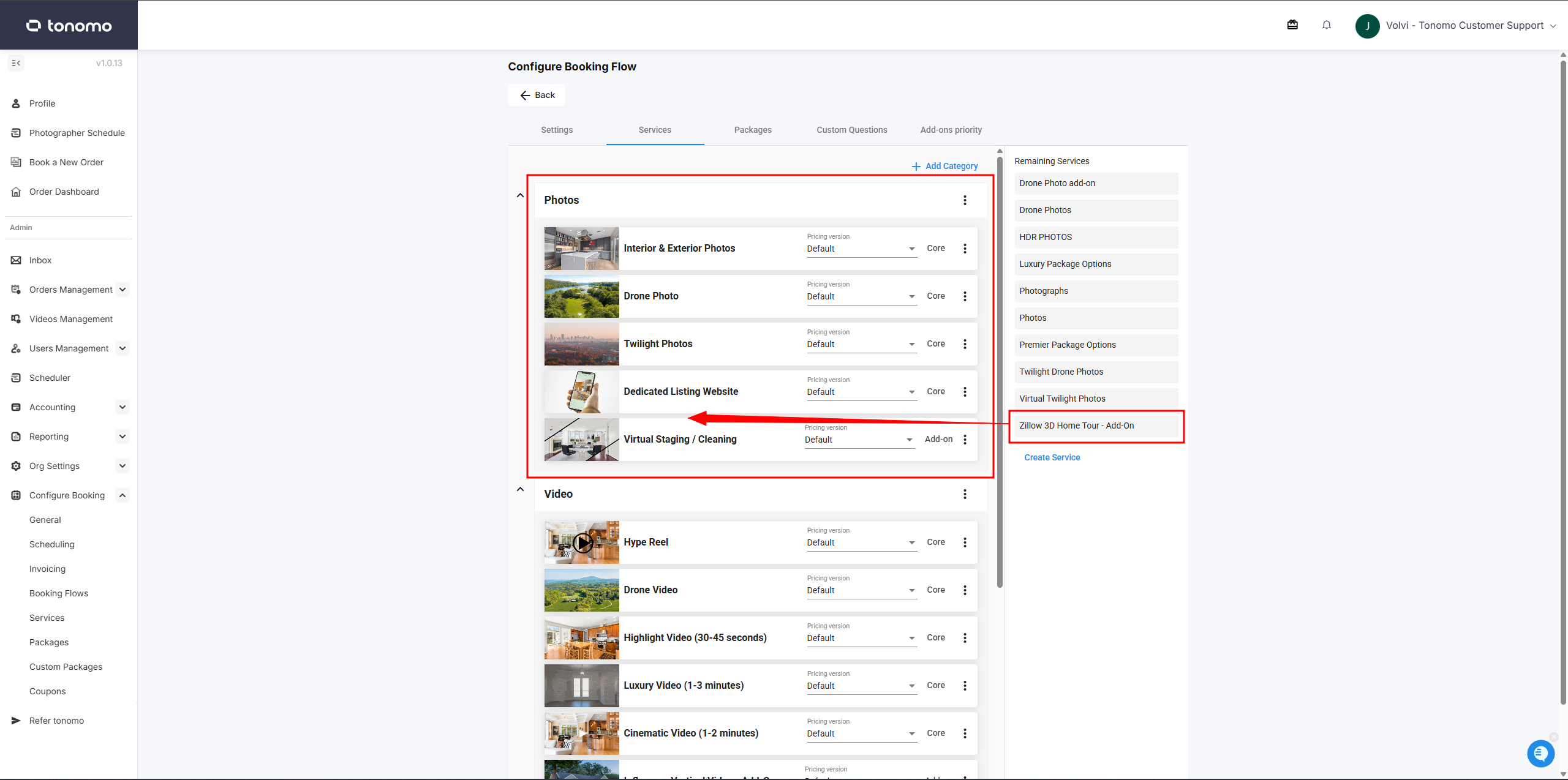
Once you've added all of your Services, configure Tonomo to know which of them are Add-Ons. Back on Configure Booking > Services on the left side of your screen, click the Addon toggle for one of your Add-Ons and then go into Edit again.
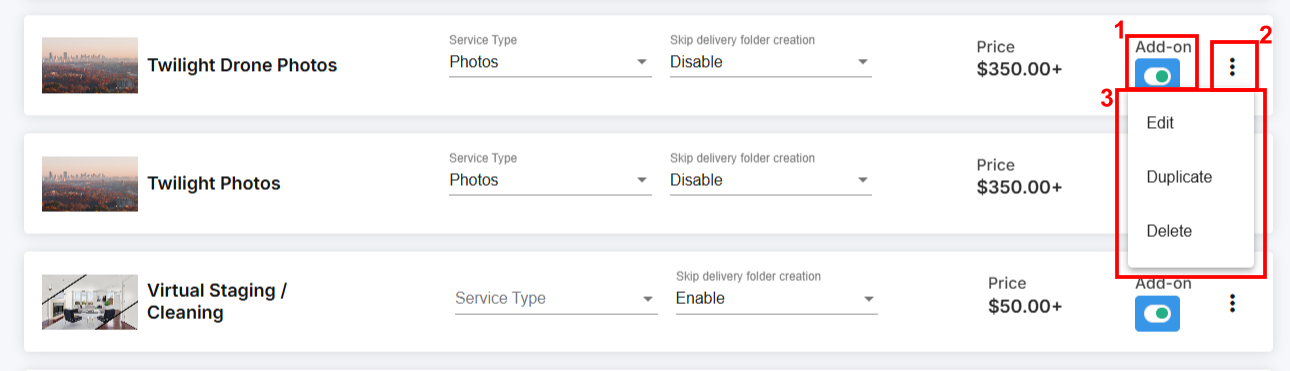
Some add-ons only make sense when paired with specific services, while others should be hidden or only shown when any core service is selected. These settings can be easily managed within Tonomo.
Add-ons Configuration
There are different configurations you can apply to your add-ons in Tonomo:
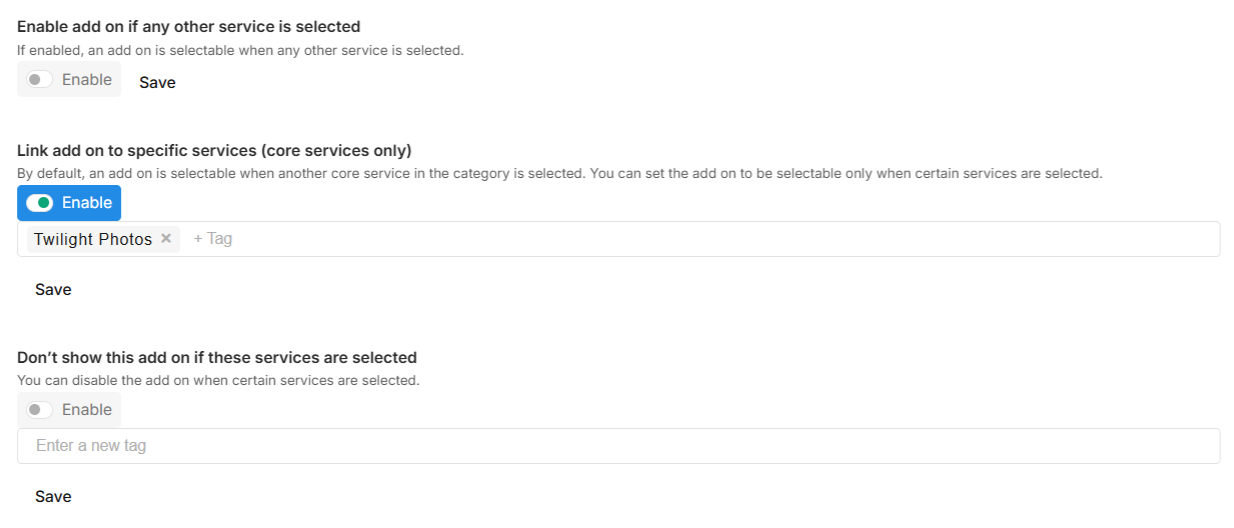
Enable Add-On if Any Other Service is Selected — When enabled, the Link Add-On to Specific Services setting will disappear, and the add-on will automatically appear whenever any core service is selected. The only exception is if the selected core service is listed under Don't Show This Add-On if These Services are Selected.
Link Add-On to Specific Services (Core Services Only) — Allows you to attach the add-on to a specific core service. For example, you may want your Drone Twilight Photos add-on to appear only when the Twilight Photo service is selected. The only exception is if the selected core service is listed under Don't Show This Add-On if These Services are Selected.
Don't Show This Add-On if These Services are Selected — When enabled, the add-on will be hidden if any of the listed core services are selected.
Additionally, add-ons can be added directly to a Category in the Booking Flow settings. This will automatically attach the add-ons to all core services within the Category.
Videos
Video Services requires one minor tweak. We handle video projects differently than photos in Tonomo because videos have a different workflow to complete the project. You'll notice that we have separate tabs for Order Management and Video Management on the left side of your screen.
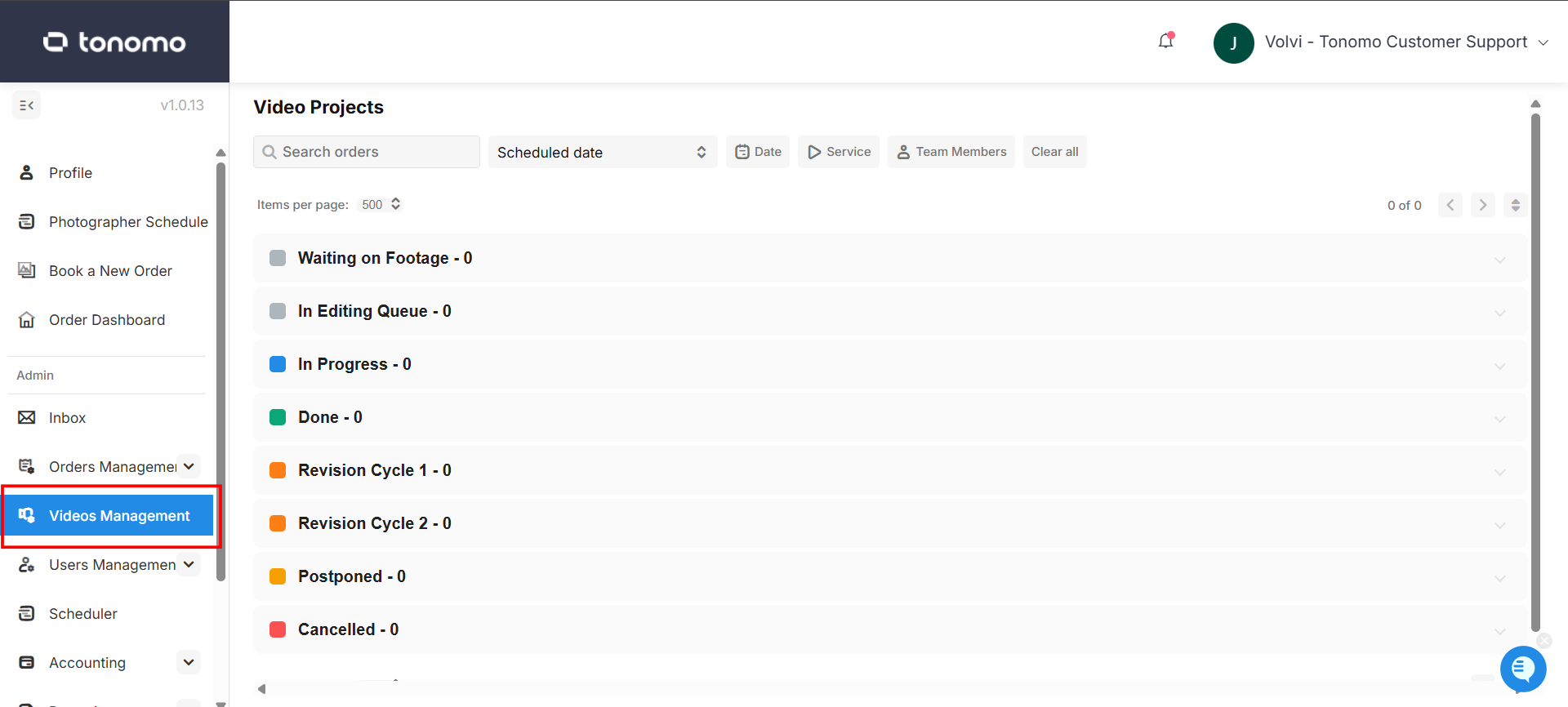
We'll get into the precise differences later, but for now, it's enough to know that we handle videos differently than all other projects. So we want to inform Tonomo which Services are video-related.

Under Configure Booking and then Services again, there is a Service Type dropdown menu. Click that dropdown and select Video just for those Services that include video work. This will route all video orders to your video editors' workflow, which is separate from the workflow your other employees will be using.
Misconfiguration Alert
You may see a red box highlighting a Service or Package, indicating some kind of alert.

This is notifying you that your Service or Package is misconfigured in some crucial way. Note: this will not alert you to ALL fields that are missing information, only those that may break booking in some way. We check for the following:
Price
Pricing Tiers
Scheduling Tiers