Team
Last updated: April 21, 2026
Overview
The Team Settings page allows you to manage team members, set their permissions, and connect a shared calendar for schedule and task synchronization across your organization.
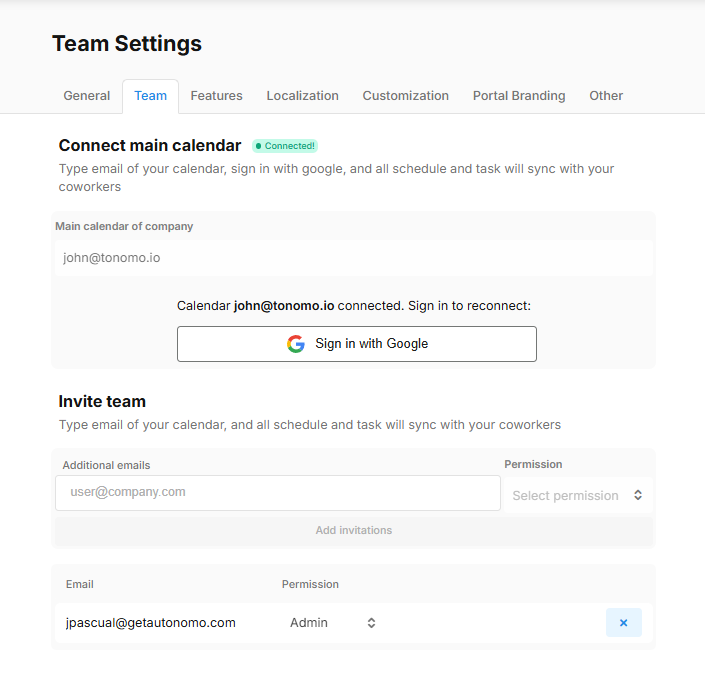
Connect Main Calendar
Main Calendar of Company
The email address of your organization's primary calendar. Type the email of your calendar, sign in with Google, and all schedule and task information will sync with your coworkers.
Connection Status: The "Connected" badge indicates that your calendar is successfully linked. If you need to reconnect, click the "Sign in with Google" button to re-authenticate.
Invite Team
Add Team Members
Invite additional team members to your organization by entering their email addresses. Each invited member can be assigned specific permissions based on their role.
Additional Emails
Enter the email address of the team member you wish to invite. You can add multiple team members by filling in additional email fields.
Permission
Select the permission level for each team member. Available permission levels determine what actions they can perform in the system. Click the "Permission" dropdown to choose the appropriate access level.
Add Invitations
Once you've entered email addresses and selected permissions, click "Add invitations" to send invitations to the specified team members.
Team Members List
The list below shows all current team members and their assigned permissions.