User Data
Last updated: June 24, 2026
After clicking User Management in the left hand corner of the portal, you will be directed to your list of Users, both Staff and Agents in the portal. From here, you can see a list of your Users as well as some simple filters:
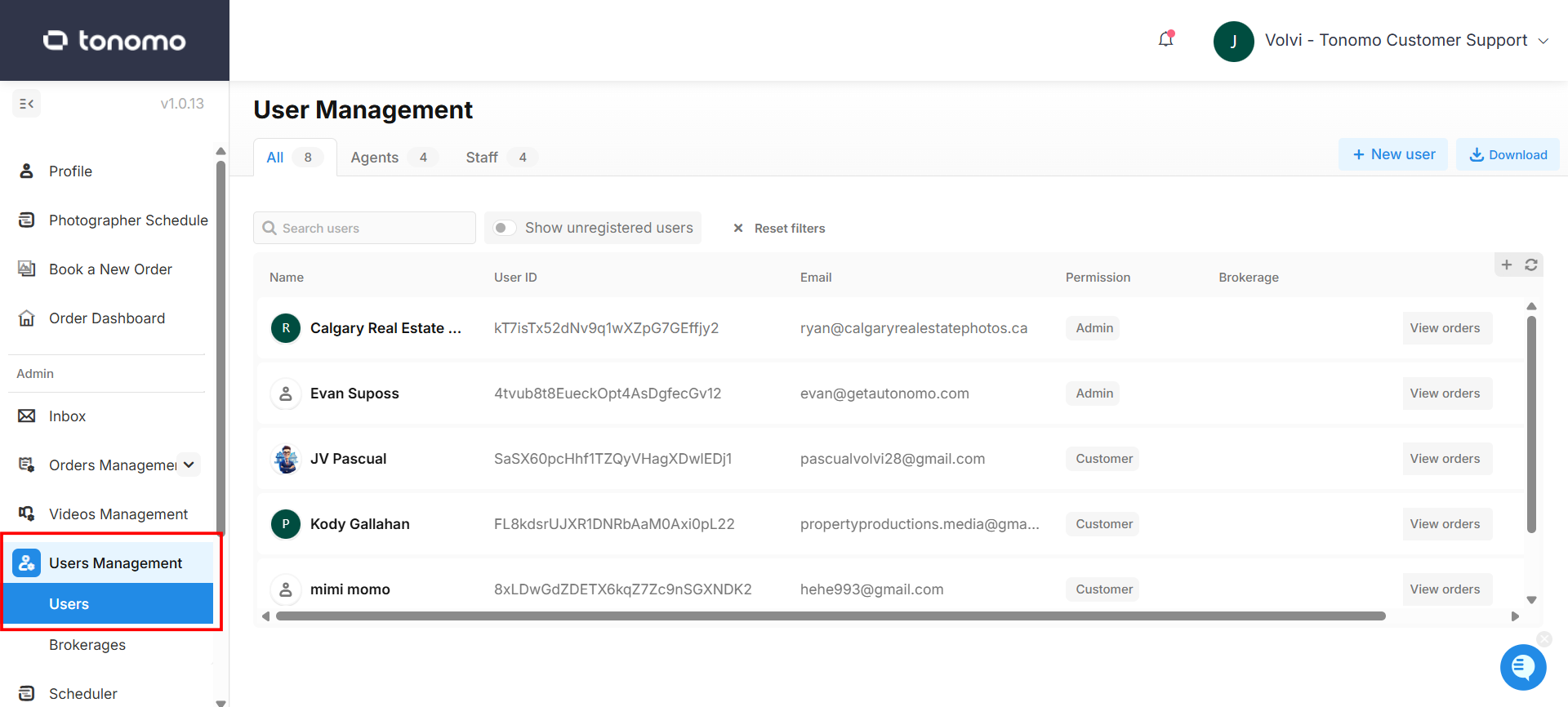
If you'd like to change what columns appear on this page, click the small + box to the right of the column headers.
First, let's look at Agent Users. After opening an Agent User, at the top of the page will be your navigation. From here you can change the profile picture, get a shortcut to their orders, and Merge account. You can also navigate to the different portions of the User's profile:

Personal Information
User Information
From here, you can edit the contact information for the user, set their Brokerage (see Brokerages Management for more information), and set their Permission level.

Team Branding Image
Replace the current team branding image by uploading a new one or, alternatively, delete the uploaded image to revert to the existing team branding image.

Additional Emails
You may also add, delete, or edit Additional emails. Any email addresses within this field will receive the same notification emails and calendar invites as the original ordering Agent. Orders will also appear on this person's dashboard should they create their own account.

Dedicated Staff Members
Dedicated Staff Members is for automatically assigning back-end staff to your customer's orders. Note: this does not assign a photographer. This is most typically used for assigning a specific Project Manager to a certain customer.

Preferred Photographers
Choose an exclusive photographer for a particular customer. Upon the customer's booking, this designated photographer will be scheduled, subject to their availability.

Preferred Method of Contact
The Preferred Method of Contact is purely for your organization. It does not change how Tonomo-generated notifications (like order confirmation and project complete emails) are sent.

Available Booking Flows
Designate the available booking flow for your customer. Even if a booking flow is marked as private, it will remain visible when checked under the customer's profile.

Billing and Payments
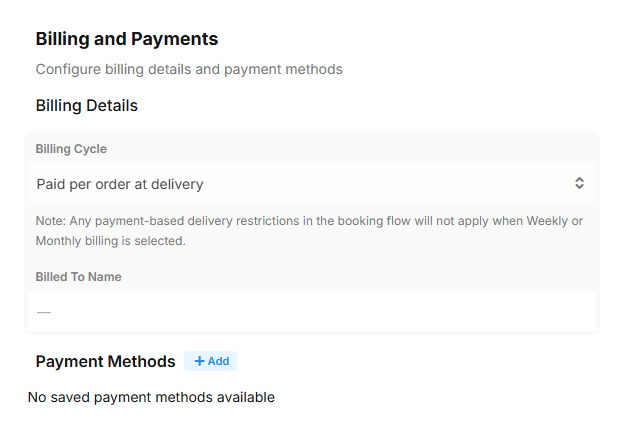
Billing Cycle
This allows admins to set a billing cycle for charging customers. When the cycle is set to either Weekly or Monthly, the delivery page removes the download restriction for clients even if the order is unpaid.
The batching invoice feature, invoice email, and reminder email for Weekly and Monthly billing cycles will automatically batch and send payment reminders to customers based on their payment terms.
Billed To Name
Input a preferred name to replace the existing profile name on the invoice. Updating the "Billed To Name" only affects future orders and will not change the invoice for existing orders.
Payment Methods
This functionality is available for any users within tonomo.
Saved Payment Methods refer to cards stored by a user that can be shared with their brokerage or admin. This also enables all members of the brokerage to utilize these saved payment methods in conjunction with their individually saved cards for order payments.

All saved cards are stored on your connected payment platform, such as Stripe or Square. If you need to remove any of the saved cards, you can delete them directly from Stripe or Square, and they will automatically be removed from Tonomo as well. To remove a card via Stripe:
Log in to your Stripe account
Locate the customer's account
Scroll down to the saved cards section
Delete the card you no longer need
Cardholder Name Display: The name shown for each saved payment method is the portal account name where the payment details were saved, not the name entered for the card or the actual card owner's name. If a card is used while logged into a specific account, it will be linked to that account and display that account's name. Since payment methods are stored on your connected payment processor (Stripe or Square) rather than in Tonomo, the portal cannot display the actual card owner's name.
Client Preferences
Client Preferences are public notes, meaning both the client and staff can see them. This is populated via a question during the booking process that the customer can fill out themselves. Alternatively, you can populate it for them with information they want to communicate on every order.

Private Notes
In addition to Client Preferences, you can set Private Notes that the customer cannot see. This would be for communication about a customer that you need to make internally, but would prefer the customer not know about.

Currently, these notes do not appear on orders. They are only visible within User Management.
Balance and Payments
Balance
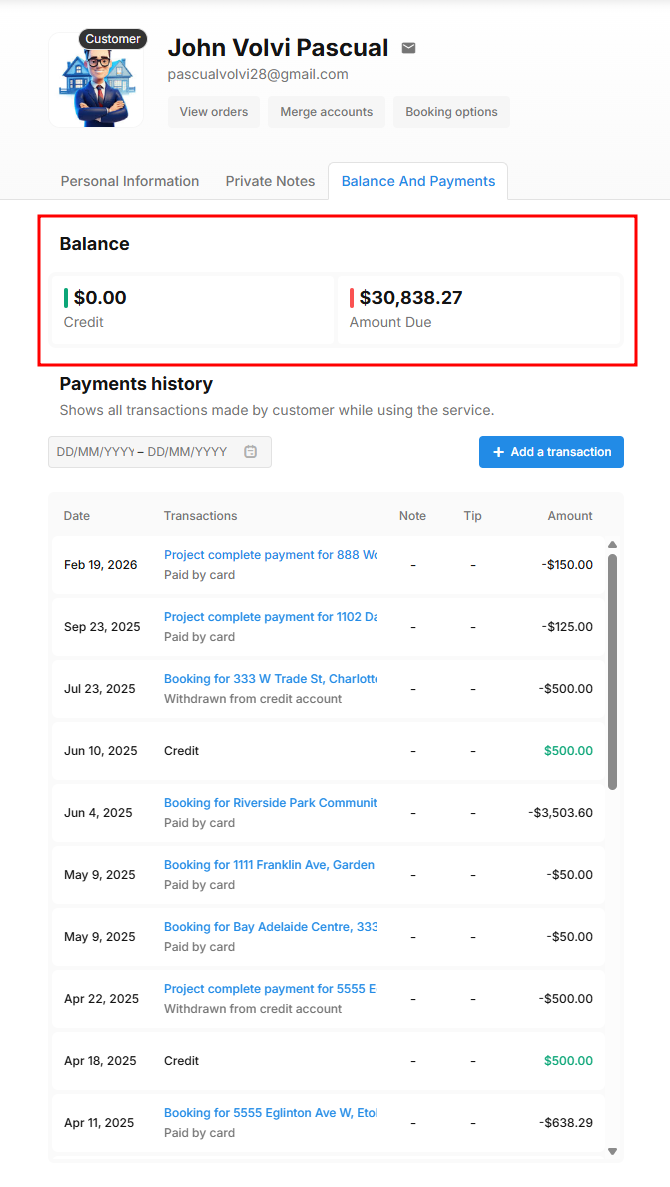
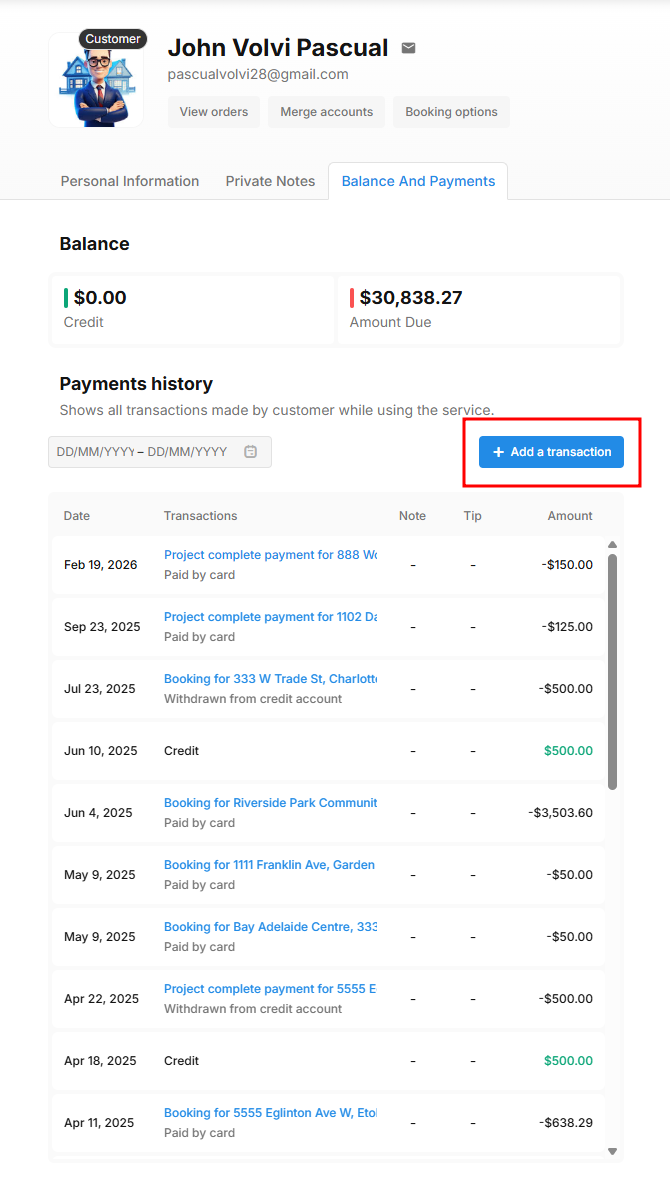
Credits & Amount Due This section is divided into two parts — Credit and Amount Due.
Credit — Displays the customer's remaining balance on the portal. Credits can be earned through a referral code or manually added by an admin, and can be applied toward existing or future orders.
Amount Due — Displays the total outstanding balance across all pending orders. This section does not provide a breakdown and only shows the total amount owed by the client.
Payments History
This section displays the payment history of the client, including payments made toward an order and any credits manually added by an admin.
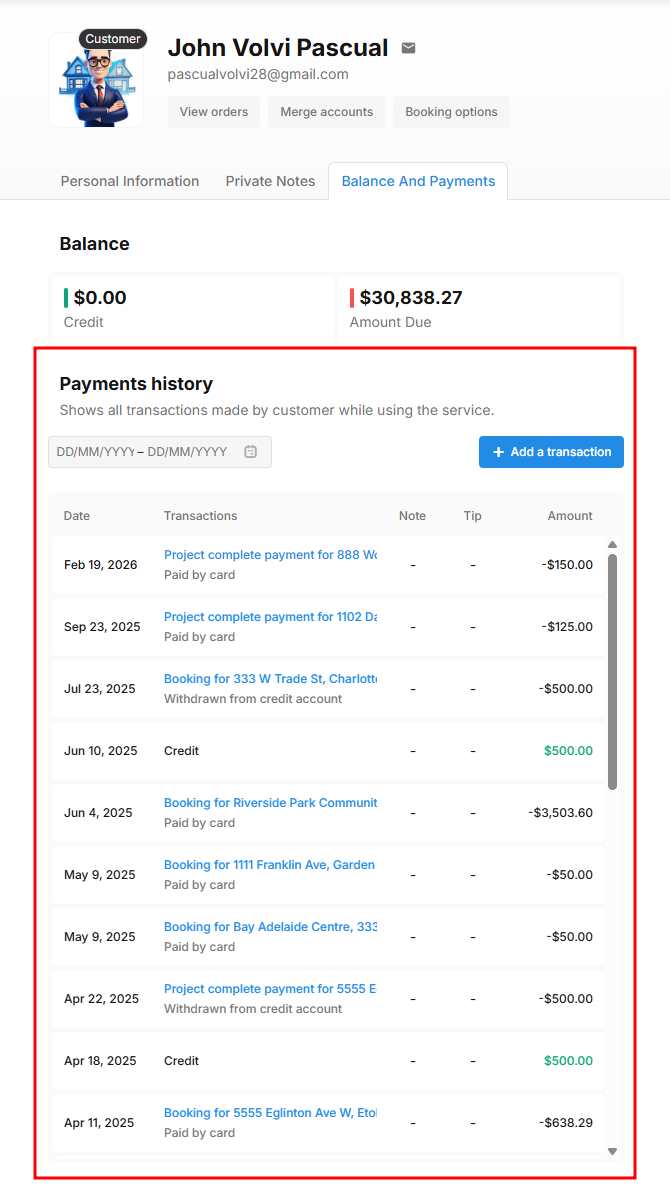
Payment history transactions will only appear in this section if the client was logged in at the time of payment.
+Add a Transaction
Add Credit / Debit This button allows admins to manually add a credit or debit to a client's profile. Please refer to our Credit and Debit documentation for more detailed information on this feature.
Password
You have the option to initiate a password reset email for your customer if required, or alternatively, you can set a new password on their behalf.

This section is only available for accounts using an email and password to sign in. If the account uses phone number or Google authentication, this section will not appear under their profile.
View Orders
This will redirect you to the Order Dashboard, providing a comprehensive view of both your past and upcoming orders.

Merge Accounts
You can merge two or more accounts for your client by clicking Merge Accounts.

Please watch this video walkthrough for more information.