Order Details
Last updated: March 11, 2026
Order Details Overview
Order Details is the section that appears on the right side of the screen whenever an admin, staff, or contractor selects an order from the list. This section serves as the central hub for managing order information, allowing anyone with staff access or higher to view, edit, and update key details. This includes the address, notes, services, scheduling, and other order-related fields, making it easy to keep order information accurate and up to date without navigating away from the current page.
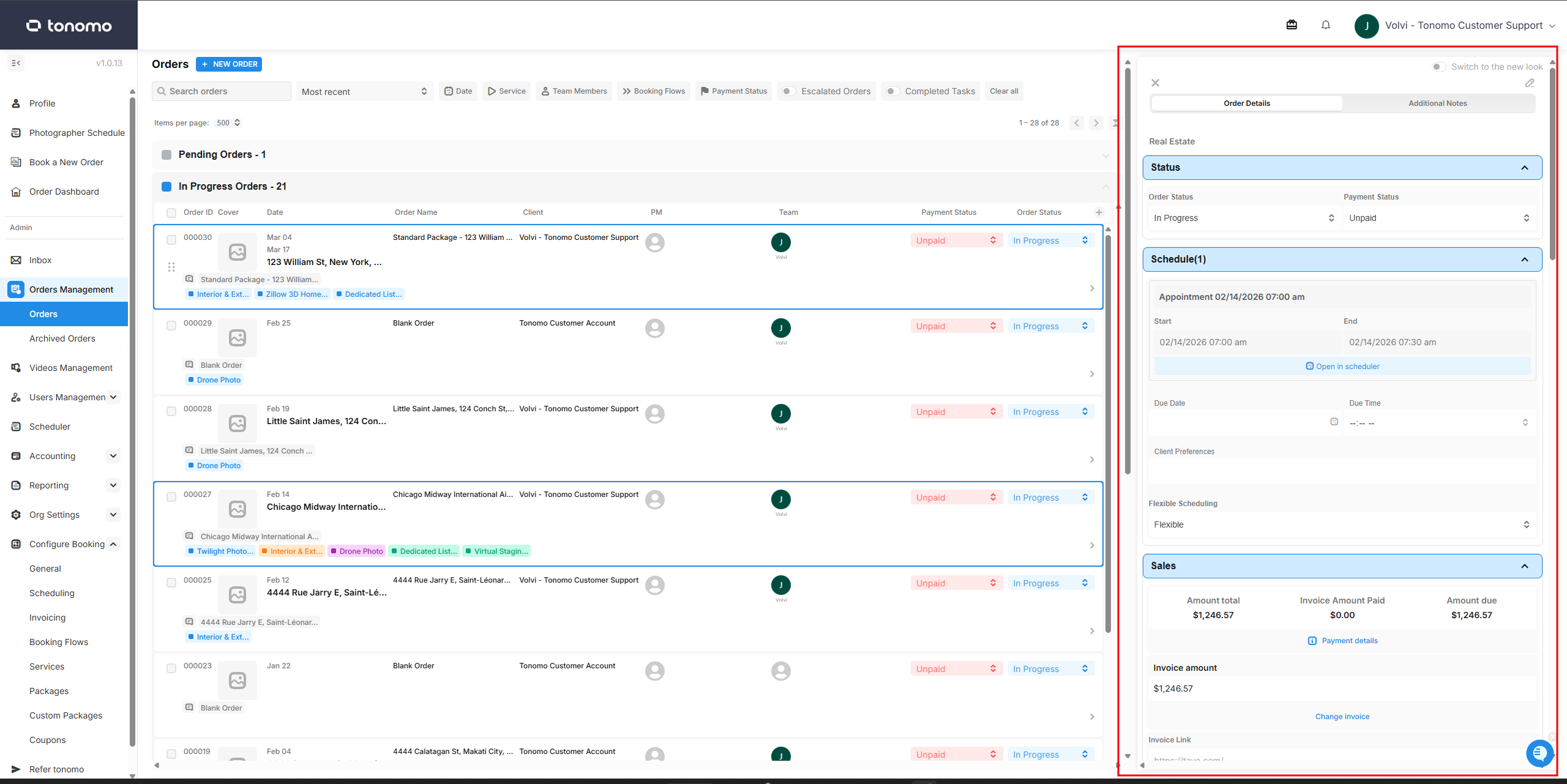
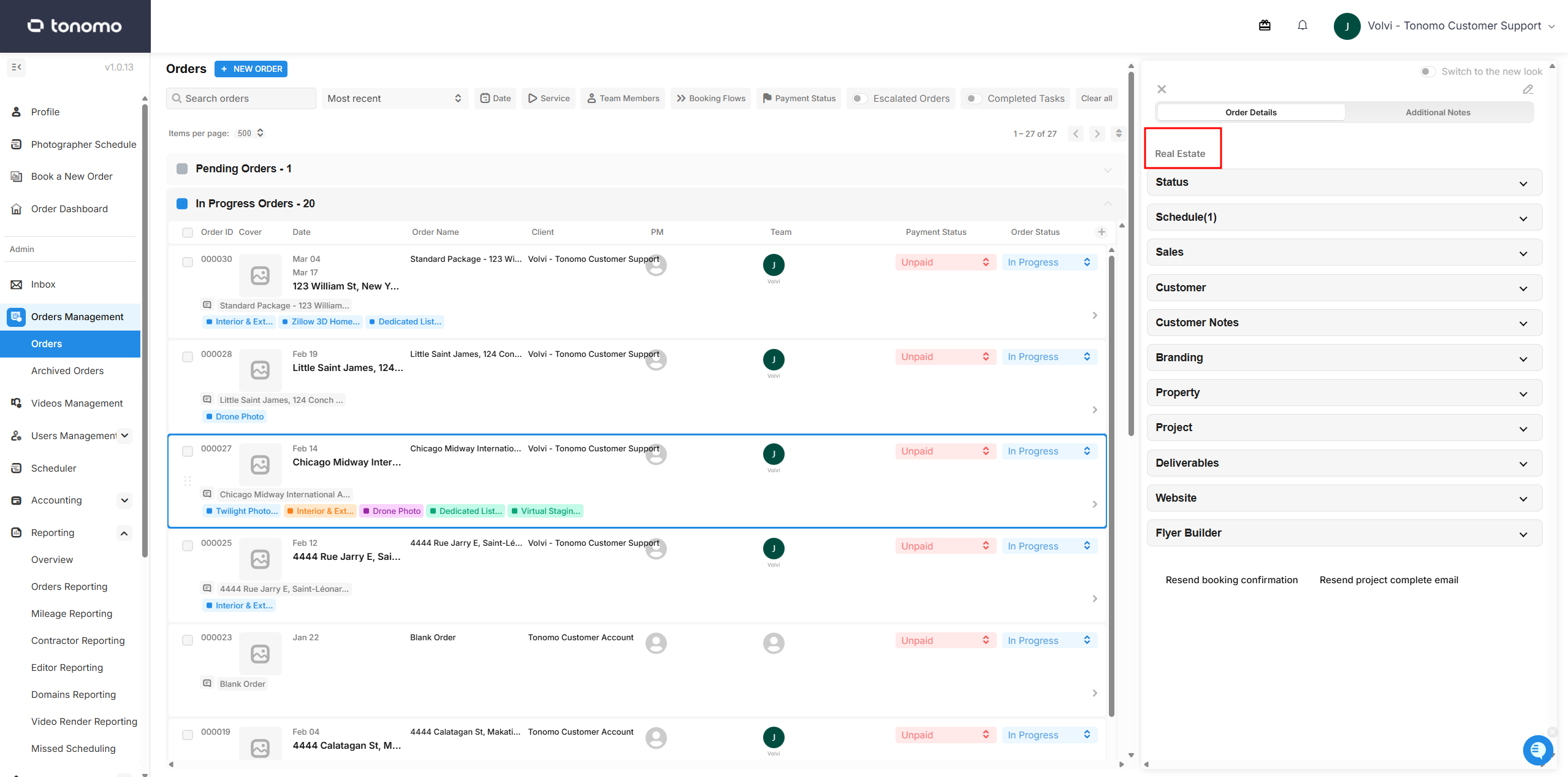
Here are the different parts of the Order Details section and what they are used for.
Booking Flow or Integration Section
This section indicates which booking flow is used for the order. Additionally, if you have an integration such as HubSpot, it will also appear here — including a direct HubSpot link for easy access.
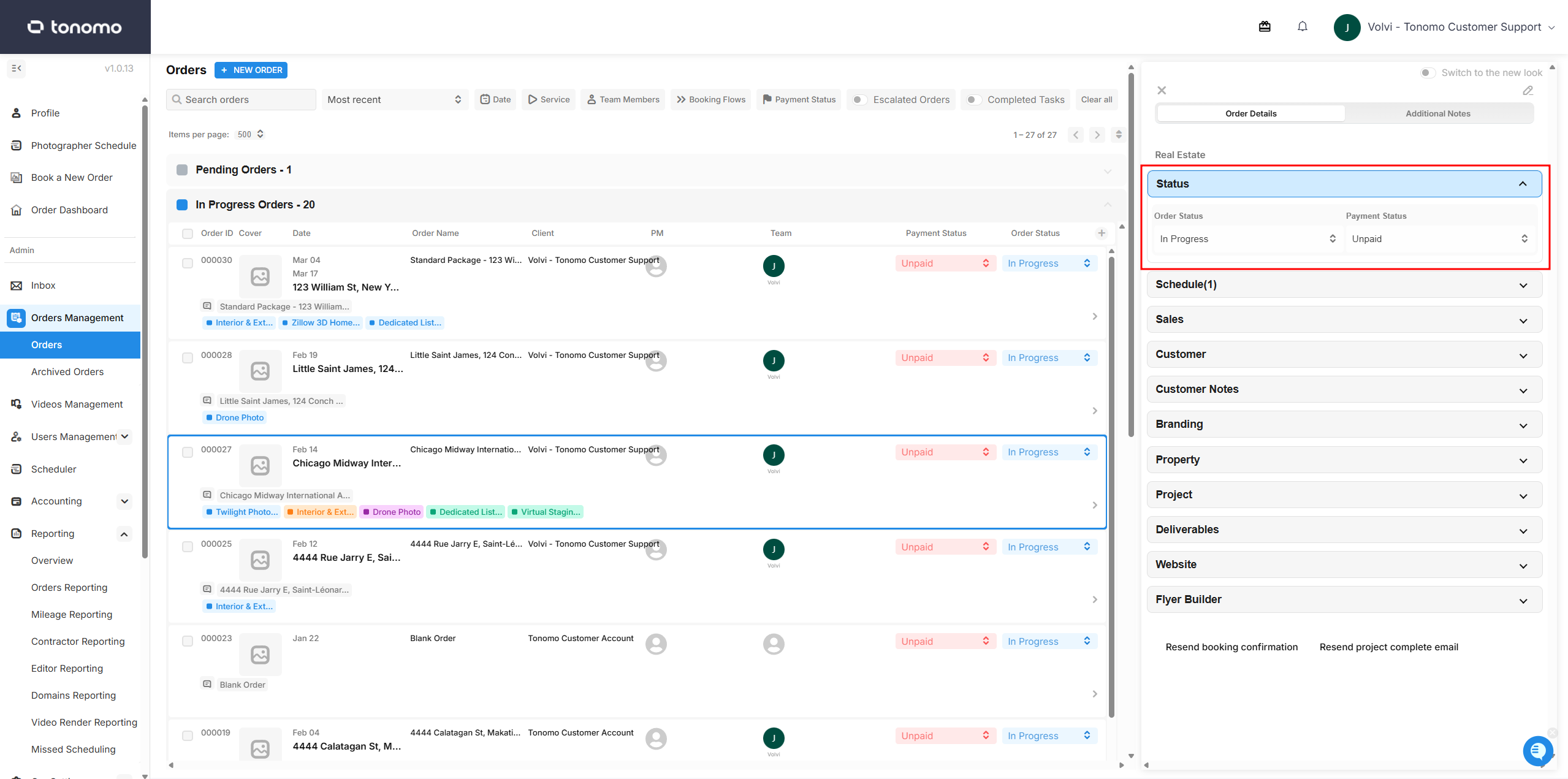
Status
This section displays the order and payment status of the order. You can change either status directly on the order or within the Order Details section. Since the Order Details section also appears in the Project Chat, this status section was added to make it easier to update the status without leaving the Project Chat view.
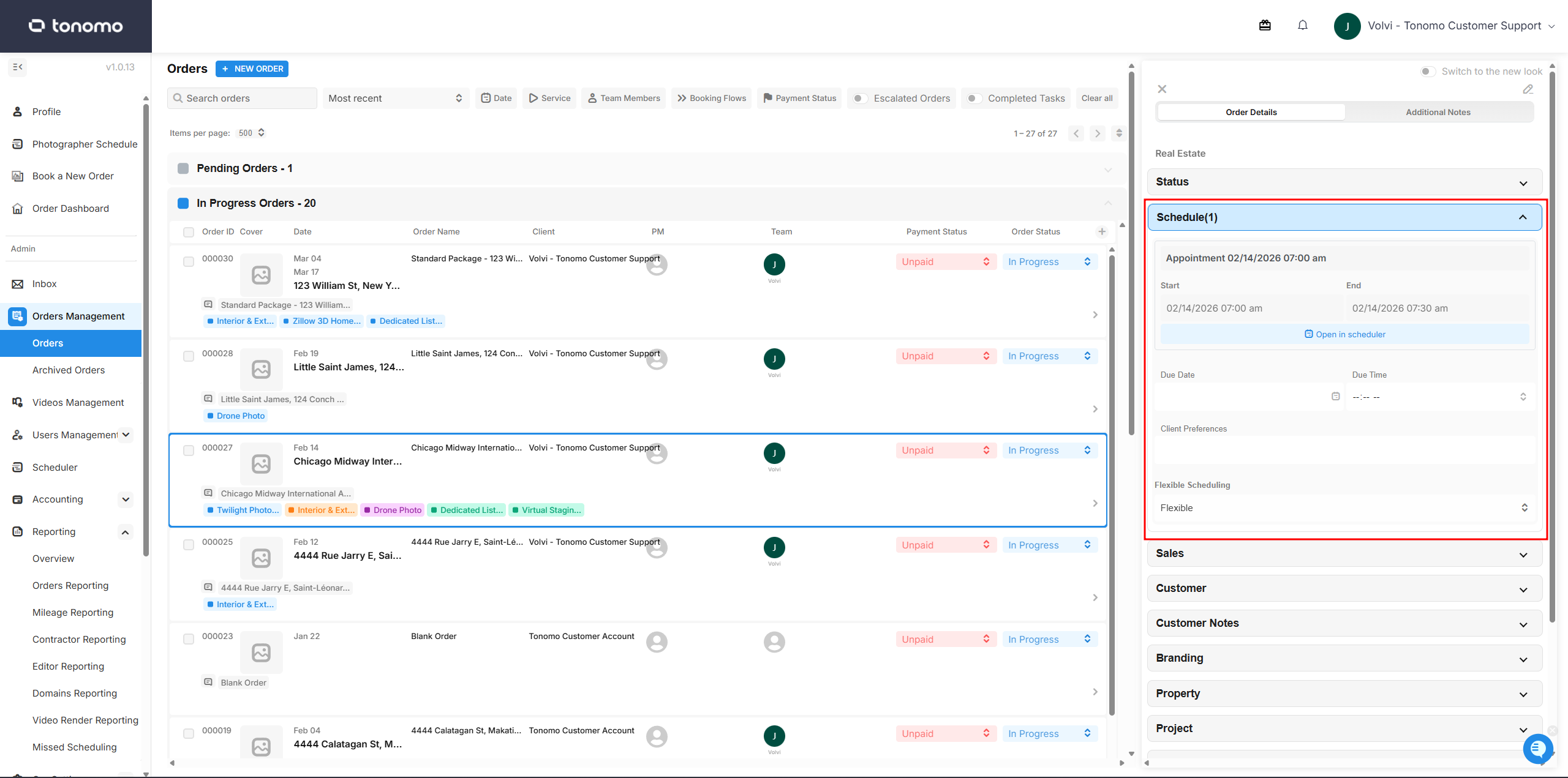
Schedule
This section displays the date and time of the appointment. A button is also available to redirect you directly to the Scheduler for quick access if you need to update the calendar event. This is also where you can set the due date and due time. Additionally, the client's scheduling flexibility and preferences answers will appear here.
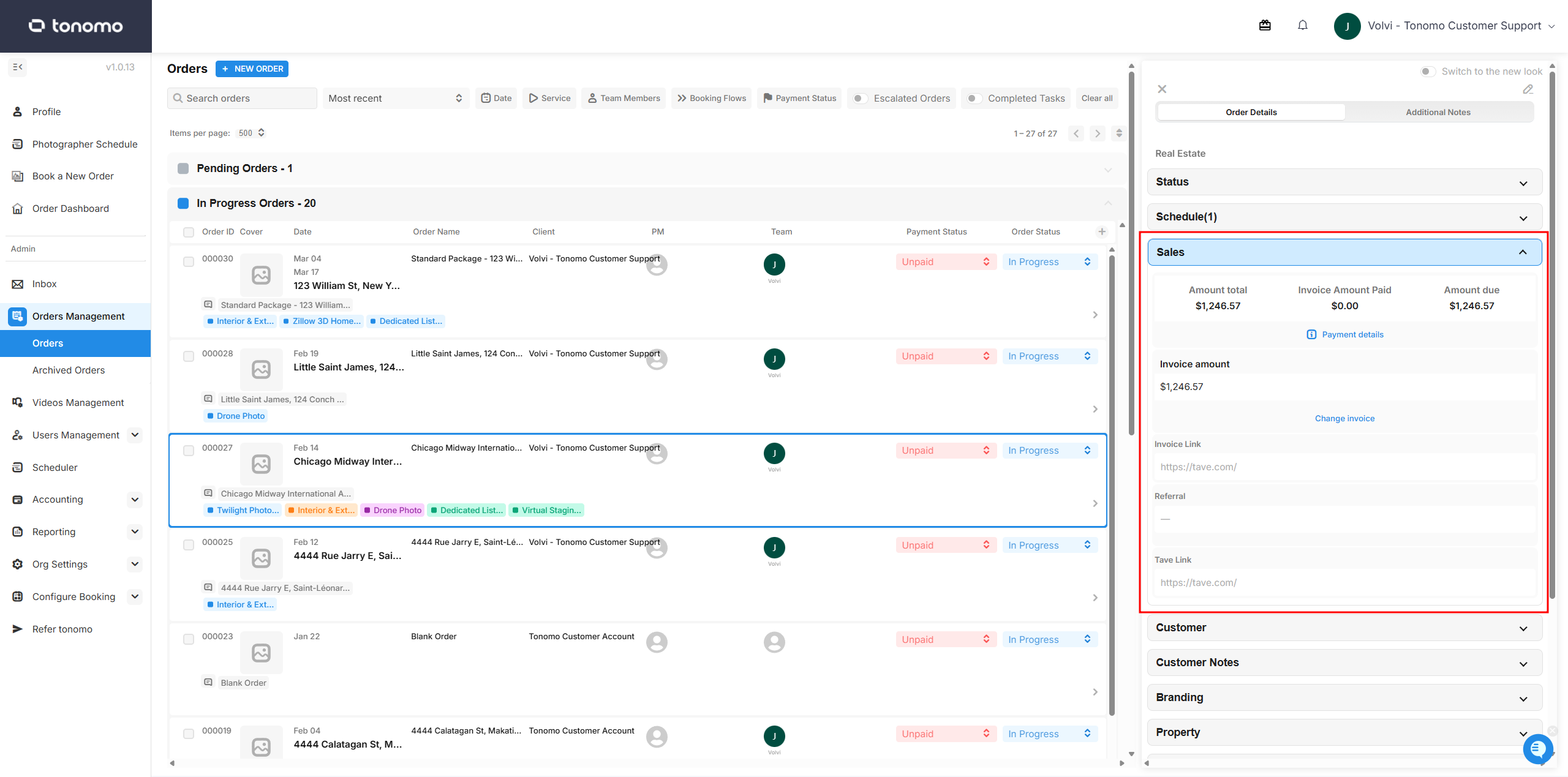
Sales
This section displays the payment details and invoice link for the order. If the client used a referral code, it will also appear here. Through the invoice link, you can quickly access the invoice to add fees, coupons, and more. Admins can also use this section to process a payment on behalf of the client or record a refund.
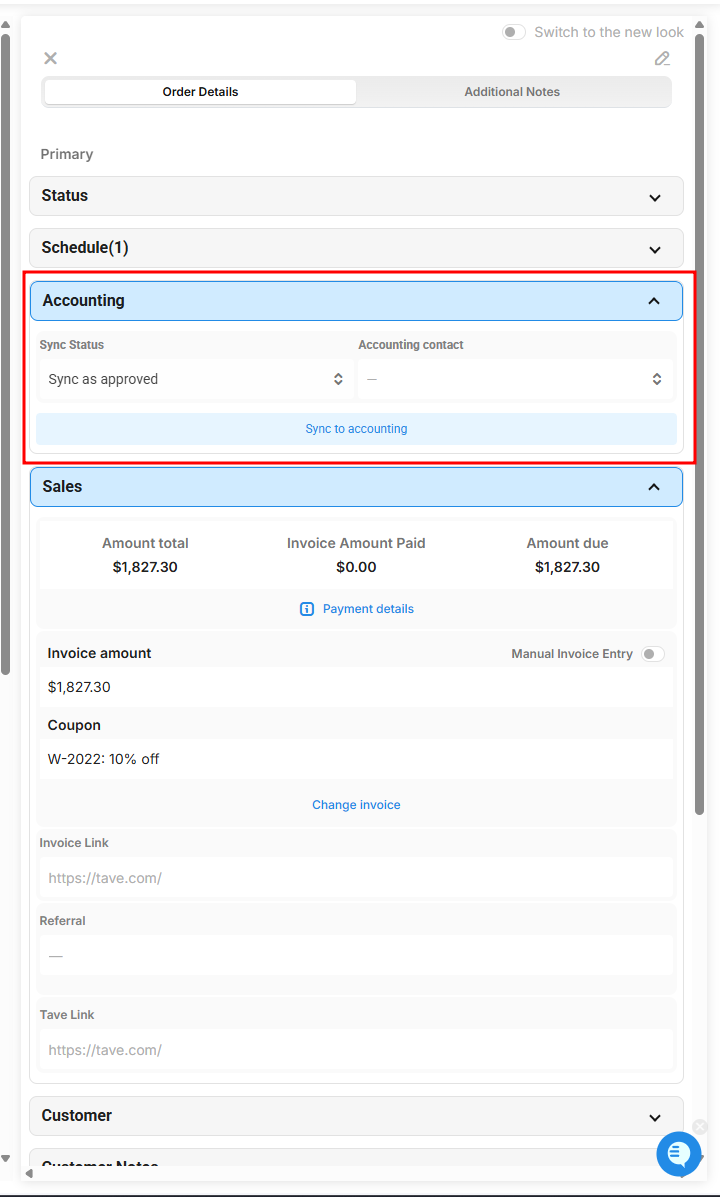
Accounting
If you have a Xero or QuickBooks integration connected to your portal, an Accounting section will appear in your Order Details. This allows you to sync the order and link it to a specific account.
Customer
This section displays the customer details for the order. You can edit the customer's information by clicking the pencil icon on the top right. In some instances, you may also need to change the customer entirely, which can be done here by following these steps:
Search for the customer's name and select it.
Click the Apply button to confirm — the customer will update automatically.
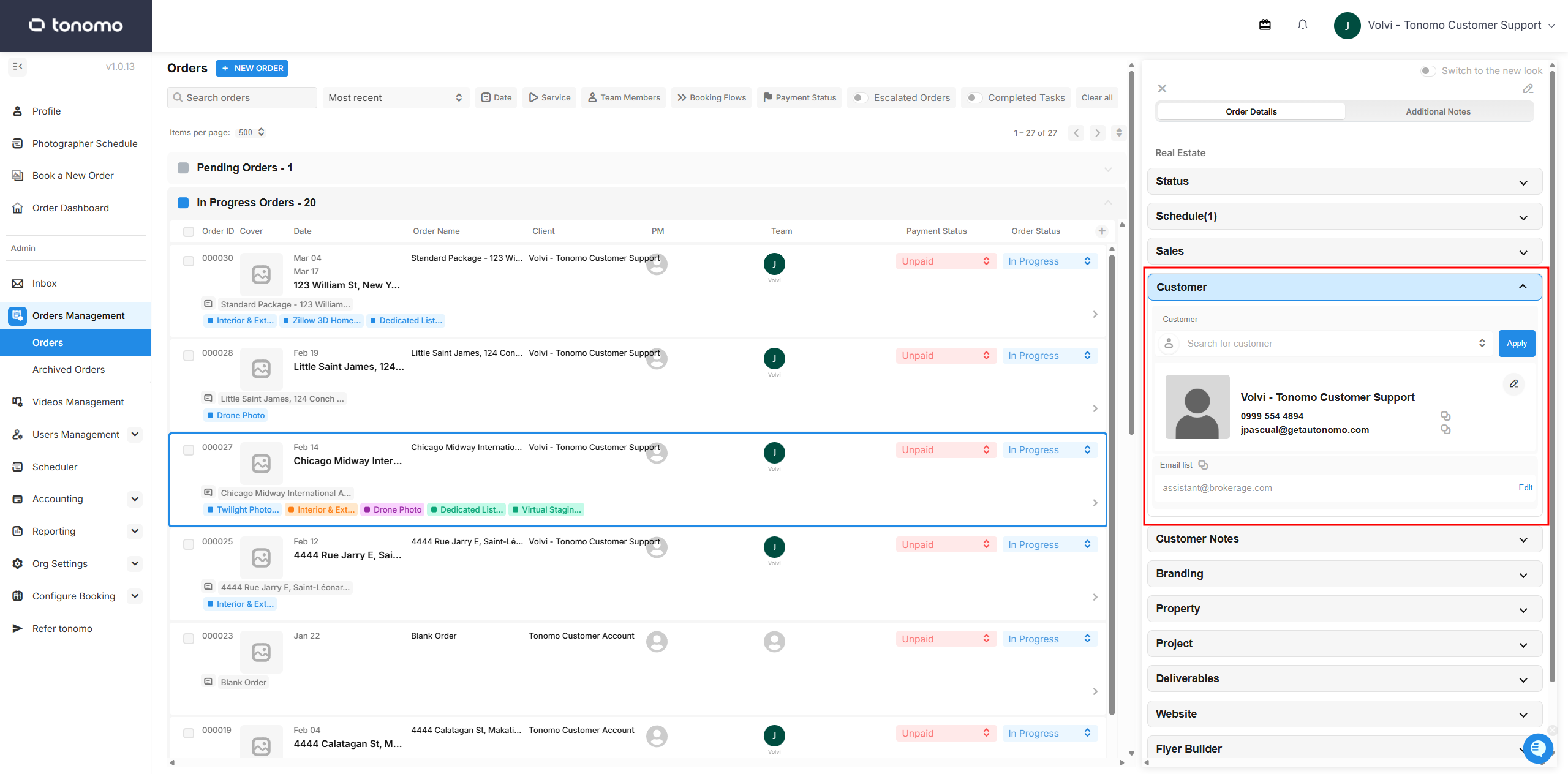
If you change the customer and have the listing website enabled, you will also need to manually update the customer under the Listing Agent section of the website admin panel.
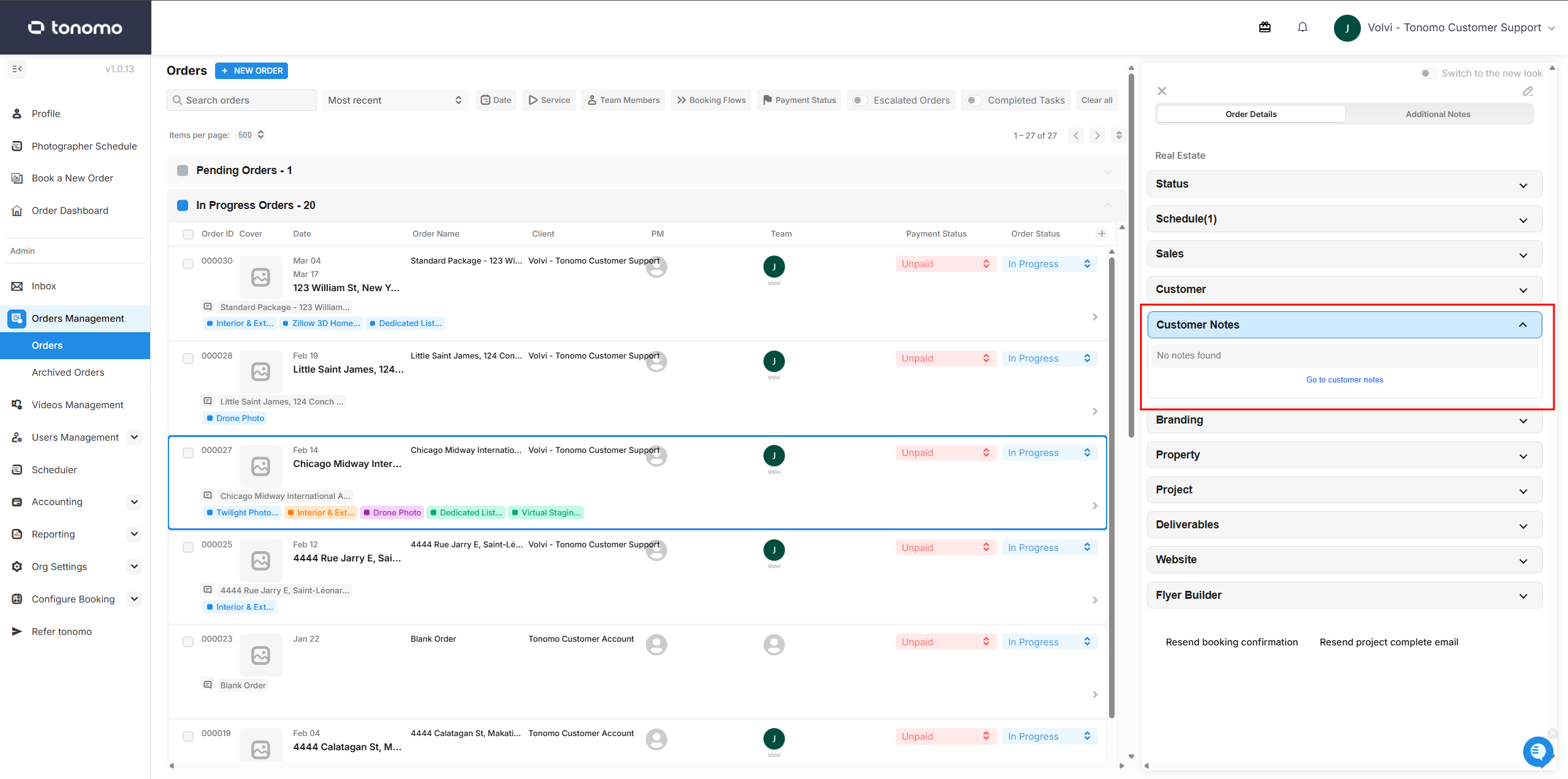
Customer Notes
This is a private notes section that only admins have access to. By clicking the Go to Customer Notes button, you will be redirected to the client's profile private notes. This is mainly used when you have a general note for a specific client that you want your admins to follow for all of their orders.
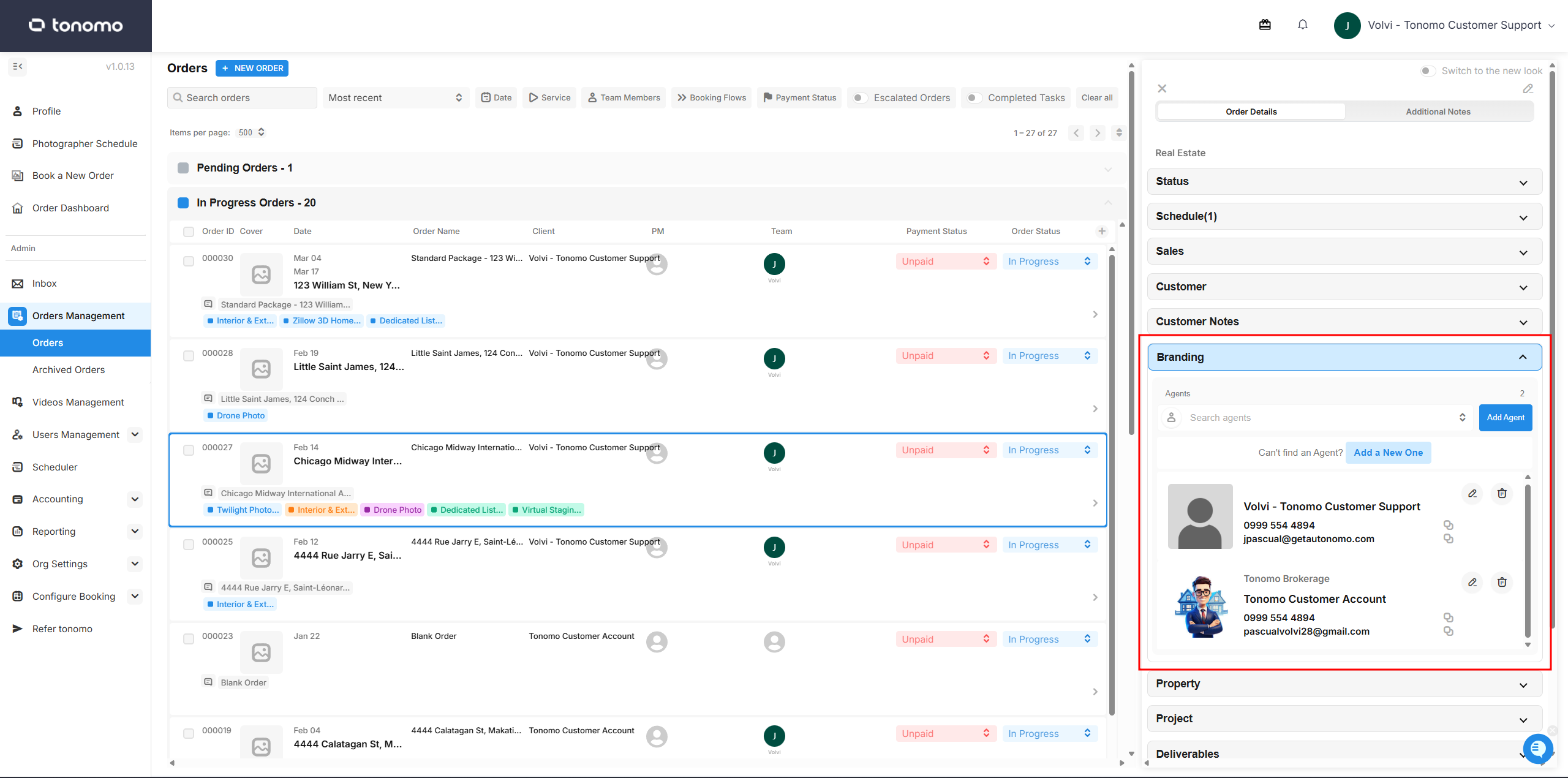
Branding
This section is used to add additional agents to the Branding section of the delivery page and listing website. This is especially useful when a client is co-listing an order with another agent. You can add or remove agents in this section, as well as edit their profile information.
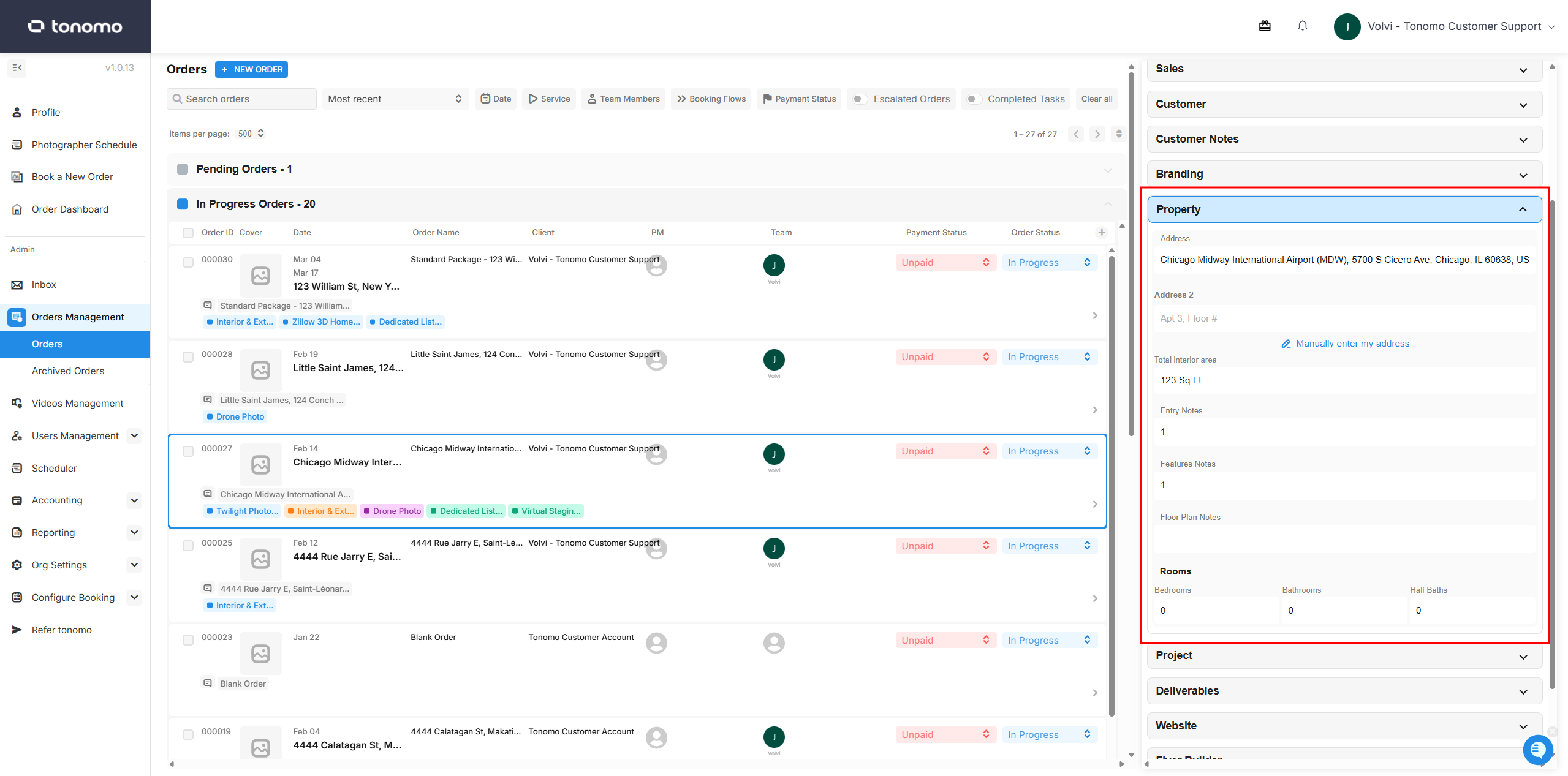
Property
This section is where the address, total interior area, notes, and rooms can be found. These details can be edited by an admin even after the order has been placed.
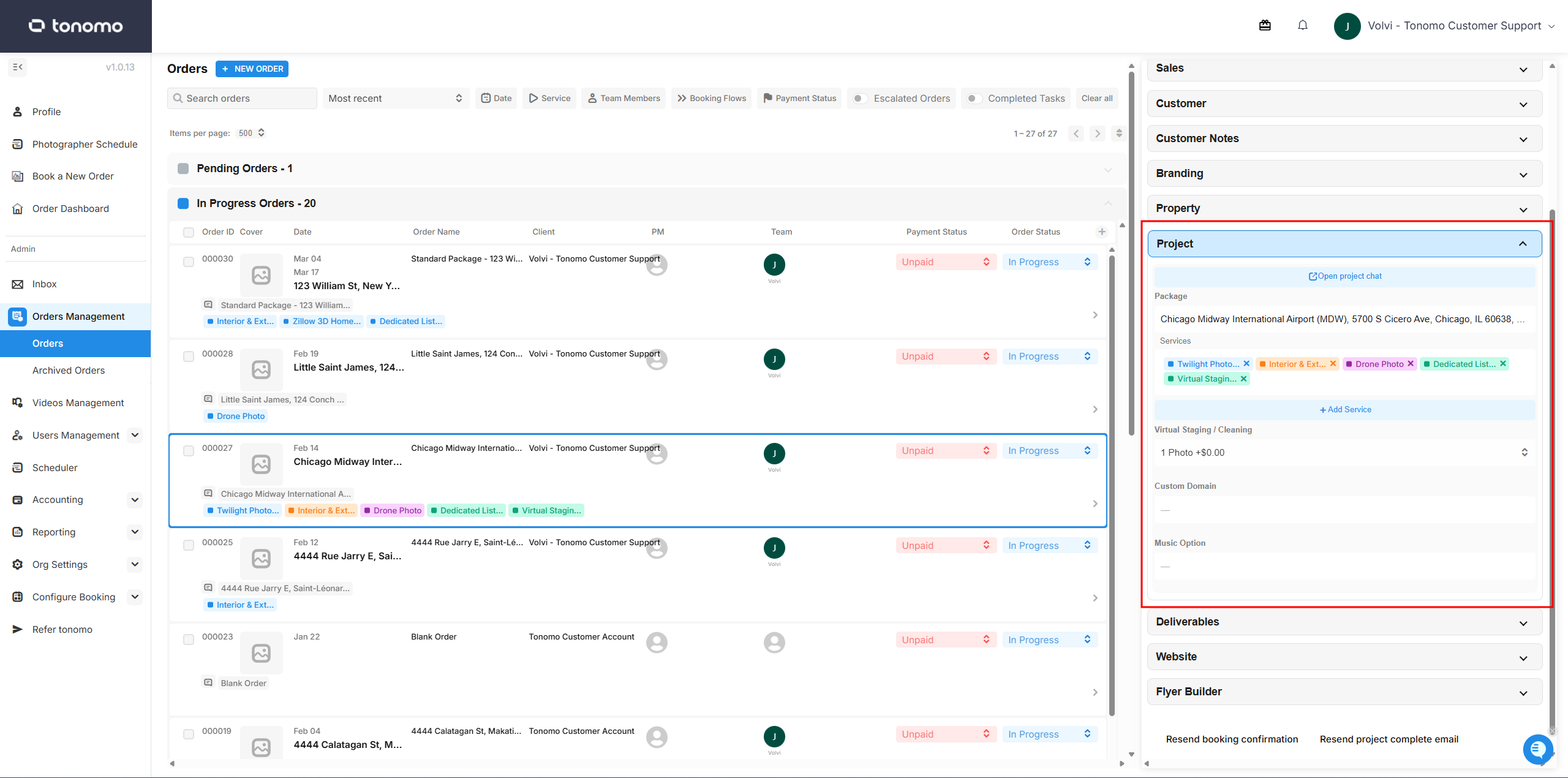
Project
This section allows admins to view/edit the package name or order name, add services or packages, and review customer answers for custom domain and music options. Admins can also update the service or package for the order by clicking the +Add Service button.
Deliverables
This section is where the raw and final Dropbox folder links are located. Admins and staff use this section to manage the files that will be delivered to the client. Raw folders are where unedited files are uploaded to be handed off to editors. Final Dropbox folders are where the finished or edited files — such as photos, videos, and more — are uploaded. Once those files are uploaded, an admin can sync them and Tonomo will automatically generate a delivery page.

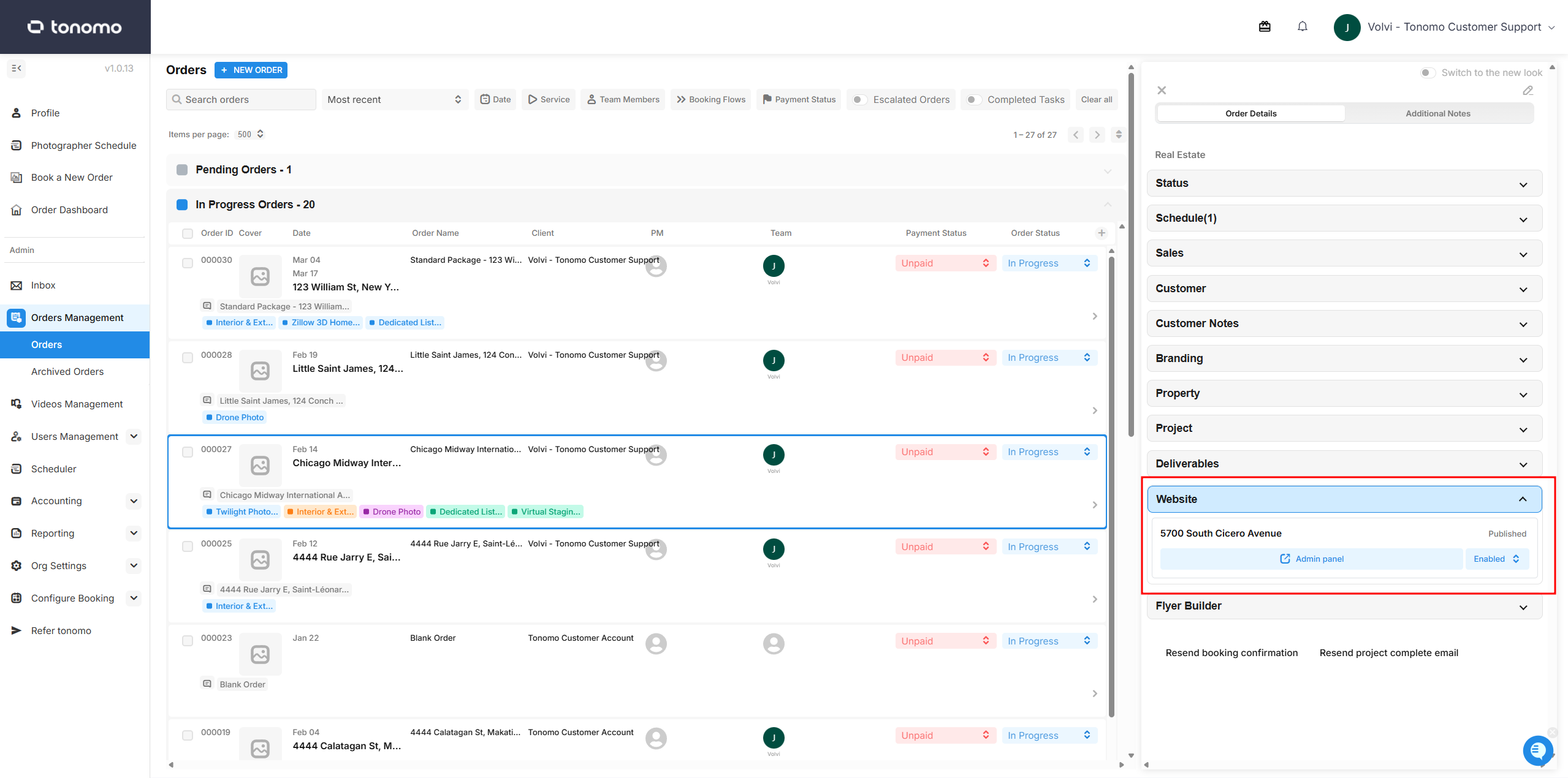
Website
When enabled, Tonomo will automatically create a listing website for the order. Deliverables such as photos, videos, and more will also be synced automatically.
Flyer Builder
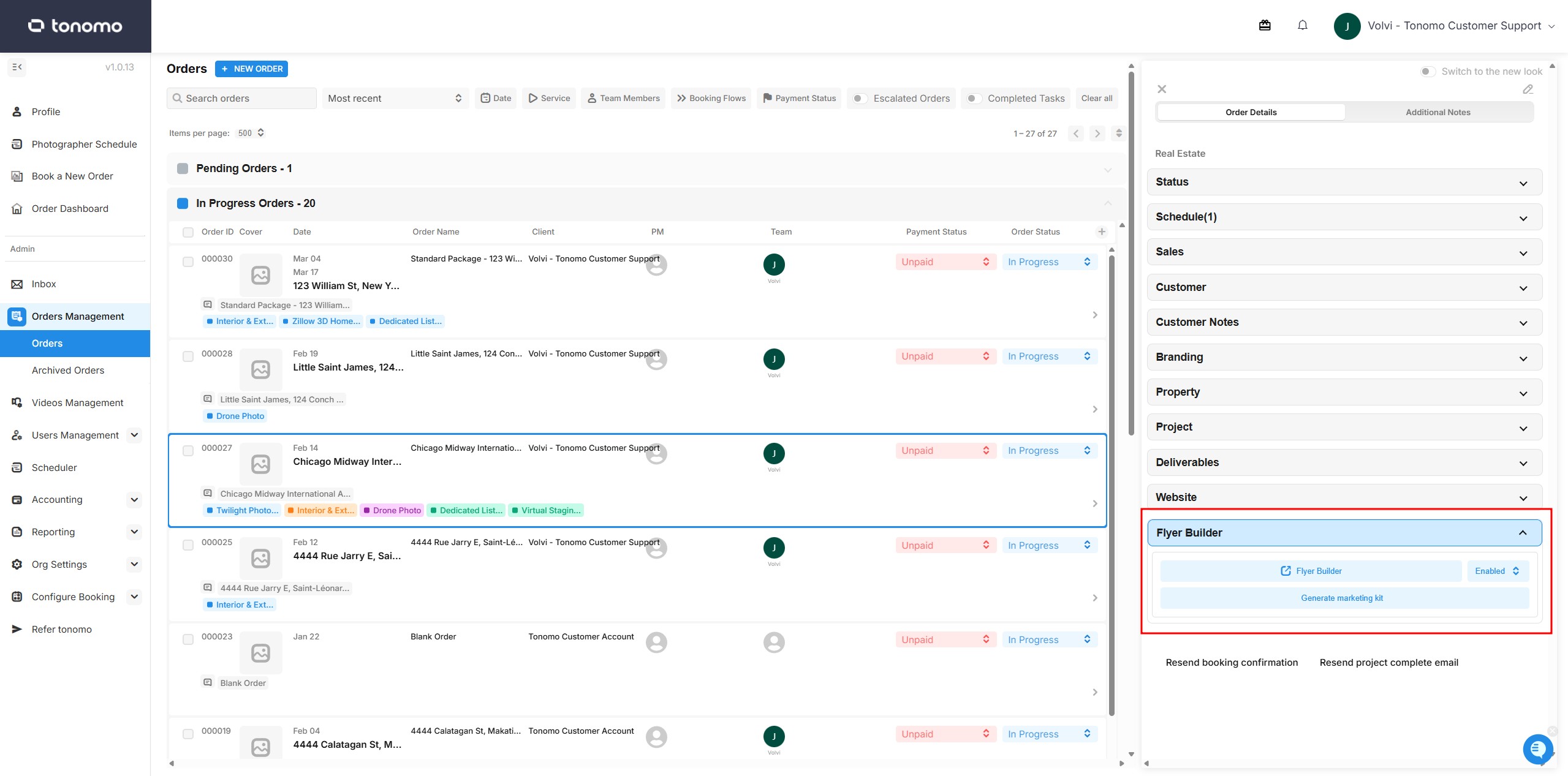
This section is where admins can find the marketing kits and flyers for the order. Admins can generate marketing kits by clicking the Generate Marketing Kit button, or edit individual flyers using the Flyer Builder button.
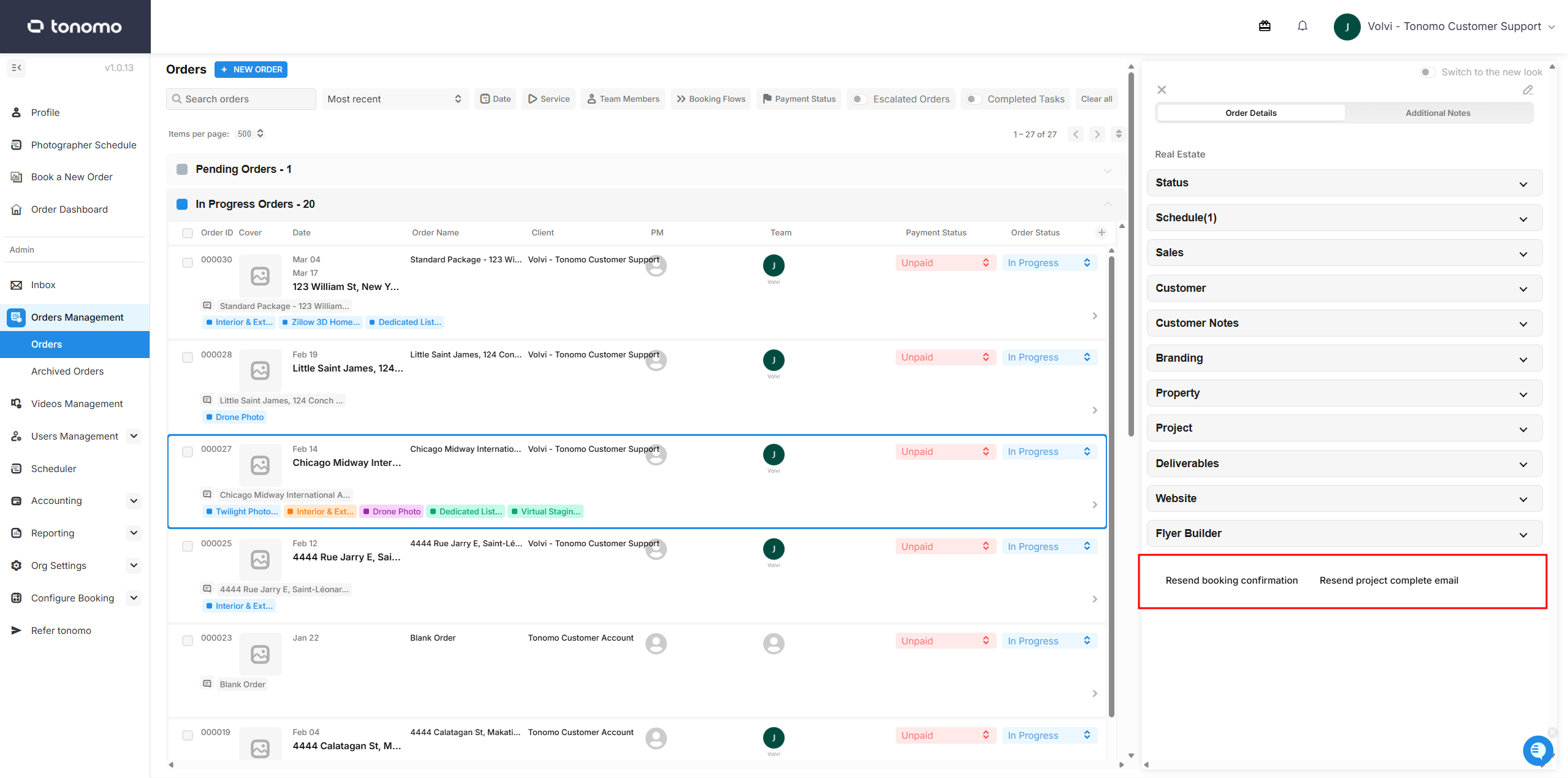
Email Actions
At the bottom of the Order Details section are buttons to resend the Booking Confirmation or Project Complete email templates. Once clicked, the system will automatically resend the corresponding email based on the button selected.